Losing progress in your favorite game can be a devastating experience. Whether you’ve spent hours unlocking achievements or crafting detailed worlds, accidentally deleting or corrupting save files can leave you feeling defeated. This article explores proven methods to recover lost game saves on PC, highlighting key strategies, best practices, and specialized recovery tools that can help you regain your hard-earned progress.
Causes of Lost Game Saves on PC
Understanding the root causes of missing or corrupted save files is the first step toward effective recovery. Several factors can lead to lost data:
- Unintentional deletion: Accidentally hitting the wrong key combination or using cleanup utilities can result in erased save files.
- File corruption: Sudden power outages, system crashes, or improper shutdowns may corrupt save files, rendering them unreadable.
- Software conflicts: Antivirus programs or third-party utilities might quarantine or delete save files they falsely flag as threats.
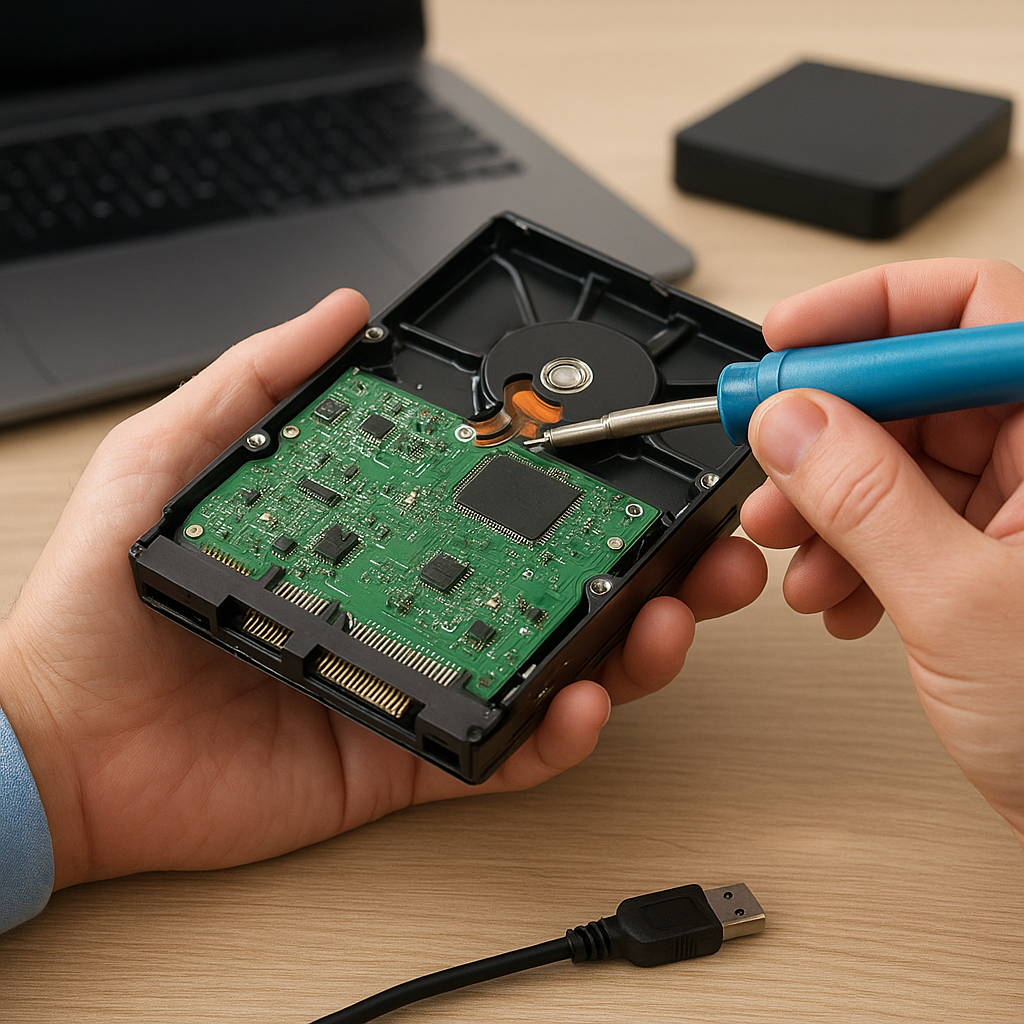
- Disk failures: Physical damage to storage media or developing bad sectors can lead to lost areas of the filesystem where save files reside.
- Cloud sync errors: Misconfigured synchronization settings in services like Steam Cloud or OneDrive could overwrite or delete local save data.
Common Symptoms of Missing Saves
- Error messages indicating “file not found” or “cannot load game data.”
- Empty save game slots appearing where progress used to be stored.
- Unexpected game crashes at specific points in the storyline.
- Save files showing zero bytes or having unusual filenames and extensions.
Preventive Best Practices
While recovery tools can be powerful, the best defense against data loss is prevention. Implementing a few simple habits can save you from future headaches:
- Create regular backups. Use scripts or scheduled tasks to copy save folders to a separate drive or cloud service.
- Enable built-in cloud sync features, and verify that the cloud storage status is up-to-date before launching a gaming session.
- Maintain proper system configuration by disabling aggressive cleanup utilities during gaming sessions.
- Monitor disk health with S.M.A.R.T. tools and replace drives that show signs of imminent failure.
- Keep your operating system and game software updated to reduce compatibility issues and corruption risks.
Choosing the Right Backup Method
There are two primary backup approaches:
- Local backups: Storing copies on an external HDD or SSD provides quick access and fast restore times, but those backups are still at risk in case of physical damage or theft.
- Cloud backups: Services like Dropbox, Google Drive, or proprietary game-cloud solutions offer off-site safety and version history, though they may be limited by internet speed and storage quotas.
Using Specialized Recovery Software
When preventative measures fail, file recovery tools can step in to retrieve deleted or corrupted save files. The most effective utilities share several key capabilities:
- Deep scanning to locate orphaned file fragments and reconstruct them.
- Support for common game save directories and file formats (e.g., .sav, .cfg, .dat).
- Preview functions that let you verify retrieved data before committing to recovery.
- Options for recovering to alternate locations to avoid overwriting existing data.
Top Recovery Software Options
Here are some popular tools known for dependable results:
- Recuva – A beginner-friendly utility that offers both quick and deep scan modes, supports multiple file types, and can recover files from both HDD and SSD.
- R-Studio – A professional-grade solution with advanced RAID reconstruction and HEX-level file editing for recovering severely damaged save data.
- Disk Drill – Provides an intuitive interface, robust scanning algorithms, and features like “Recovery Vault” that protect important save folders in real time.
- EaseUS Data Recovery Wizard – Balances ease of use with powerful recovery capabilities, including sorting results by game title or file type to quickly locate relevant saves.
Step-by-Step Recovery Process
- Install the recovery tool on a separate drive to avoid overwriting lost saves.
- Select the drive or folder where your game saves were stored.
- Run a full or deep scan, depending on whether files were recently deleted or reside in damaged sectors.
- Filter results by file extension and timestamp to locate relevant save files.
- Preview recovered files if the tool supports it, ensuring you only restore valid data.
- Recover to a different location, then copy working saves back into the game’s save folder.
Advanced Manual Recovery Techniques
For particularly stubborn cases—such as formatted drives or heavily damaged partitions—manual methods may be necessary. These techniques require more technical expertise but can yield impressive results.
Using Disk Imaging
Creating a sector-by-sector image of the faulty drive preserves the original data and allows you to work on a safe copy:
- Use tools like ddrescue or Clonezilla to generate a raw disk image.
- Analyze the image file with recovery software to prevent further wear on the original media.
- Work iteratively, focusing on the portions of the image where save files are stored.
Hex-Level File Carving
When standard methods fail, you can manually examine the raw data to piece together fragments:
- Open the disk image in a hex editor such as HxD or WinHex.
- Search for recognizable headers or file signatures associated with game saves (e.g., “SGMH”, “SAVE”).
- Extract contiguous data blocks and reassemble them into a new file.
- Test the reconstructed file in-game to verify integrity.
Registry-Based Recovery for Windows Games
Certain PC games store save locations or metadata in the Windows registry. Recovering registry entries can aid in locating or restoring pointers to save files:
- Export relevant registry keys from a working system or backup.
- Import them into your system to instruct the game’s launcher where to look for save data.
- Combine registry fix-ups with file recovery for a holistic restoration.