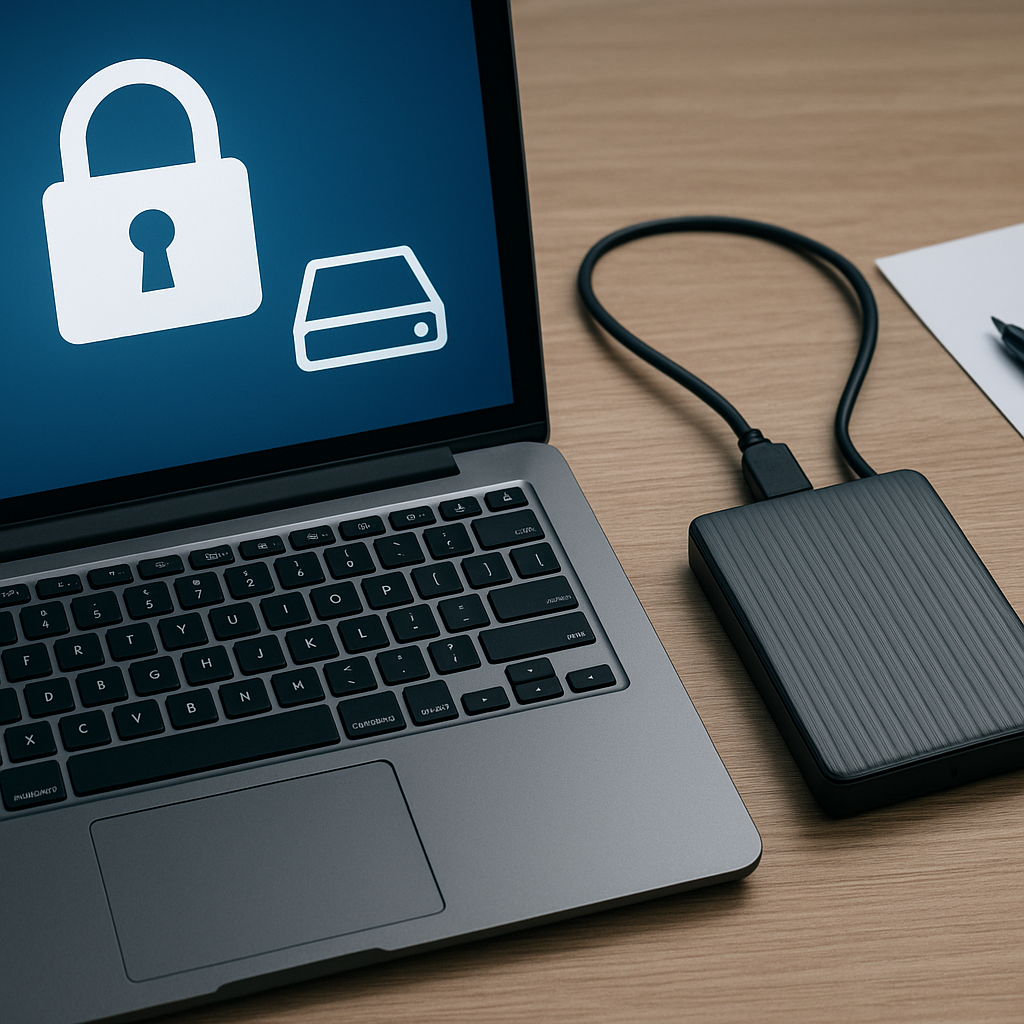
Accessing data locked behind BitLocker protection often poses significant challenges, especially when encryption keys or passwords become unavailable. This comprehensive article explores effective methods to recover files from a BitLocker drive, detailing essential steps, recommended tools, and best practices. Whether you are facing accidental formatting, lost credentials, or hardware issues, understanding the right approach ensures the highest chance of successful restoration.
Understanding BitLocker Encryption and Data Loss Risks
Microsoft’s BitLocker utilises a robust 128-bit or 256-bit encryption algorithm to secure data on Windows volumes. This process transforms readable files into complex cipher text, requiring the correct key or password for decryption. While the strength of BitLocker encryption guards against unauthorized access, it also means losing access credentials or experiencing corruption can render data effectively irretrievable without specialized recovery techniques.
Data loss risks on BitLocker-protected volumes stem from several factors:
- Forgotten or misplaced password or recovery keys
- Corrupted partition tables or file system errors
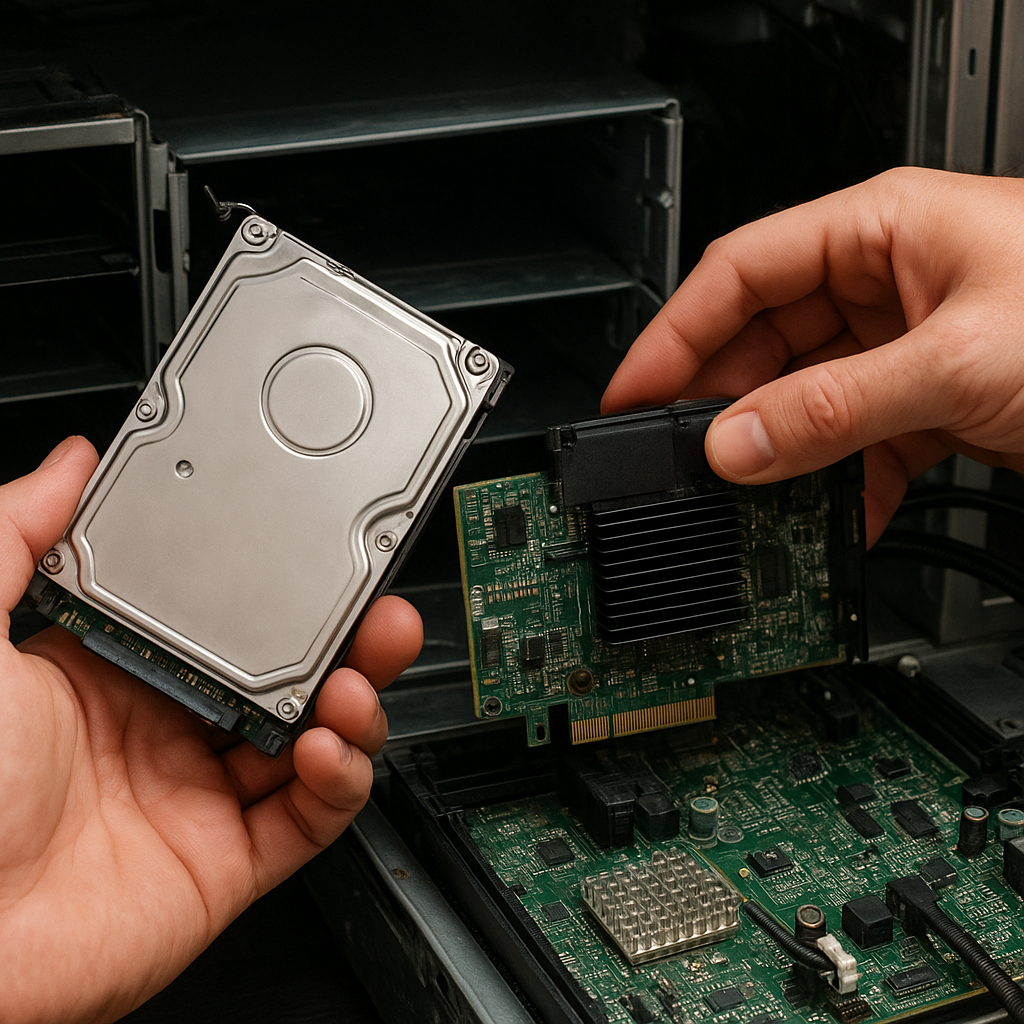
- Hardware malfunctions on SSDs or HDDs
- Operating system failures during read/write operations
- Malware attacks targeting encrypted volumes
By grasping how encryption safeguards drive contents—and why it can impede data recovery—you gain insight into selecting the proper tools and workflows tailored to encrypted environments.
Common Causes of Data Loss on Encrypted Drives
Even with formidable cryptographic protection, BitLocker volumes remain susceptible to data loss due to operational or environmental issues. Here are the most prevalent scenarios:
- Accidental formatting of the encrypted volume without backing up the key.
- Sudden power failures during write operations, leading to corrupted metadata.
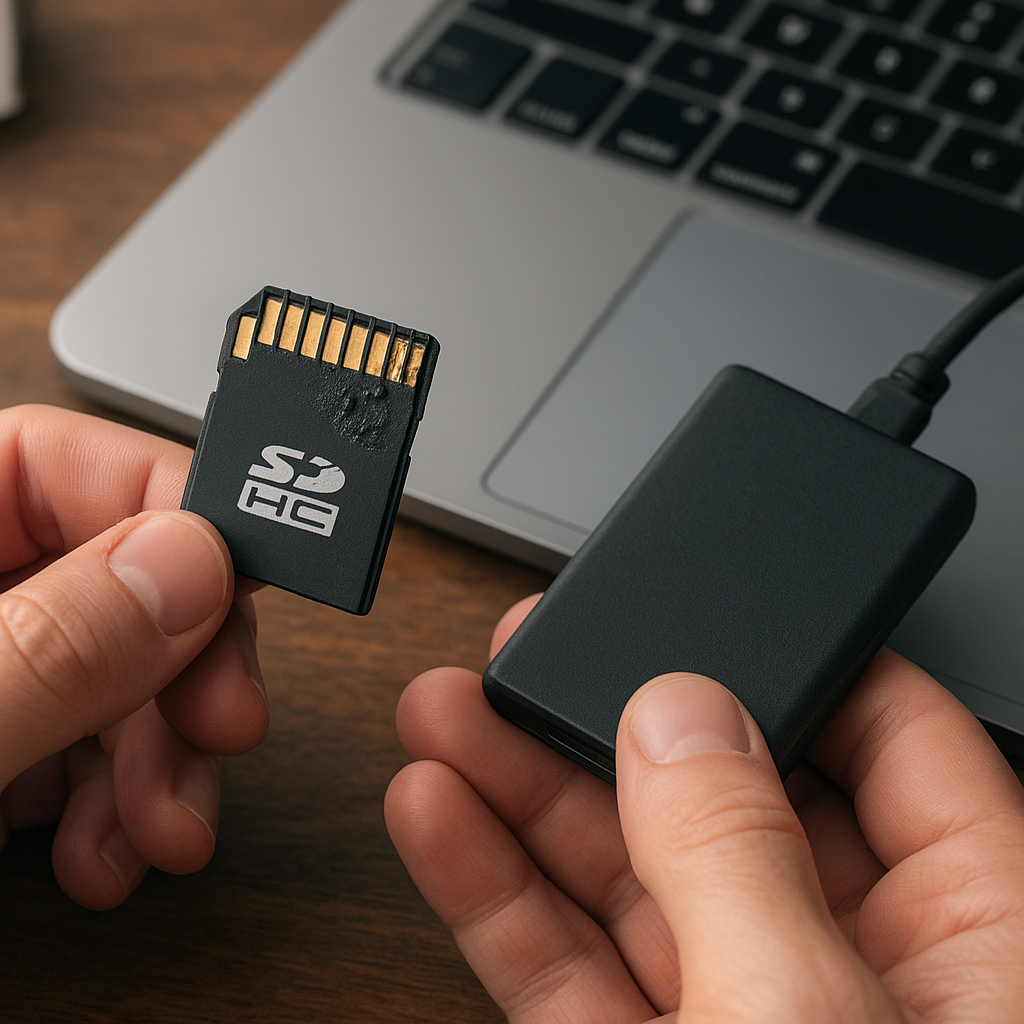
- Damaged or failing storage media, such as bad sectors on an HDD or flash wear on an SSD.
- System crashes that interrupt the unlocking process, causing file system inconsistencies.
- Loss or misplacement of the recovery key stored in Active Directory, Microsoft account, or printed backup.
- Inadvertent repartitioning or resizing of the BitLocker-protected volume.
Recognising these root causes helps identify the urgency of intervention and whether immediate hardware diagnostics or specialized recovery software is required.
Choosing the Right Recovery Software for BitLocker
Selecting a capable tool is crucial when attempting to retrieve files from a BitLocker drive. Key features to consider include:
- Native support for BitLocker-encrypted partitions and the ability to input the original password or recovery key.
- Read-only operation on the source device to prevent further data corruption.
- Deep scan of encrypted sectors and advanced file signature detection.
- Preview functionality to verify existing files before committing to a full recovery.
- Compatibility with various Windows editions and external storage interfaces (USB, SATA, NVMe).
- Secure export options, ensuring recovered data retains integrity and timestamps.
While many generic recovery applications exist, only specialized tools can handle BitLocker volumes without risking additional damage. Always research vendor reputations, read user testimonials, and test trial versions to confirm compatibility.
Step-by-Step Guide to Recover Files from BitLocker Encrypted Drive
Prepare Your Environment
Begin by connecting the affected drive to a reliable workstation. Use a write-blocker or enable read-only mode to preserve the original state of the encrypted volume. Ensure the recovery system has sufficient free space—ideally twice the size of the encrypted partition—to store recovered files. Disable any background utilities that may auto-scan or mount the drive, such as antivirus or disk management tools.
Mounting the Encrypted Drive
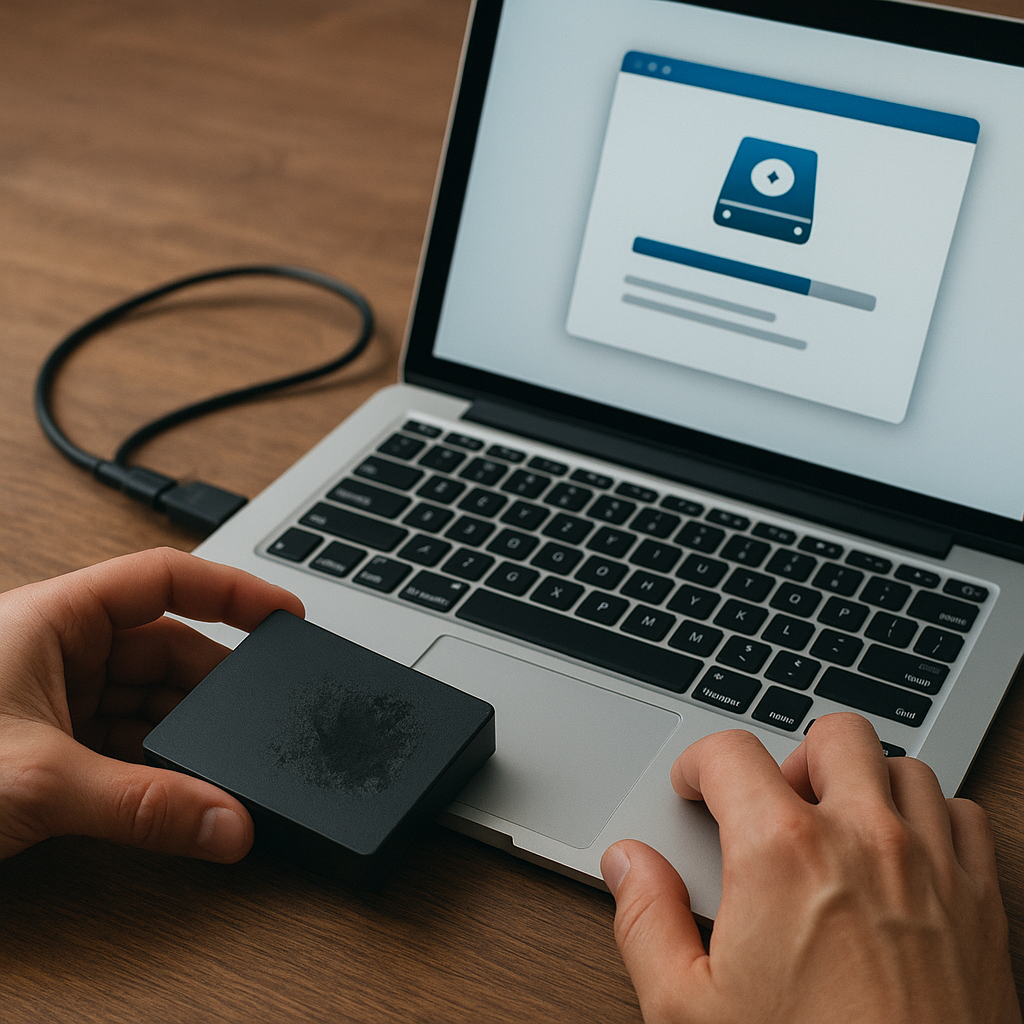
With your chosen recovery software installed, launch the application and locate the BitLocker volume. The tool will prompt for the password or 48-digit recovery key. Enter the correct credentials to allow the software to decrypt the volume header. If the header is corrupted, some tools provide a header backup or recovery option; explore that if standard decryption fails.
Initiating the Scan
After successfully unlocking the partition, initiate a full sector-by-sector scan. This process reconstructs the file system structure and identifies recoverable file fragments. Depending on drive capacity and system performance, scanning may take from several minutes to hours. Monitor the progress and avoid interrupting the operation. If the software supports custom file signature lists, include additional signatures to broaden the scope of recoverable formats.
Recovering and Saving Files
Upon scan completion, the software will present a directory tree of detected files. Use the preview feature to verify the integrity of critical documents, images, and multimedia. Select desired items and specify a destination folder on a separate storage device. Execute the recovery, then cross-check file counts and sizes to ensure completeness. Always maintain the original encrypted volume intact until you have confirmed successful extraction of all needed data.
Best Practices to Prevent Data Loss
Prevention remains the most reliable strategy for safeguarding BitLocker-protected data. Implement these measures:
- Regularly back up the encryption key in multiple secure locations, such as cloud storage or hardware tokens.
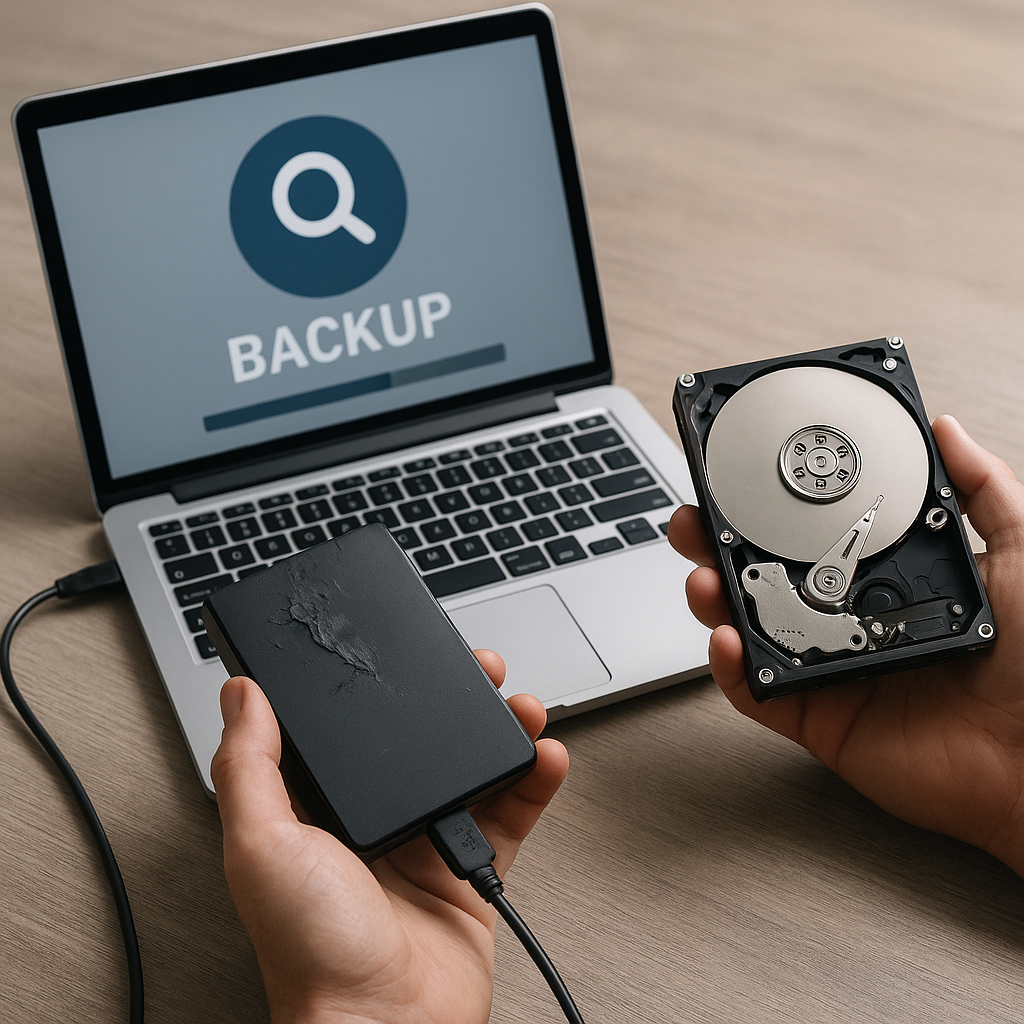
- Create system images or backups of entire encrypted volumes at scheduled intervals.
- Store copies of critical files on an independent, non-encrypted medium as an emergency fallback.
- Maintain up-to-date firmware and drivers for storage devices to reduce hardware failure risks.
- Enable Windows’ built-in backup and recovery services, ensuring smooth restoration workflows.
- Document recovery procedures and train relevant personnel on handling encrypted media safely.
By combining sound backup strategies and thorough understanding of encryption dynamics, you minimize the chance of irrevocable data loss and simplify any necessary recovery operations.