

When a file disappears from your computer, it often feels like it is gone forever. In reality, modern operating systems rarely erase data immediately; they only mark space as available. That is why specialized tools can often bring “lost” information back to life. Understanding how data recovery software actually works helps you choose the right tools, avoid common mistakes, and better protect critical information. On portals such as businesssecurity24.eu you can read about cybersecurity in general, but in this article we will focus on what happens inside your storage device when you delete files, how recovery programs scan and reconstruct them, and why sometimes even the best software cannot save the day.
How files are really stored on a drive
To understand data recovery, you first need to know that drives do not think in terms of photos, documents, or videos. They only handle blocks of raw bits. File systems such as NTFS, FAT32, exFAT, HFS+, APFS or ext4 translate human‑friendly files into these blocks and keep track of where each fragment is located.
Each file consists of:
- Metadata: file name, size, timestamps, attributes, permissions, and pointers to data blocks.
- Data: the actual content stored in clusters or blocks on the disk.
When you open a document, the operating system asks the file system where the blocks are, reads them, and reconstructs the file in memory. The crucial detail for recovery is that the file system keeps a map of used and free blocks. Recovering data is usually about rebuilding or reading this map, or bypassing it entirely and scanning the raw device.
What really happens when you delete a file
In most cases, deleting a file is a fast metadata operation, not an immediate physical erasure:
- The entry for the file in the directory is marked as deleted or unlinked.
- The blocks previously used by the file are flagged as free in the allocation tables or bitmaps.
- The content of the blocks is left intact until it is overwritten by new data.
Because the underlying content remains for some time, data recovery software can still read those blocks and reconstruct the file, especially if the metadata is also partially intact. This is why the most important advice after accidental deletion is to stop writing anything to the affected drive. Every new file, update, or installation increases the chance that your lost data will be overwritten.
Logical vs physical data loss
Data recovery tools address two broad categories of problems:
- Logical damage: corrupted file system structures, accidental deletion, formatted partitions, overwritten partition tables, malware that removes or hides files.
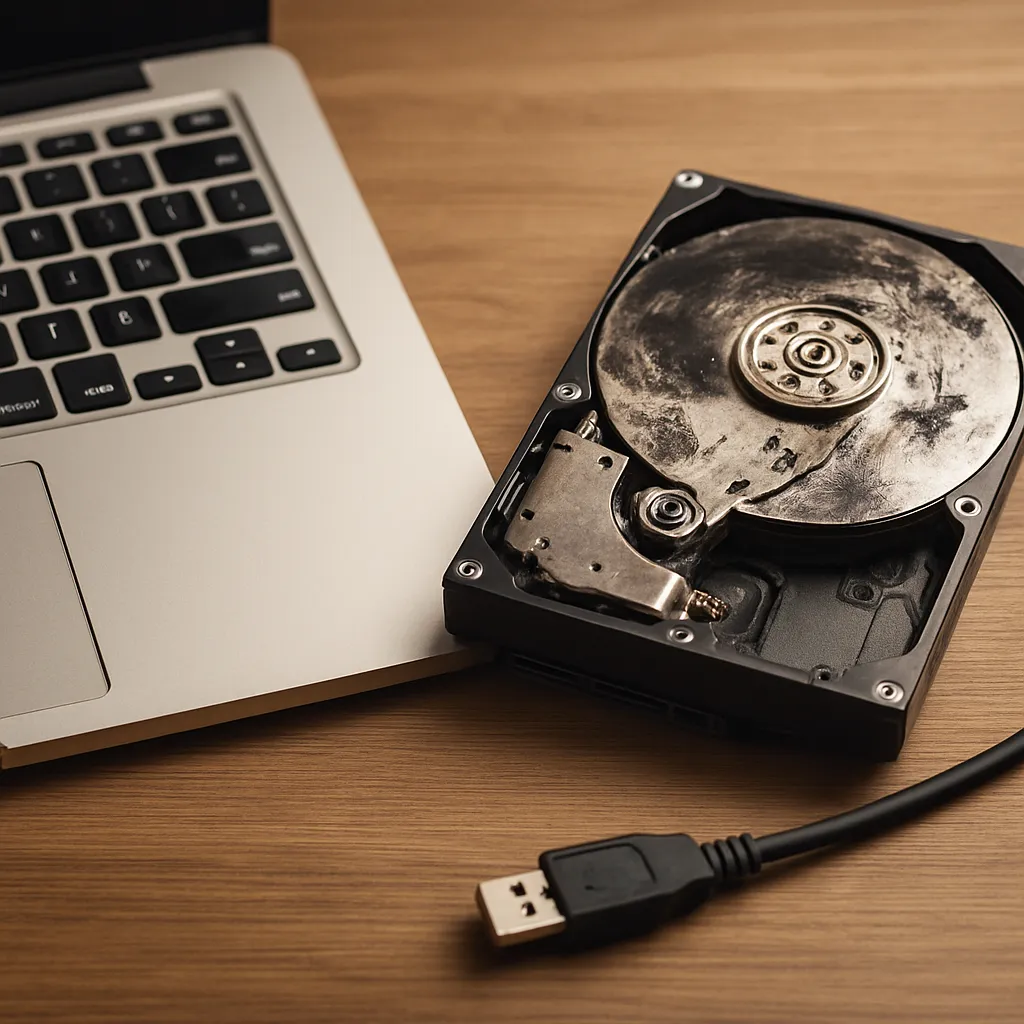
- Physical damage: failing sectors, damaged flash cells, controller failures, broken connectors, or mechanical defects in hard drives.
Consumer data recovery software mainly deals with logical issues. It assumes that the storage hardware is still able to read sectors, even if the operating system considers the file system “broken”. Physical damage often requires a cleanroom, donor parts, and specialized hardware; software alone cannot repair a worn‑out head, a burned controller, or cracked flash chips.
The core techniques of data recovery software
Most professional and consumer tools rely on a combination of techniques to bring data back. These methods differ in depth, speed, and risk, but they follow similar principles across platforms.
1. Scanning file system structures
The fastest and least invasive method is reading the existing file system metadata. For example:
- In NTFS, software examines the Master File Table (MFT), looking for entries flagged as deleted or partially damaged.
- In FAT32, it scans the File Allocation Table and directory entries for removed or lost chains of clusters.
- In ext-based systems, it inspects inodes and allocation bitmaps.
Because entries for deleted files often persist until reused, the program can list recently removed items with their original names, paths, and timestamps. This approach is particularly effective if little time has passed since deletion and the file system has not experienced heavy fragmentation or corruption.
2. Deep scan of raw sectors
When metadata is severely damaged or missing, the software performs a deep scan of the entire device surface. It reads sector after sector, ignoring the file system, searching for recognizable patterns. These patterns are called signatures or magic numbers and indicate the start of particular file types.
For example, a JPEG often begins with specific bytes and ends with another characteristic sequence. By finding these signatures, the software can identify “orphaned” fragments of files even when the directory structure has vanished. This process is significantly slower but can recover data after formatting or partial file system rebuilds.
3. File carving
File carving is closely related to signature scanning but goes further. After detecting a file header, the software attempts to determine its size and layout without any help from the file system. It uses internal structure rules of each format—like block markers, checksums, or container tables—to know where the file likely ends.
This technique works best for formats with clear boundaries such as images, videos, archives, and some documents. However, when a file is fragmented across the drive, carving may only recover the first contiguous fragment, resulting in partially readable or corrupted output. That is one of the fundamental limitations of pure signature‑based recovery.
4. Rebuilding damaged file systems
In cases where the file system is only partially corrupted—after a power loss, improper shutdown, or malware attack—software can try to reconstruct tables and indexes. It may:
- Compare multiple copies of critical structures (some file systems keep backups).
- Infer missing links by analyzing patterns of block usage.
- Rebuild directory trees and allocation maps from surviving fragments.
The result is often a “virtual” version of the file system that exists only inside the recovery software. From there, users can browse and selectively copy files to another device without modifying the damaged structure.
5. Handling bad sectors and unstable media
On failing hard drives or old SSDs, some sectors cannot be read reliably. Advanced tools attempt multiple low‑level reads, adjust timeouts, and use error‑correcting information present on the device. They also prioritize creating a sector‑by‑sector clone or image of the drive.
Working from an image instead of the original device is safer: if the drive fails completely during analysis, at least the captured sectors remain. This is a standard practice in professional labs and is strongly recommended for any recovery scenario where the disk shows signs of physical instability.
How SSDs and TRIM change the game
Solid-state drives behave differently from traditional spinning disks. They use flash memory, wear‑leveling algorithms, and internal controllers that constantly move data around to distribute wear. One crucial function is TRIM, a command that tells the SSD which blocks are no longer needed after you delete a file or format a partition.
On many modern systems, when TRIM is enabled and working correctly, the SSD quickly erases or clears those marked blocks at the hardware level. From the perspective of recovery:
- Recently deleted files on an SSD may be completely unrecoverable within seconds or minutes.
- Signature scanning might still find some remnants if TRIM was not issued, was disabled, or the drive did not process it yet.
- Wear‑leveling makes it nearly impossible to predict where old copies of data reside without direct access to internal translation tables, which are proprietary and hidden.
This is why traditional “undelete” success rates are typically higher on classic hard drives than on modern SSDs. At the same time, this behavior improves privacy because deleted data is less likely to linger on the device.
Limits of what software can do
Even the most advanced tools have hard limits derived from physics and information theory. There are several situations where recovery is extremely unlikely or impossible:
- Overwritten data: once a block has been fully overwritten, the old content is no longer available in any practical sense.
- Secure wipe: methods that write patterns to all blocks or rely on SSD firmware‑based secure erase usually destroy previous information beyond recovery.
- Heavy physical damage: burned chips, shattered platters, or extensive head crashes may eliminate large portions of data.
- Full‑disk encryption without keys: if encryption is strong and the key is lost, raw data is indistinguishable from random noise.
Software cannot reverse cryptographic protection or recreate bits that no longer exist. Marketing claims that suggest otherwise should be viewed with skepticism. Genuine success depends on how much intact information is still present on the medium.
Why recovery should be non‑destructive
Safe data recovery practices emphasize non‑destructive operations. That means:
- Never installing recovery tools onto the drive that holds the lost data.
- Avoiding write operations such as chkdsk with repair options or quick fixes that alter metadata.
- Working from a cloned image whenever possible, especially when the device shows errors.
- Saving recovered files to a different physical drive, not just another partition.
Many failures in home recovery attempts come from well‑intentioned but risky actions. Each write operation can irreversibly overwrite valuable fragments. Professional software is designed to limit writes and provide clear warnings when a function might modify the original storage.
How recovery tools present and reconstruct files
After scanning and analysis, the software needs to translate technical findings into something a user can understand. Typically you see:
- A tree view of the original directory structure, reconstructed from metadata.
- A separate section for “lost” or “found” files, often grouped by type.
- Previews for images, documents, or videos to check integrity before saving.
- Indicators of quality or recoverability—green for likely intact, red for heavily damaged.
Behind this interface, the program is reading sectors, checking signatures, applying heuristics, and piecing together fragments. In some cases it tries multiple interpretations of the same data until it finds the one that produces coherent content, especially for structured formats like databases or email archives.
The role of backups and prevention
Because no data recovery method is guaranteed, preventive strategies remain the most powerful protection. Effective setups combine several layers:
- Regular versioned backups to external drives or network storage.
- Off‑site or cloud copies of critical business data.
- Snapshots at the file system or virtualization level.
- Monitoring of drive health indicators, especially SMART attributes.
Backups transform a desperate recovery attempt into a straightforward restore operation. Instead of relying on heuristic carving and partial reconstructions, you simply copy clean, intact files from a safe location. From a security perspective, good backups also provide resilience against ransomware, accidental mass deletion, and some forms of corruption.
Choosing and using data recovery software wisely
When selecting a tool, focus less on glossy interfaces and more on technical capabilities and safety features. Key aspects include:
- Support for your file system and operating system.
- Ability to create and work from disk images.
- Options for both quick metadata‑based scans and deep signature searches.
- Transparent reporting about damaged areas and partially recovered files.
Equally important is knowing when not to rely solely on software. If the drive emits unusual noises, disappears intermittently, overheats, or shows many read errors, professional assistance may be necessary before further damage occurs. Good software is powerful, but it is not a substitute for hardware expertise or a proper lab environment in severe physical failure scenarios.
Understanding what “recovered” really means
Recovered data is not always perfect. A file may open but contain missing pages, corrupted frames, or silent segments. Some formats tolerate partial damage; for instance, videos might play but skip sections, while compressed archives may refuse to extract if a central index is missing.
Practical assessment involves checking:
- Whether the file opens in its native application.
- Whether internal consistency checks or repair tools for that format report errors.
- Whether the content is complete enough for your needs, even if not flawless.
Understanding these nuances helps set realistic expectations and guides decisions about when to stop scanning, when to accept partial results, and when to escalate to more advanced services.
Conclusion: how data recovery software actually works
Data recovery software operates by exploiting the gap between “deleted” and truly erased. It reads low‑level sectors, analyzes file system metadata, searches for recognizable patterns, and reconstructs files using knowledge of formats and structures. On traditional hard drives, this can be remarkably successful if you act quickly and avoid further writes. On modern SSDs with active TRIM, chances diminish more rapidly, but not every case is hopeless.
The most important factors remain under your control: how quickly you stop using the affected device, whether you avoid destructive repairs, and what backup strategy you follow before disaster strikes. With a clear understanding of how these tools function and where their limits lie, you can make informed decisions in a crisis, protect your most valuable data, and design systems where unexpected loss becomes a rare and manageable event rather than a catastrophe.



Leave a Reply