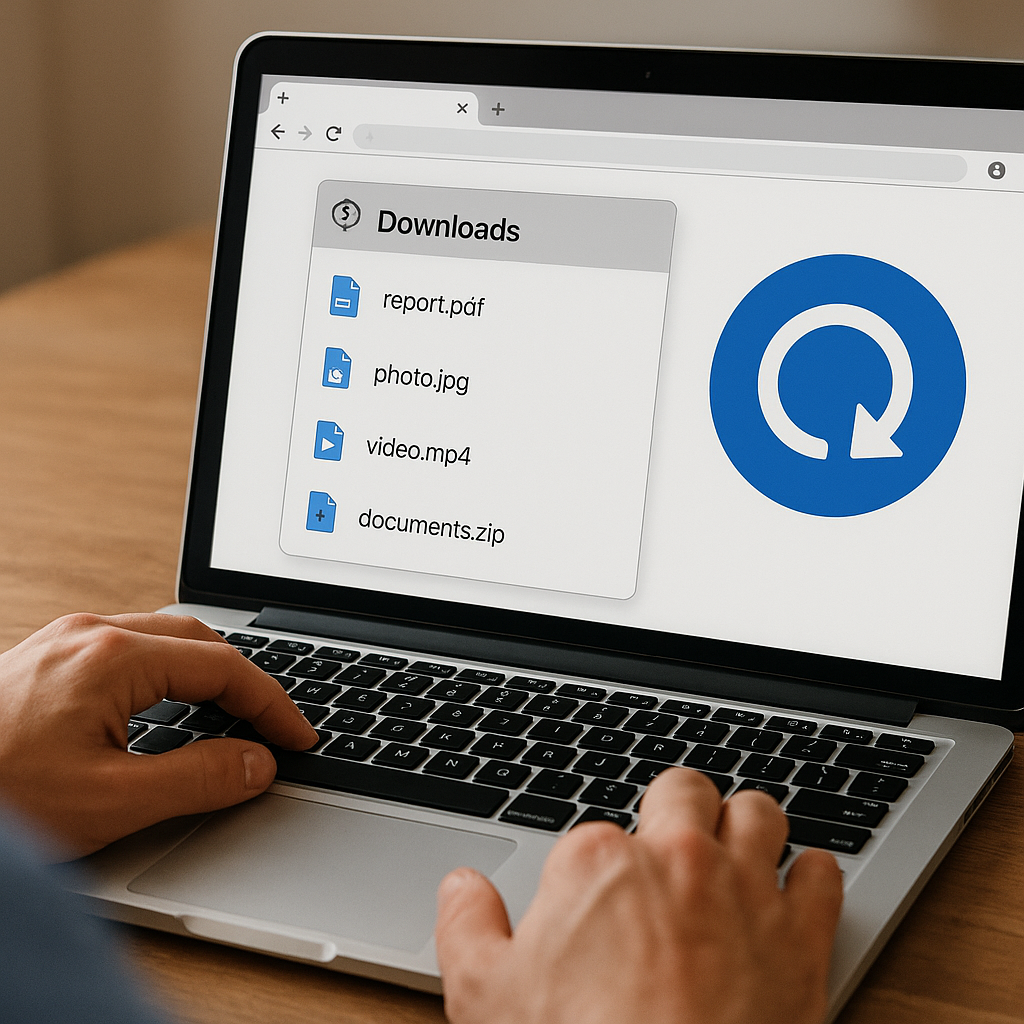
Accidentally deleting a crucial file from your browser’s download history can lead to frustration and potential data loss. Fortunately, there are proven techniques and specialized software solutions designed to help restore lost files, even after they have been seemingly erased from your system. This comprehensive guide will walk you through the essential steps needed to recover deleted browser downloads, optimize efficiency in your restoration process, and implement best practices to avoid future mishaps.
Understanding Browser Download Storage and Deletion
Before attempting any recovery, it’s important to understand how your browser handles downloads and what happens when an item is removed. Most modern browsers maintain a record of downloaded items in a local database or index file. When you clear the download history or delete individual entries, the record may be set to “invisible,” but the actual file on disk could remain intact until the operating system overwrites its sector space.
Download Paths and Default Directory Locations
Each browser typically uses a default location for storing downloaded files:
- Chrome and Edge:
C:Userson Windows;Downloads /Users/on macOS./Downloads - Firefox: Similar to Chrome but can be customized via Settings > General.
- Safari:
/Users/, unless changed in Preferences./Downloads
Even if you clear the download list, files often remain in these folders until you manually delete them or empty the Recycle Bin/Trash. However, if you also removed the file itself, the operating system marks that space as available for new data, making timely recovery critical.
How Cache and Temporary Files Come into Play
Browsers also create temporary or cache files for in-progress downloads. In some cases, a partially downloaded file with a temporary extension (e.g., .crdownload or .part) may linger if a download fails. These temp files can offer clues or even contain the complete file. Locating and renaming them might restore your download without elaborate tools.
Effective Methods to Retrieve Deleted Downloads
Recovering deleted downloads involves a combination of native browser tools, simple system checks, and third-party recovery utilities. Below are step-by-step strategies ranked by ease and reliability.
1. Check the Recycle Bin or Trash
After deleting a file from the Downloads folder, your OS often sends it to the Recycle Bin (Windows) or Trash (macOS). Restoring from there is as simple as right-clicking the item and selecting “Restore” (Windows) or “Put Back” (macOS).
2. Utilize Browser History and Sync Services
Some browsers like Chrome and Firefox offer syncing across devices. If you enabled sync and didn’t delete the item elsewhere, you might find references to the download in another synced instance:
- Open History (Ctrl+H / Cmd+Y) and look for the download entry.
- Right-click and choose “Show in folder” or “Copy download link.”
This doesn’t directly recover the file, but it can help you re-download the original source.
3. Restore from Backup Solutions
If you maintain regular backups—either via Windows File History, macOS Time Machine, or a third-party backup service—recovering deleted files is straightforward:
- Navigate to the Downloads folder in your backup application.
- Select the date prior to deletion.
- Restore the missing file.
Backups offer the highest success rate, provided you configured them before the loss occurred.
4. Employ Dedicated Recovery Software
When native methods fail, specialized recovery tools scan your storage device for remnants of deleted files. Popular choices include Recuva, PhotoRec, and Disk Drill. To maximize chances of success:
- Stop writing new data to the affected drive immediately.
- Install the recovery tool on a different drive or partition.
- Perform a deep scan, focusing on the standard Downloads directory path.
These utilities attempt to reconstruct file headers and directory records, restoring items in their original format whenever possible.
5. Manual Recovery via System Snapshots
Advanced users can leverage Volume Shadow Copy Service (VSS) on Windows or local snapshots on macOS:
- For Windows: Right-click the Downloads folder > Properties > Previous Versions.
- For macOS: Use Terminal commands like
tmutil listlocalsnapshots /to explore available snapshots.
This method can retrieve files even if they were deleted long ago, as long as a snapshot captures them.
Preventing Data Loss: Best Practices and Strategies
Adopting a proactive approach is key to minimizing the impact of accidental deletion. By implementing a combination of system settings, habits, and tools, you reduce the risk of permanent data loss.
- Enable Automatic Backups: Use built-in or third-party backup solutions to schedule daily or hourly snapshots of your Downloads folder.
- Use Download Managers: Third-party managers like Internet Download Manager (IDM) or Free Download Manager (FDM) store records separately, making recovery easier if your browser history is cleared.
- Configure Browser Settings: Set your browser to prompt for a download location instead of using the default folder, giving you a chance to organize files and reduce clutter.
- Maintain Disk Health: Regularly run disk checks (chkdsk on Windows or Disk Utility on macOS) to spot and repair file system errors that can complicate recovery.
- Utilize Cloud Storage: Enable automatic uploads of your Downloads folder to services like OneDrive, Google Drive, or Dropbox for off-site redundancy.
- Limit Overwriting: After accidental deletion, avoid using the affected drive until recovery is complete. Even installing recovery software can overwrite important remnants.
- Educate All Users: If multiple people use the same system, ensure they know how to handle downloads responsibly and understand the importance of backups.
By combining these preventive measures with the recovery techniques outlined above, you can confidently manage your browser downloads and minimize the impact of accidental deletions. Implementing robust backup routines, leveraging synchronization services, and choosing the right recovery tools will ensure your critical downloads remain safe and accessible at all times.