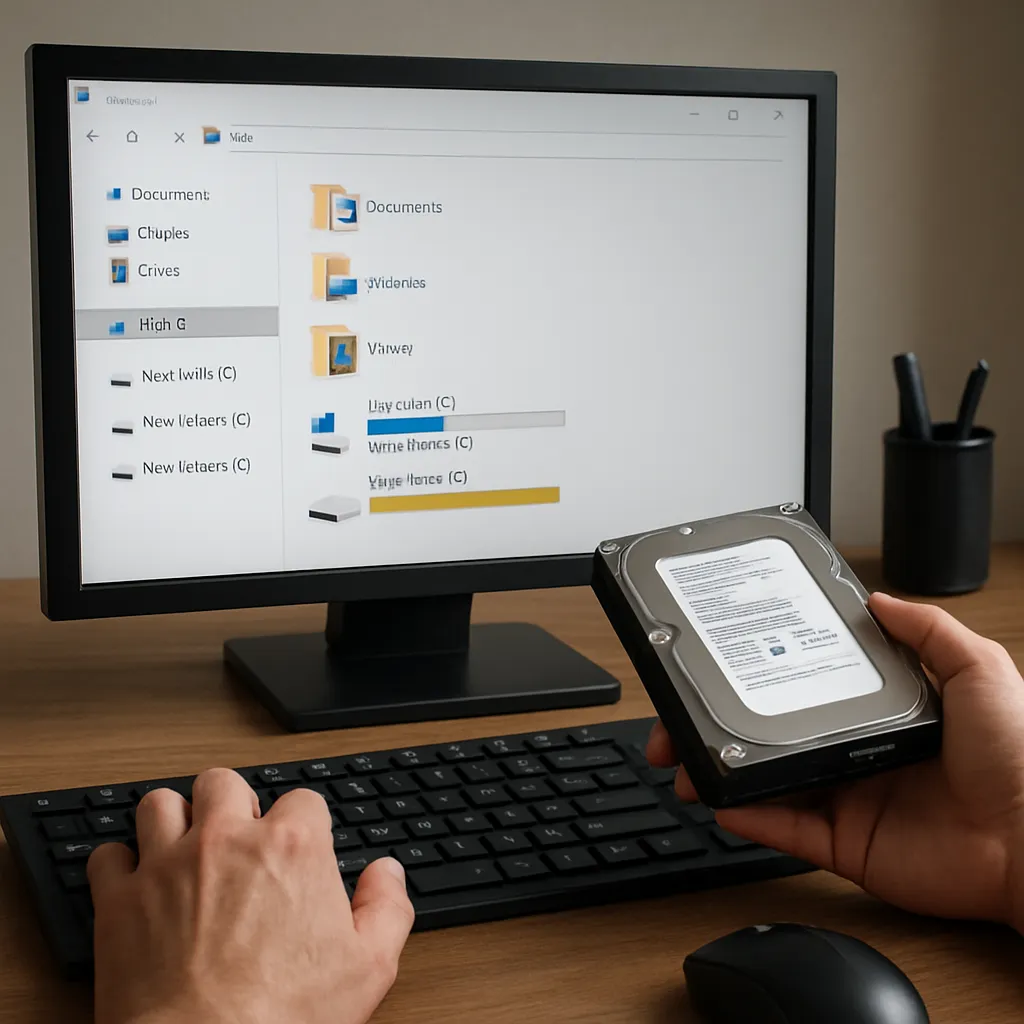
Sudden system crashes can bring your workflow to a grinding halt, leaving you grappling with potential data loss and frantic searches for viable solutions. Whether you were in the middle of drafting an important report, editing precious family photos, or crunching numbers for a presentation, a forced shutdown poses significant risks. This article delves into the underlying causes of unexpected power cuts or system failures, explores a range of recovery tools, and offers a clear, step-by-step process to restore your files efficiently.
Understanding System Shutdowns and Data Loss
Before diving into specific software solutions, it’s crucial to understand what happens under the hood when a system suddenly shuts down. A typical computer uses multiple layers of caching and temporary storage to accelerate performance. When the power or system process is interrupted:
- File System Corruption: Metadata and allocation tables can be left in an inconsistent state, leading to inaccessible or corrupted files.
- Temporary File Abandonment: Applications often write partial data to temp files; without proper shutdown procedures, these .tmp files remain unusable.
- Memory Buffer Loss: Recent changes held in RAM are never written to disk, resulting in unsaved edits vanishing without a trace.
These phenomena contribute to the complexities of data recovery. If you act promptly and refrain from writing new data to the affected drive, you can maximize the chances of successful file restoration. Overwriting lost data sectors dramatically reduces recovery efficiency, so time and caution are of the essence.
Key Recovery Software and Tools
Various commercial and open-source utilities specialize in reconstructing damaged file structures and retrieving lost content. Below is an overview of some top contenders:
- Recuva by Piriform: A user-friendly Windows application adept at recovering deleted files, even from formatted or corrupted drives.
- TestDisk: An open-source powerhouse capable of repairing partition tables, recovering boot sectors, and extracting files from problematic volumes.
- PhotoRec: Often packaged with TestDisk, this tool focuses on file carving, scanning raw data blocks to find recognizable file signatures.
- EaseUS Data Recovery Wizard: Offers a step-by-step wizard interface, supports both Windows and macOS, and can handle various data-loss scenarios including sudden shutdowns.
- R-Studio: A professional-grade suite that includes RAID reconstruction, advanced scan options, and network data recovery capabilities.
Each tool brings unique advantages. For instance, TestDisk excels at structural repairs, while PhotoRec is ideal when directory listings are irrecoverable. Commercial solutions like EaseUS or R-Studio bundle intuitive interfaces with powerful algorithms, making them suitable for both novices and IT specialists.
Step-by-Step Guide to Recover Files
1. Initial Assessment
Immediately after a sudden shutdown, power up your system without performing any disk-intensive operations. Launch a utility to examine the drive’s SMART data and check for hardware faults. If the drive reports excessive reallocated sectors or mechanical issues, consider creating a full backup or disk image using tools like ddrescue before proceeding with logical recovery methods.
2. Create a Disk Image
Working on an image rather than the original drive mitigates the risk of further damage. Use a tool such as:
- GNU ddrescue for Linux/Mac: ddrescue /dev/sdX imagefile.img log.txt
- Roadkil’s Disk Image for Windows: GUI-based imaging to \.img format
Keep your image stored on a separate physical drive with enough free capacity to accommodate the full size of the source disk.
3. Choose the Right Recovery Mode
Most recovery tools offer two primary modes:
- Quick Scan: Fast directory traversal to locate recently deleted entries. Ideal for simple file deletions or unsaved temp files.
- Deep Scan: Comprehensive sector-by-sector analysis to reconstruct file headers and bodies. Necessary when metadata is severely corrupted.
Begin with a quick scan. If results are unsatisfactory, escalate to a deep scan. Be patient—deep scans can take hours depending on drive size and corruption severity.
4. Filter and Preview Recovery Candidates
Most professional software allows you to filter results by file type, size, date, or path. Preview features let you inspect the integrity of documents, images, and multimedia files before committing to recovery. This selective approach saves time and disk space.
5. Execute the Recovery
Select the files or directories you need and specify a destination on a different physical drive. Avoid writing recovered data back to the source disk. Once the process completes, verify the integrity of each file—open documents, play videos, and compare checksums if possible.
Best Practices to Prevent Future Issues
Recovering lost files is often time-consuming and may not always yield perfect results. To minimize risk:
- Implement a regular backup strategy using external drives or cloud services like Google Drive, Dropbox, or Microsoft OneDrive.
- Enable automated snapshots or versioning on critical volumes via tools such as Windows System Restore or macOS Time Machine.
- Maintain an Uninterruptible Power Supply (UPS) to shield your system from voltage fluctuations and power outages.
- Perform periodic disk health checks using SMART utilities or manufacturer diagnostics to preempt mechanical failures.
- Keep your operating system and applications updated to ensure compatibility and improve resilience against unexpected crashes.
Adopting these measures enhances your resilience against unexpected system shutdowns and reduces the dependency on post-failure recovery techniques.