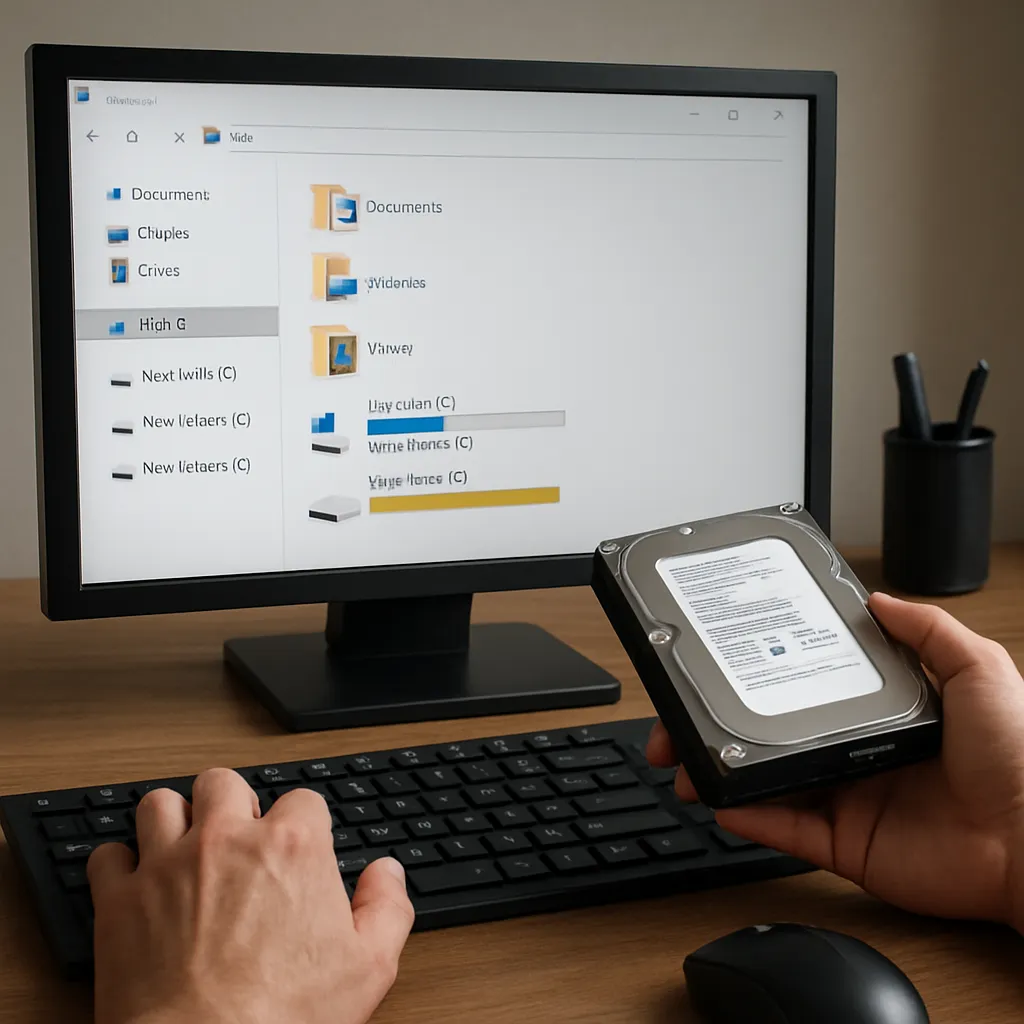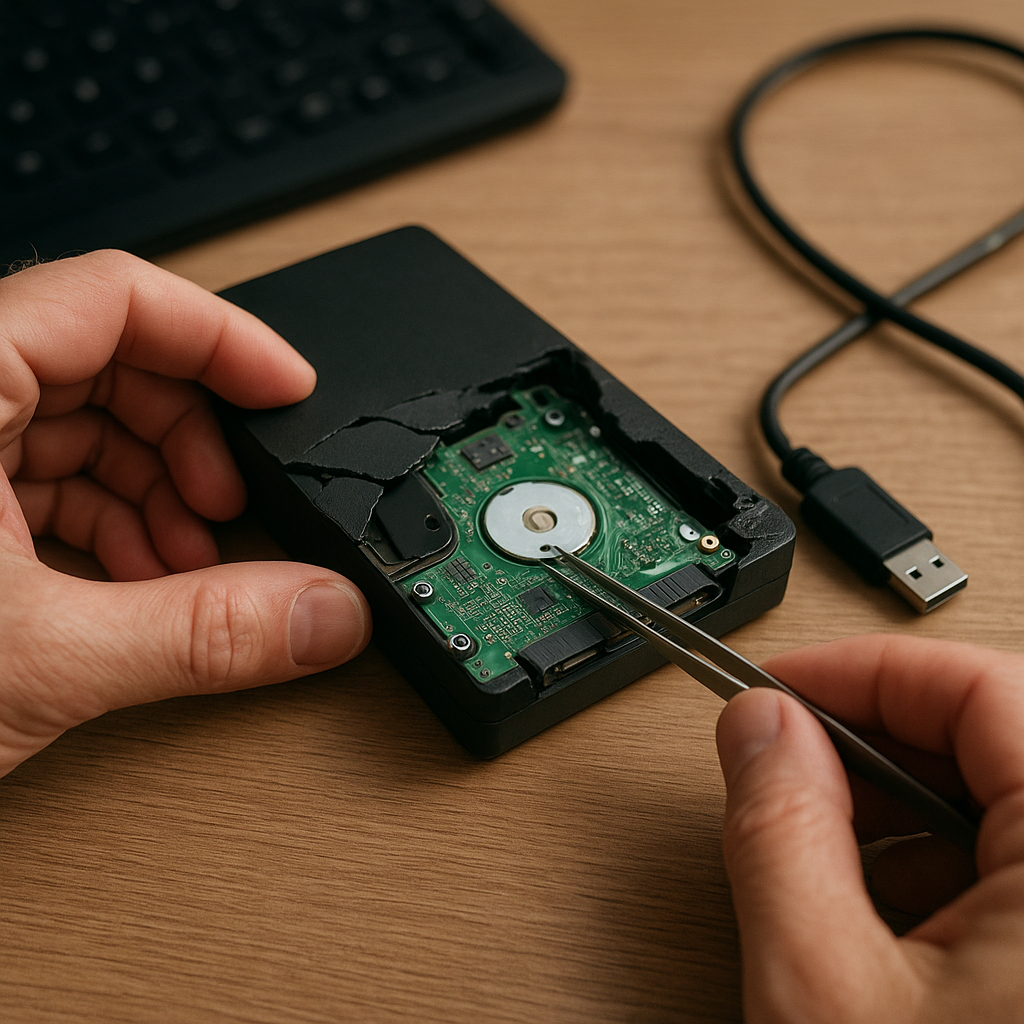
Encountering a malfunctioning external drive can trigger a sense of panic, especially when critical data appears inaccessible. However, with the right approach and tools, it’s often possible to restore lost files without sending the device to an expensive recovery lab. This article explores practical strategies, from understanding the root causes of drive failures to employing advanced software and techniques that safeguard data integrity. Whether you’re a home user or an IT professional, mastering these methods will help you navigate the complexities of file recovery from a broken external drive.
Common Causes for External Drive Failures
Before attempting any recovery process, it’s crucial to identify what went wrong. Understanding failure modes allows you to choose the safest and most effective method for retrieving your data.
- Physical Damage: Drops, impacts or exposure to moisture can harm internal mechanics, leading to stuck read/write heads or damaged sectors.
- Logical Corruption: File system errors, accidental formatting or sudden power interruptions can corrupt the partition table or directory structures.
- Firmware Issues: Malfunctioning controller boards prevent the drive from spinning up or communicating with the host system.
- Bad Blocks: Over time, certain areas on the drive become unreadable. When these bad blocks accumulate, file access failures increase.
- Connection Problems: Faulty USB cables or ports often result in intermittent recognition or dismounting during data transfer.
Accurate diagnosis starts with a simple set of diagnostics, such as listening for unusual noises, trying alternative cables, or testing on different machines. If the drive isn’t detected at all, firmware or physical repair may be required. For minor logical issues, specialized software can reconstruct damaged file systems without altering the original data.
Preparing for a Successful File Recovery
Implementing the correct preparation steps minimizes the risk of further damage. Follow these guidelines before running any recovery tools.
- Disconnect the drive immediately to prevent additional wear on unstable components.
- Work in a static-free environment to avoid electrostatic discharges that could harm sensitive electronics.
- Create a sector-by-sector imaging of the failing drive using dedicated utilities. This clone preserves every bit, allowing you to attempt repairs on the copy rather than the original.
- Allocate a storage medium at least as large as the problematic drive to hold the image file.
- Ensure your workstation has sufficient RAM and processing power to handle large disk images and resource-intensive algorithms.
By imaging first, you maintain a pristine copy of your data in its current state. If any recovery attempt goes awry, you can always revert to the original image, preserving your chances for successful retrieval.
Top Software Solutions for Data Retrieval
Choosing the right tool is essential. Below is a selection of leading applications, each designed to tackle different aspects of external drive recovery.
- Recuva: Ideal for simple undelete tasks on FAT and NTFS partitions. Lightweight and user-friendly, but limited in deep recovery capabilities.
- EaseUS Data Recovery Wizard: Features a wizard-driven interface and supports RAW drive scanning, making it suitable for users of all skill levels.
- Disk Drill: Offers powerful scanning techniques, including Quick and Deep scans, plus a Recovery Vault to protect future data.
- R-Studio: Built for professionals, with advanced hex editing, RAID reconstruction and network recovery features.
- PhotoRec: Open-source, command-line based utility that excels at retrieving media files from severely damaged partitions.
- Stellar Data Recovery: Provides specialized modules for encrypted drives, optical media and lost partitions.
When selecting software, consider the drive’s condition and the complexity of the data structure. Basic undelete tools work well for accidental deletions, while more sophisticated suites are necessary for formatted or severely corrupted volumes.
Step-by-Step Guide to Restoring Lost Data
The following procedure outlines a general approach. Steps may vary based on the chosen recovery application.
- Install the recovery program on a different physical drive to avoid overwriting data.
- Launch the utility and allow it to detect connected storage devices.
- Select the problematic external drive or its partitions in the interface.
- Choose a Quick Scan to locate recently deleted files. If results are unsatisfactory, proceed with a Deep Scan or RAW Scan to search by file signatures.
- Review the scan results, using preview features to verify file contents when available.
- Mark desired files and specify a safe recovery destination on an independent drive.
- Initiate the recovery process and monitor progress, being mindful of potential read errors.
Successful recovery depends on avoiding writes to the damaged drive and selecting a reliable destination for rescued files. Patience can pay off, as deep scans may require several hours for multi-terabyte volumes.
Advanced Techniques and Best Practices
For stubborn cases or professional environments, additional methods can enhance success rates.
- Use a write-blocker device to ensure the source drive remains unaltered during forensic-depth imaging.
- Utilize RAID emulation when dealing with multi-disk sets to reconstruct missing or degraded arrays.
- Perform low-level sector repairs with tools that patch bad blocks or reallocate them to healthy areas.
- Engage cleanroom services for physically damaged drives, where technicians can replace heads or circuit boards without contamination.
- Document every action taken, maintaining a detailed log. This is particularly important for legal or compliance-driven recoveries.
Proactive measures can prevent future data loss. Regularly back up critical files to multiple storage tiers—cloud services, network-attached storage and even offline media. Periodic drive health checks, including SMART attribute monitoring, can warn you of impending failures, giving you time to migrate data before trouble strikes.