Recovering data from a malfunctioning USB device can be a challenging task, especially when the USB port itself is damaged. Whether caused by a sudden physical impact or gradual wear, a broken port often prevents standard connections and puts valuable files at risk. This article will guide you through the essential concepts, preparations, and practical steps to recover files from a broken USB port device using the right combination of software and hardware solutions.
Understanding USB Port Failures and Data Loss
To tackle data recovery effectively, it’s crucial to recognize common reasons behind USB port failures and how they lead to file loss:
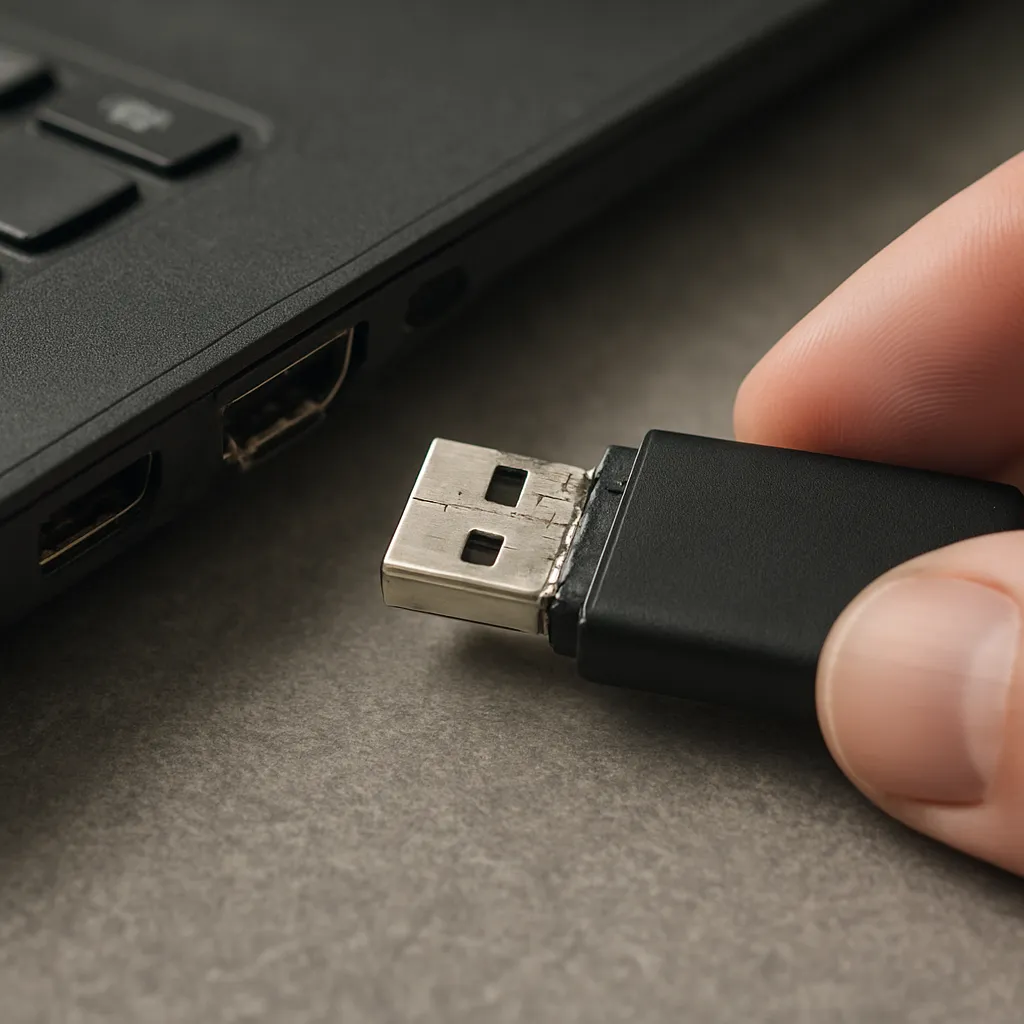
- Physical Damage: Bent or broken pins inside the USB connector can disrupt the electrical contacts needed for data transfer.
- Wear and Tear: Frequent insertion and removal of the drive may cause loose connections or internal solder joints to fail.
- Water or Dust Ingress: Moisture or particles entering the port can corrode metal contacts and block signals.
- Power Surges: A sudden spike in voltage may fry the port’s controller, rendering the device unrecognizable by any computer.
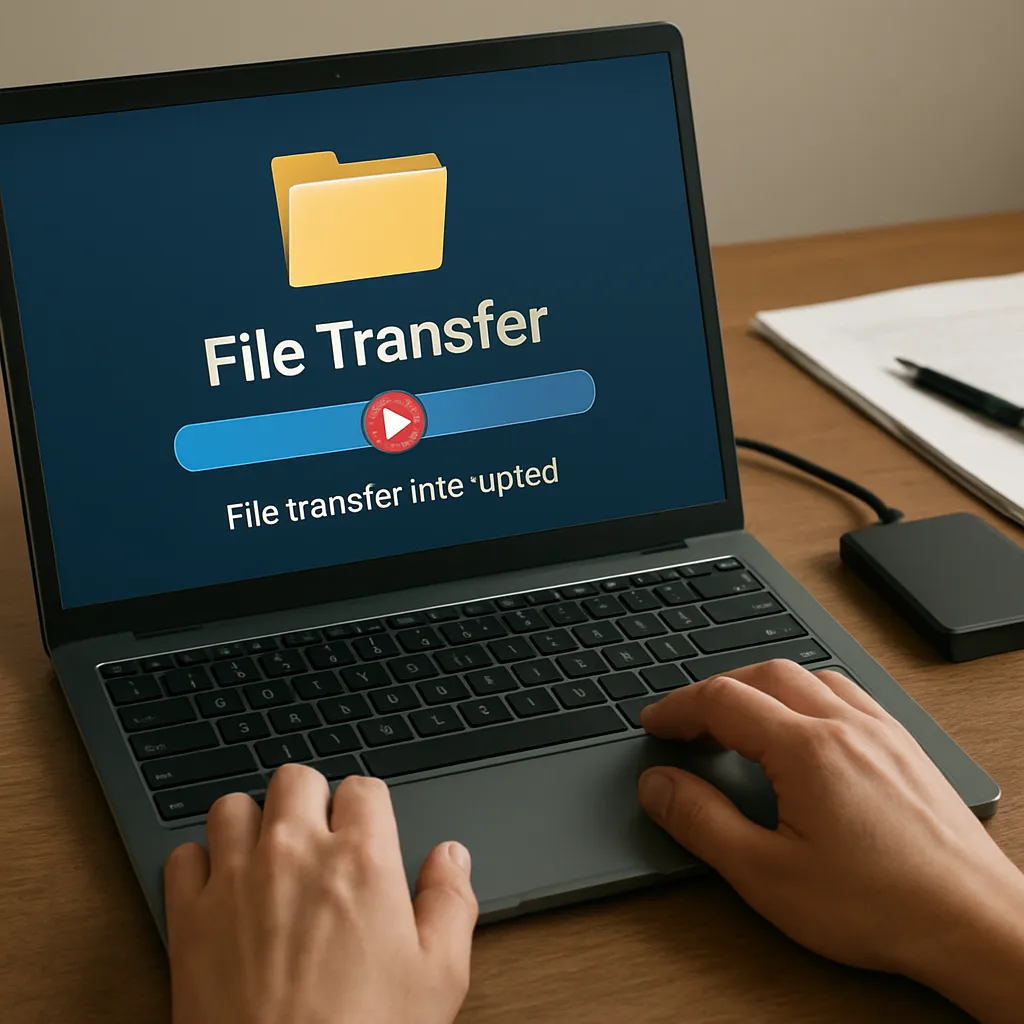
When a USB drive stops responding, the file system remains intact on the flash memory or hard disk, but the broken USB port obstructs access. Understanding this distinction helps you focus efforts on bypassing the damaged interface rather than attempting futile software fixes alone.
Preparing for File Recovery: Tools and Best Practices
Before diving into recovery attempts, make sure you have the right tools and follow safe practices to preserve integrity of the data:
Essential Hardware Tools
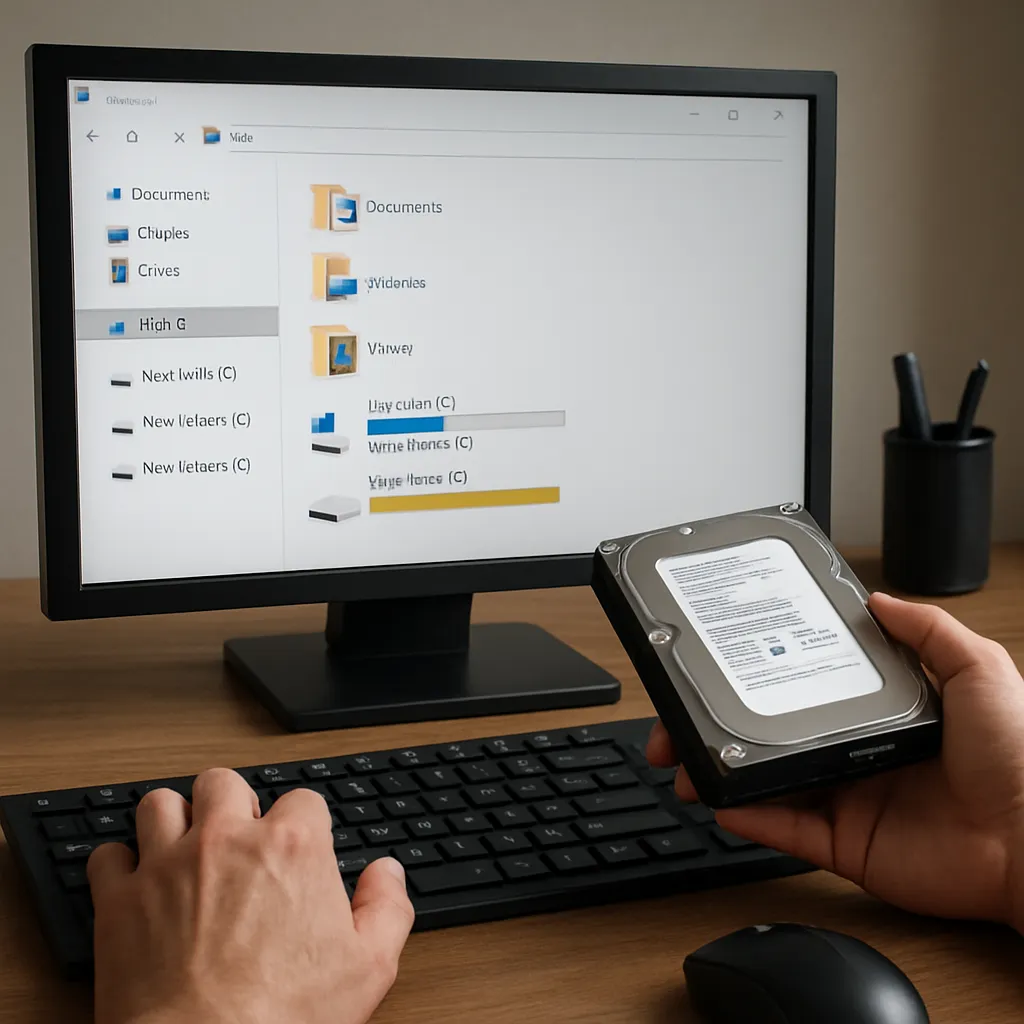
- External Enclosure or Adapter: A USB-to-SATA/IDE or USB-to-MicroSD adapter allows you to connect the internal storage module directly to another port.
- Soldering Kit: For advanced users, reflowing solder pads or replacing the port may restore physical connectivity.
- Magnifying Glass: Helps inspect and identify broken pins, cracks, or corrosion inside the connector.
- Contact Cleaner: Removes debris and oxidation from metal contacts without damaging components.
Recommended Software Applications
- Disk Imaging Tools: Utilities like ddrescue or HDClone create a raw image of the damaged drive to work on a safe copy instead of the original.
- Data Recovery Software: Applications such as Recuva, PhotoRec, Disk Drill, or R-Studio can scan corrupted file systems and extract recoverable items.
- Diagnostics Utilities: CrystalDiskInfo or Smartmontools read health reports from drives that still respond, revealing bad sectors or controller errors.
Always work on an image or a clone rather than the original device. This best practice prevents further degradation and keeps your chance of successful data recovery high.
Step-by-Step Guide to Recover Files from a Broken USB Port Device
Follow these systematic steps to regain access to your files:
1. Initial Assessment
- Inspect the USB connector for visible damage using a magnifying glass.
- Gently clean contacts with a contact cleaner and let it dry completely.
- Test the drive on multiple computers and operating systems to rule out driver or port-specific issues.
2. Adapter or Enclosure Connection
- If the drive uses a removable flash memory or MicroSD card inside a USB stick, carefully open the casing to extract it.
- Use a compatible external enclosure or adapter to connect the module via a healthy port or interface.
- Verify that the drive is recognized by the operating system before proceeding.
3. Creating a Disk Image
- Launch a disk imaging utility such as ddrescue (Linux/macOS) or HDClone (Windows).
- Specify the source (damaged drive) and the destination (an external drive with sufficient space).
- Allow the tool to perform multiple passes, skipping unreadable sectors initially and returning later for further attempts.
- Monitor logs for errors and bad sector counts. A successful clone ensures you can work on a safe copy.
4. Recovery with Dedicated Software
- Open your chosen data recovery application.
- Select the disk image as the input source to prevent further stress on the original hardware.
- Perform a full scan to locate lost partitions, deleted files, and remnants of the file system.
- Preview recoverable items and prioritize critical documents, photos, or videos for restoration.
- Save recovered files to a separate storage device to avoid overwriting data on the source image.
5. Verifying Restored Data
- Check file integrity by opening documents, playing media, and ensuring there is no corruption.
- Run checksum comparisons (MD5, SHA256) if you have original hashes to confirm perfect recovery.
- Organize the retrieved files into a clear folder structure for easy access.
Advanced Techniques and Professional Services
When DIY methods fall short or the damage is severe, consider these advanced options:
- Chip-Off Recovery: Technicians desolder memory chips from the PCB and read them directly with specialized readers.
- Soldering Replacement: Replacing a broken USB port through micro-soldering can restore normal interface functionality.
- Encryption Handling: For drives with built-in encryption, professional services can extract and reconstruct keys to unlock data.
- Cleanroom Environment: In case of water or dust ingress, certified labs use cleanroom facilities to prevent further contamination while disassembling the device.
Engaging a professional data recovery service ensures access to state-of-the-art equipment and expertise when every byte of data matters. Although costs may be higher, the success rate and safety of your files often justify the investment.