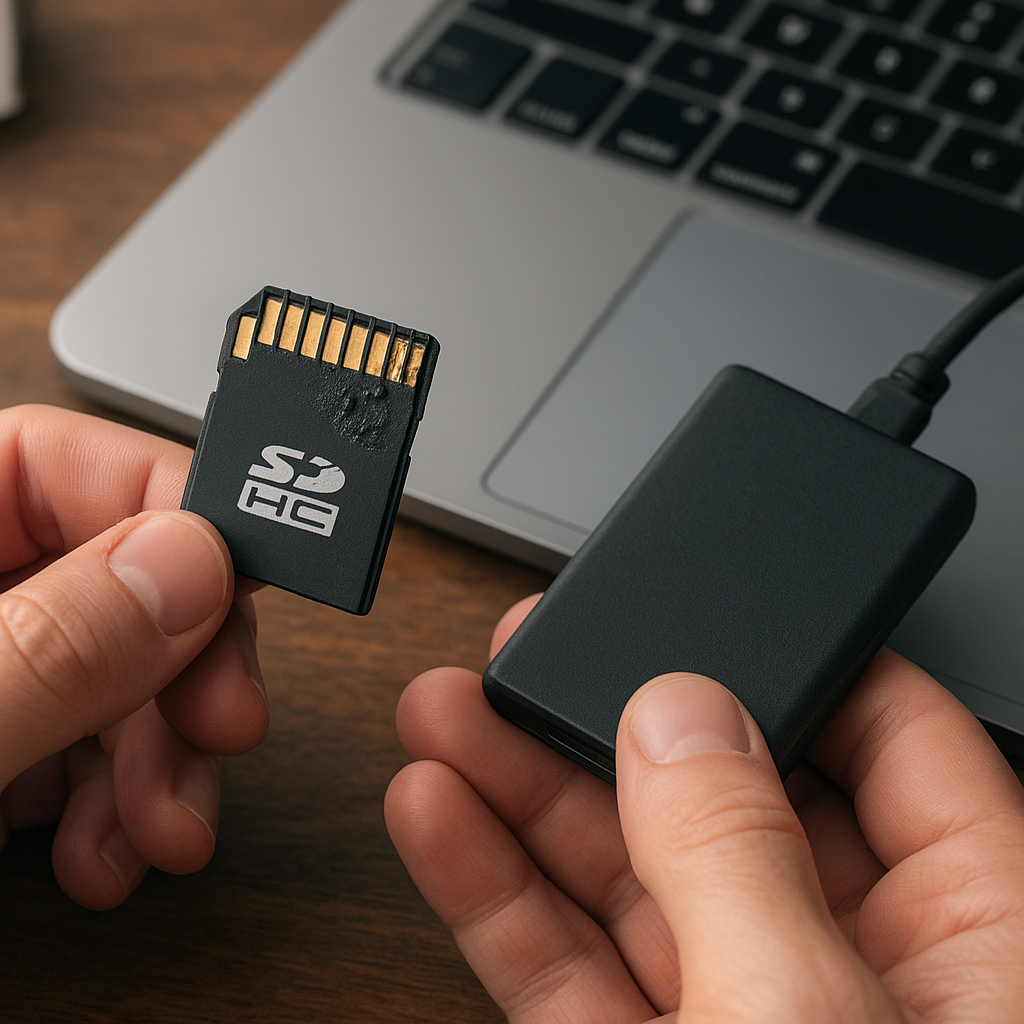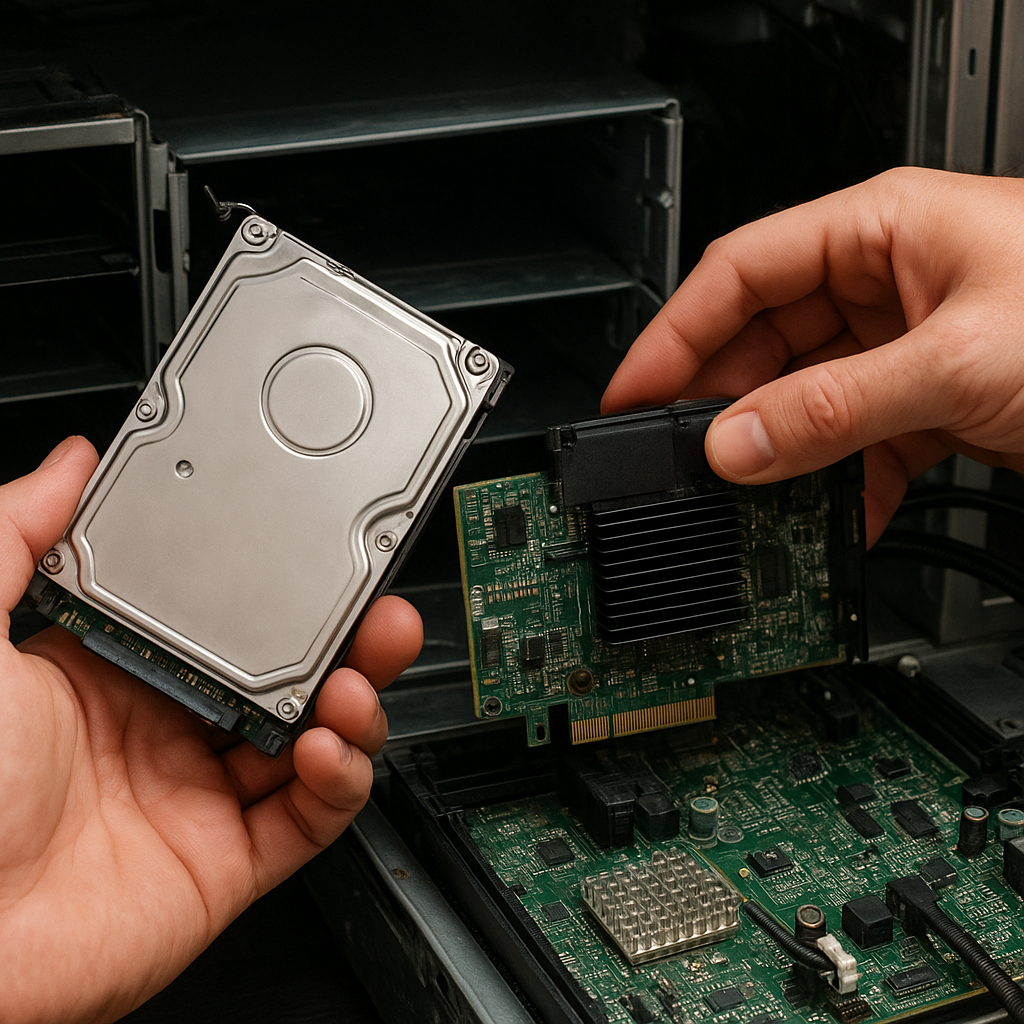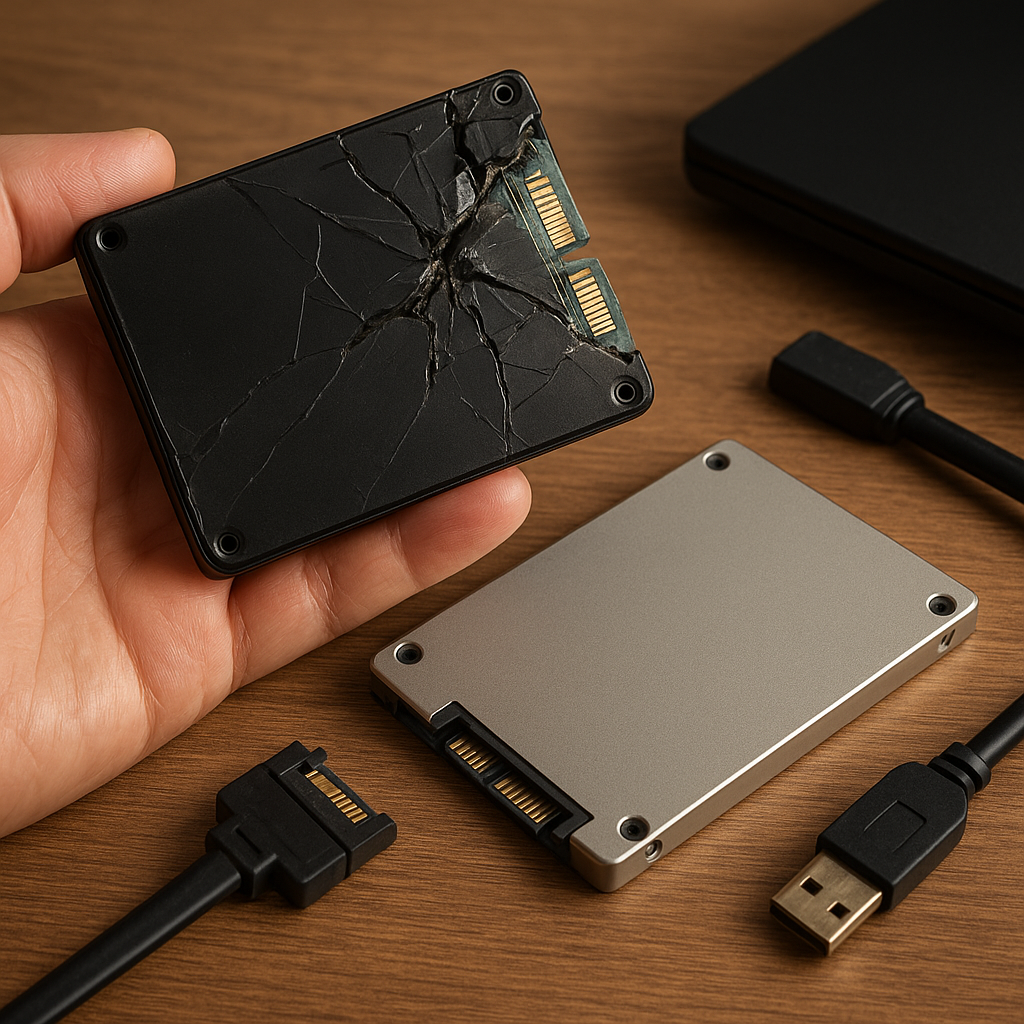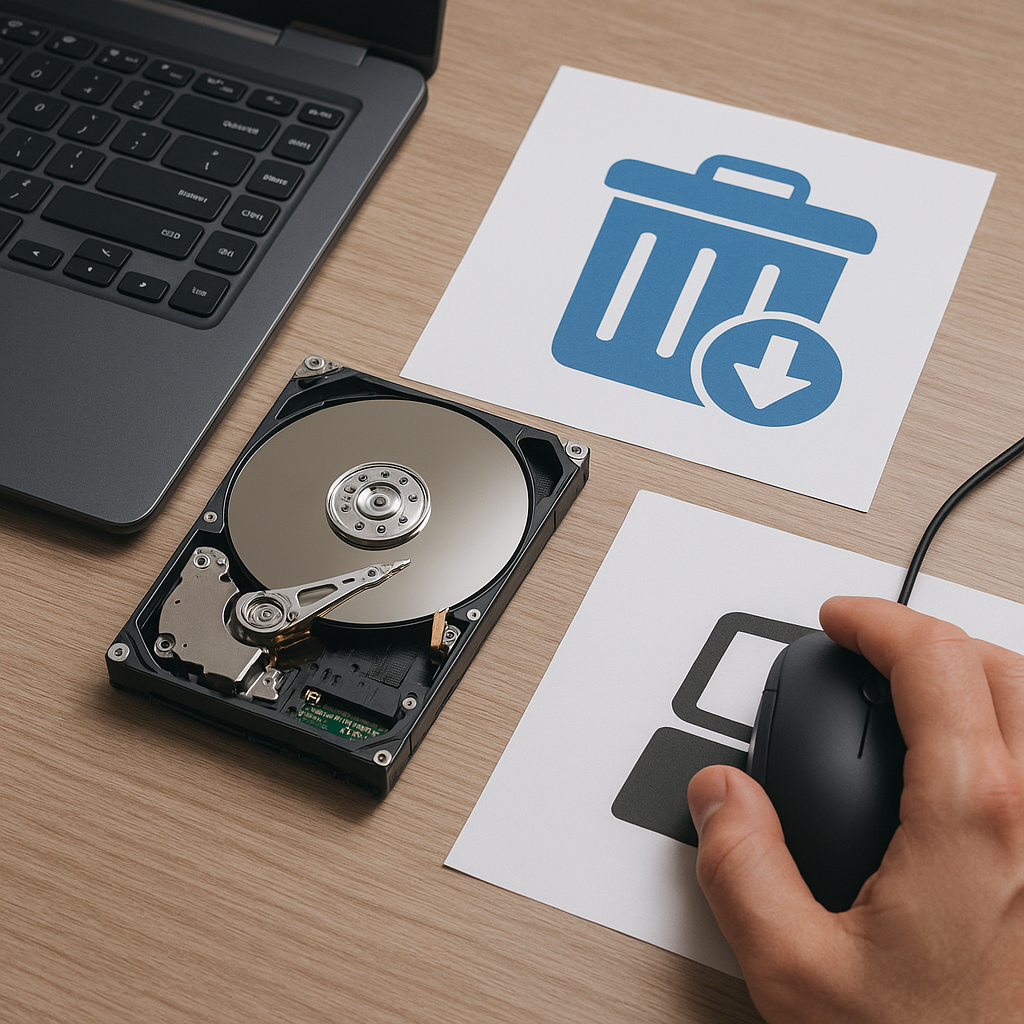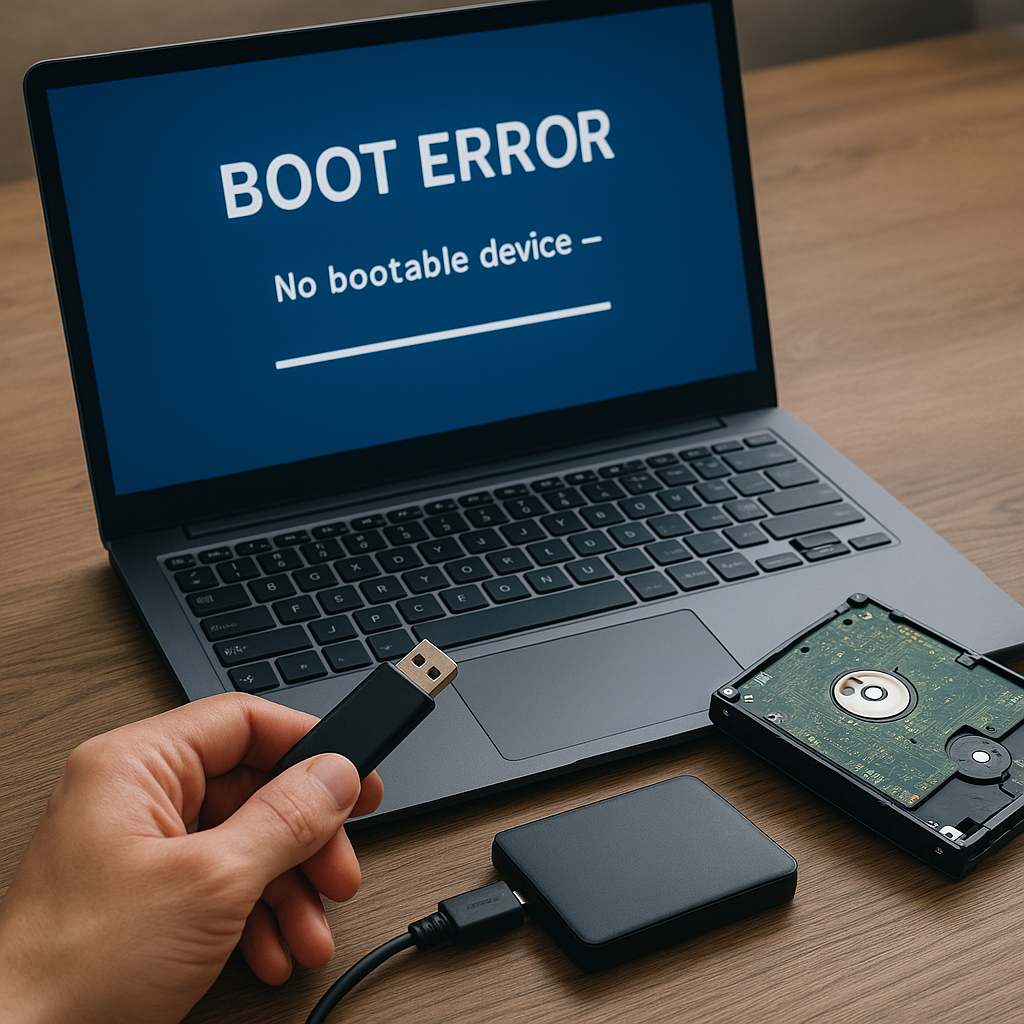
Tackling the challenge of extracting precious information from an external drive riddled with unreadable sectors demands both technical insight and the right toolkit. Bad sectors can transform your reliable storage device into a minefield of potential data loss, but armed with proper guidance and robust recovery solutions, you can navigate this complexity and retrieve your files safely.
Understanding Bad Sectors on External Drives
What Causes Bad Sectors?
Bad sectors are damaged sections of the storage medium that become unreadable or unstable. They arise due to several factors:
- Physical impact or drops leading to magnetic head crashes
- Manufacturing defects in the disk platters
- Excessive heat or power surges
- Normal wear and tear over extended usage
Symptoms of Sector Failures
Recognizing early signs helps prevent further deterioration. Typical indicators include:
- Frequent errors while copying or opening files
- Slow performance or system freezes when accessing certain folders
- “Clicking” or unusual noises from the drive motor
- Disappearing or corrupt directories
Logical vs. Physical Bad Sectors
Understanding the distinction is crucial:
- Logical bad sectors: occur when data within a sector becomes corrupted due to software issues or abrupt removal of the drive. Can often be repaired with low-level scanning and file repair utilities.
- Physical bad sectors: represent actual damage to the disk surface. These are irreparable but can be isolated to prevent further data loss.
Preparing for Safe Recovery
Creating a Disk Image
Before any attempt at file extraction, produce a bit-by-bit mirror of your affected drive. A disk image preserves existing data and prevents additional stress:
- Use specialized imaging tools to capture even damaged areas
- Store the image on a separate, reliable medium
- Verify the integrity of the image before proceeding
Choosing the Right Environment
Recovery operations are sensitive. Follow these guidelines:
- Work on a stable power source to avoid sudden shutdowns
- Connect via a reliable USB or eSATA interface; avoid hub chains
- Ensure your computer has sufficient RAM and processing power to handle large disk images and scanning tasks
Essential Precautions
Neglecting small details can jeopardize the entire process:
- Disable any automatic backup or disk-check utilities that may write to the source drive
- Create a log of all actions performed for future reference
- Maintain a read-only configuration when possible to avoid additional writes
Effective Recovery Software Solutions
Key Features to Look For
Not all tools are built equal. When selecting a recovery application, prioritize these capabilities:
- Deep scanning modes capable of reading through damaged layers
- Ability to bypass or isolate physical bad sectors
- Support for a variety of file systems (FAT32, NTFS, exFAT, ext4)
- Built-in integrity checks to validate recovered files
- User-friendly interface paired with advanced mode for professionals
Step-by-Step Recovery Workflow
- Load the disk image or connect the physical drive in read-only mode.
- Run a preliminary diagnostics pass to identify the location and severity of bad sectors.
- Initiate a detailed scan, focusing on known damaged regions.
- Filter recoverable files by type, size, or last-modified date to streamline processing.
- Export recovered items to a secure destination. Verify file integrity and completeness.
Handling Severe Corruption
When corruption is extensive, additional strategies may help:
- Employ multiple recovery engines sequentially for overlapping coverage
- Use specialized algorithms that reconstruct files from fragmented clusters
- Attempt header analysis for media files to salvage partial content
Best Practices for Maintaining Data Health
Regular Monitoring and Maintenance
Proactive measures are the best defense:
- Schedule routine SMART checks to monitor disk health metrics
- Perform periodic surface scanning to detect early bad sectors
- Keep firmware up to date to reduce the risk of controller-related failures
Implementing a Robust Backup Strategy
Even with superior recovery tools, prevention is key:
- Adopt a 3-2-1 backup rule: three copies, on two different media, one offsite
- Leverage cloud snapshots in conjunction with local backups
- Encrypt backups to safeguard sensitive information
Ensuring Long-Term Reliability
Drive longevity depends on both environment and usage patterns:
- Avoid extreme temperatures and humidity
- Limit constant high-load operations on portable disks
- Invest in shock-absorbing enclosures for mobile scenarios
Advanced Techniques for Complex Scenarios
Using Command-Line Utilities
For seasoned technicians, native tools can complement GUI applications:
- On Windows, use chkdsk with the /r switch to relocate data from bad sectors
- On Linux, leverage ddrescue for efficient imaging and error logging
- Combine file carving tools like Photorec to extract orphaned files from raw data
Custom Scripting for Bulk Operations
Automate repetitive tasks to save time:
- Write scripts to parse logs and identify high-risk sectors
- Automate batch recovery jobs across multiple drives
- Integrate email or messaging alerts for process milestones
Understanding File System Repair vs. File Extraction
It’s essential to differentiate between repairing a file system and extracting individual files. Repair utilities attempt to fix directory structures and allocation tables, which can inadvertently overwrite recoverable data. File extraction tools, on the other hand, focus solely on salvaging user files without altering the original medium. For drives with critical bad sectors, prioritize extraction over repair to maximize data retention.