
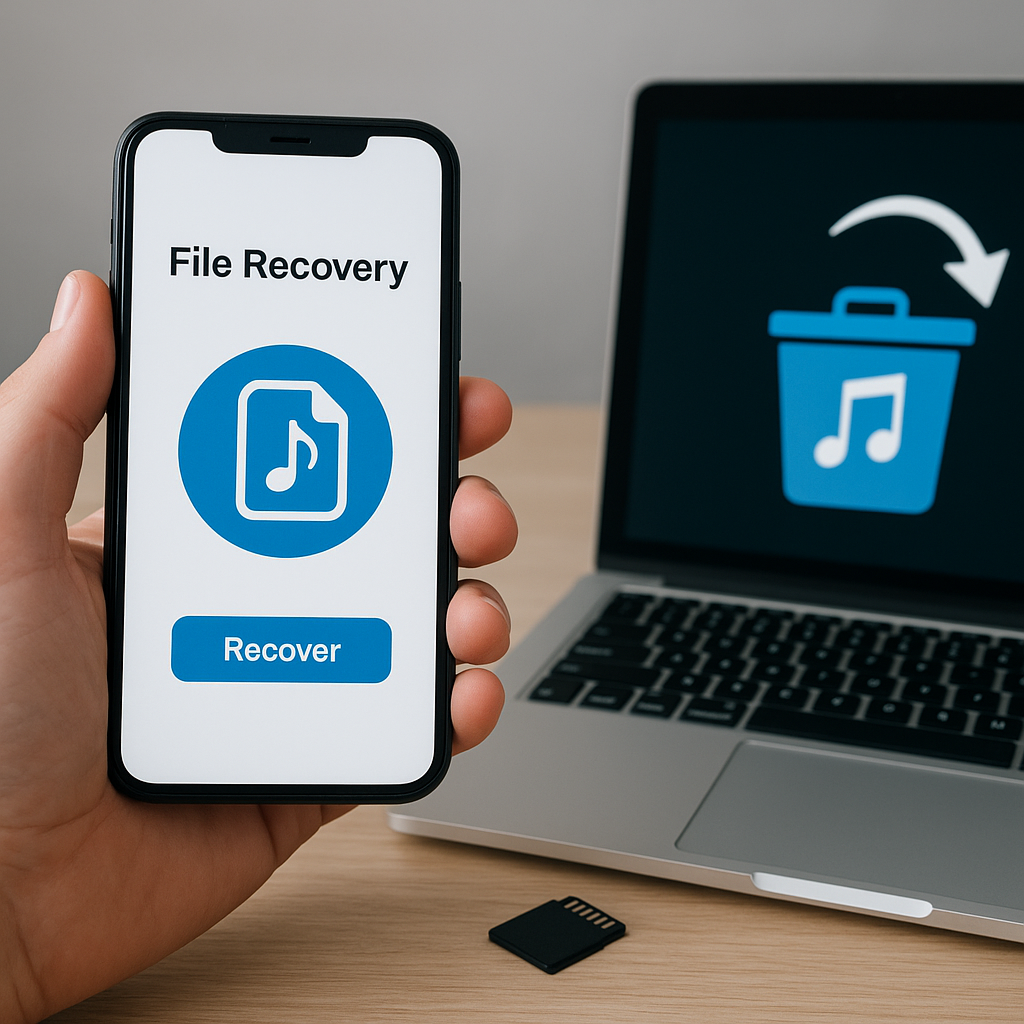
Losing treasured voice memos, memorable interviews, or important lecture recordings can be a frustrating experience for any smartphone user. Fortunately, with the right approach and reliable software, it’s possible to recover deleted audio files before they’re lost forever. This comprehensive guide will walk you through the recovery process, explain the underlying concepts, and offer best practices to maximize your chances of success.
Understanding Audio File Loss on Smartphones
Common Scenarios for Data Loss
- Accidental deletion while managing files
- Factory reset without backup
- Corrupted memory card or internal storage
- Failed operating system update or data overwriting
- Malware or virus attack
The Science Behind Deletion
When an audio file is “deleted” on a phone, the operating system simply marks its space as available for new data. The actual bits of the MP3, WAV, or AAC file remain intact until overwritten. This is where recovery software comes into play, performing a deep scan of the storage medium to locate traces of each file’s metadata, file header, and content.
Factors Affecting Recovery Success
- Time elapsed since deletion (less is better)
- Continued use of the device (risk of overwriting)
- Type of storage (internal memory vs. external SD card)
- File system format (FAT32, exFAT, ext4, etc.)
- Quality of the recovery algorithm
Choosing and Preparing Recovery Software
Evaluating Software Features
- Scan Depth: Quick scan vs. deep scan capabilities
- Supported File Types: MP3, WAV, M4A, AMR, etc.
- User Interface: Intuitive design for easy navigation
- Preview Function: Listen to recovered fragments before saving
- Export Options: Direct restore to device or PC backup
Recommended Tools for Desktop
- Recuva by Piriform – Lightweight and user-friendly
- Disk Drill – Comprehensive scanning and recovery
- Dr.Fone – Specialized in mobile data extraction
- EaseUS Data Recovery Wizard – Robust algorithm for deep recovery
Recommended Mobile Apps
- DiskDigger – Effective for rooted Android devices
- Dumpster – Recycle bin for multimedia files
- Undeleter – Requires root access but powerful scan
Step-by-Step Guide to Retrieve Deleted Audio Recordings
1. Immediate Actions Post-Deletion
- Stop using the phone to minimize new file creation.
- Disable Wi-Fi, cellular data, and Bluetooth to prevent background tasks.
- Switch to airplane mode for additional safety.
2. Installing the Right Recovery Tool
Download and install your chosen recovery software on a separate computer to avoid compromising the phone’s storage. If you opt for a mobile app, ensure you have root or administrator privileges when required, as this grants the app full access to the storage sectors.
3. Connecting Your Device
- For internal storage recovery, connect your smartphone via USB to the PC.
- Enable “USB Debugging” (Android) or trust the computer (iOS).
- Select “Recovery from Phone” or “Scan SD Card” in the software interface.
4. Performing the Scan
Choose a deep scan for comprehensive results, though it may take longer. Allow the software to build a file index, which may involve:
- Reading file tables and inodes
- Searching for known audio signatures
- Reconstructing fragmented files
5. Previewing and Exporting Files
Once scanning completes, review recoverable items. Many tools offer a preview player to verify the file’s integrity. Check these aspects:
- Audio length and clarity
- Correct file format
- Contiguous data segments
Select desired files and choose an export path on your PC or an external drive—never back up to the phone’s original storage during recovery.
Advanced Techniques and Best Practices
Rooting or Jailbreaking Considerations
On Android, rooting grants superuser rights, unlocking deeper access to system partitions where deleted files reside. On iOS, jailbreaking offers a similar advantage. However, this process carries risks:
- Voided warranty and potential security vulnerabilities
- Risk of bricking the device if done incorrectly
- Possible data loss during the rooting/jailbreaking procedure
Using Command-Line Tools
Advanced users may leverage open-source utilities such as PhotoRec (part of TestDisk). Despite its name, PhotoRec supports audio recovery. The workflow typically involves:
- Installing the tool on a PC
- Selecting the target storage device
- Customizing file signature filters for audio types
- Reviewing recovered chunks in a designated folder
Maintaining Partial Backups and Version Control
Avoid a single point of failure by implementing a backup strategy:
- Use cloud services (Google Drive, iCloud) for automatic upload of recordings
- Periodically transfer files to an external hard drive
- Enable versioning features to roll back to previous file states
Professional Data Recovery Services
If recovery software fails due to severe corruption or physical damage, consider contacting a specialized service. Professionals use:
- Cleanroom environments for hardware repair
- Sector-level imaging to avoid further data loss
- Proprietary algorithm techniques for complex reconstructions
Preventing Future Data Loss
- Regularly back up recordings to multiple locations
- Monitor storage health and replace aging SD cards
- Keep operating system and apps updated to minimize bugs
- Consider using a dedicated audio recorder with built-in cloud sync











