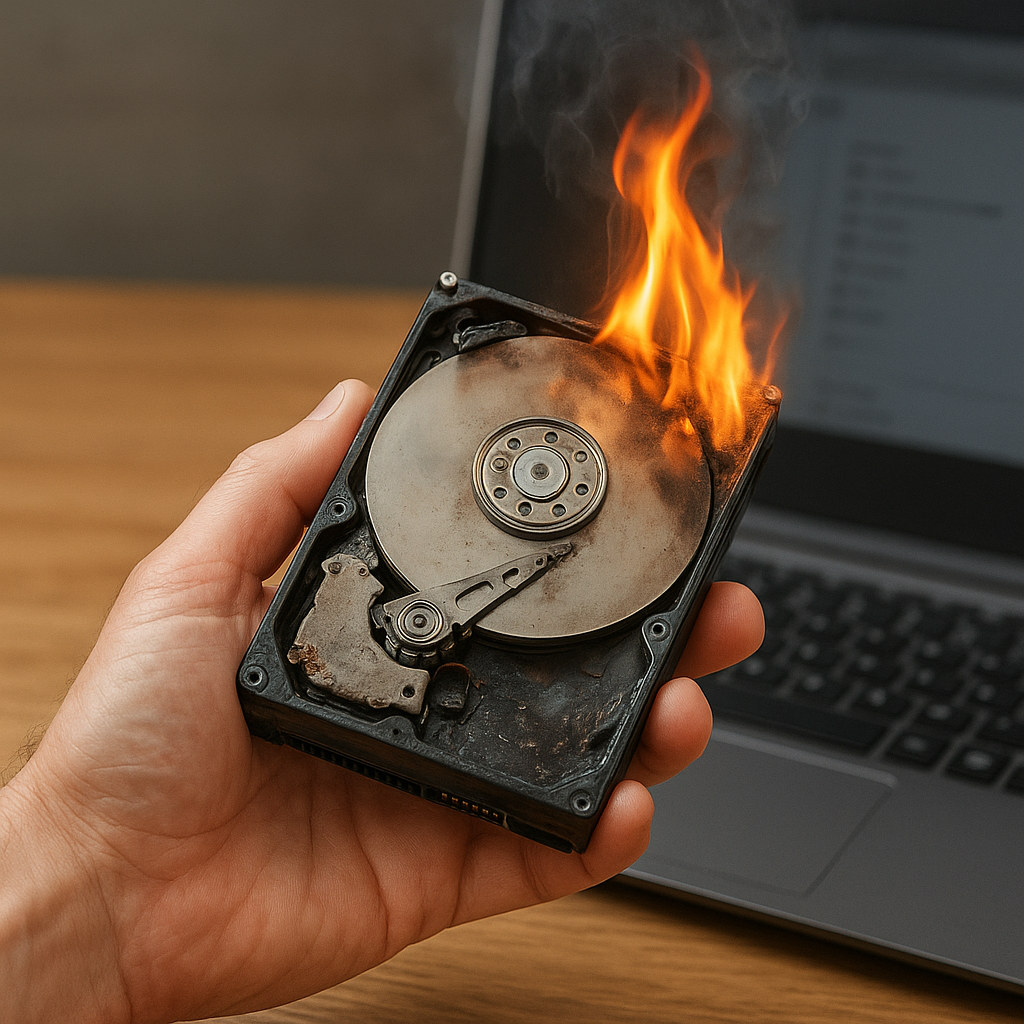
Recovering files lost after hard drive partitioning can feel like navigating a complex labyrinth. Yet, with the right understanding of how partition tables work, combined with powerful recovery tools, you can restore your precious data. This guide walks you through the essentials—from selecting suitable software to executing a successful deep scan—and offers practical tips to avoid pitfalls along the way.
Understanding Partitioning and Data Loss
When you partition a hard drive, you subdivide storage space into separate regions, each representing a distinct file system. While partitioning is typically safe, mistakes can lead to data loss:
- Deleted Partition: Accidentally removing or formatting a partition wipes out the associated file table.
- Overwritten Tables: Repartitioning may overwrite the Master Boot Record (MBR) or GUID Partition Table (GPT), rendering files inaccessible.
- Corrupt File System: Errors during resizing or merging partitions can corrupt the file system metadata, causing read/write failures.
Restoring lost files hinges on recognizing that, in most cases, the actual data resides intact on disk sectors until overwritten. You must act promptly to maximize recovery success and prevent new data from overwriting the file system fragments you intend to retrieve.
Key Features of Effective Recovery Software
Choosing the right tool is critical. Reliable recovery applications share these core capabilities:
- Comprehensive Scan Modes: A quick scan locates recently deleted files, while a deep scan reconstructs file headers and clusters from raw data.
- Partition Table Reconstruction: Software that can rebuild MBR or GPT entries often recovers multiple lost partitions in one go.
- File Type Recognition: Support for a wide array of formats—documents, images, videos, archives—ensures no file type is left behind.
- Preview Functionality: Verifying recoverable files before restoration saves time and avoids extracting corrupt items.
- Selective Recovery: The ability to filter by file name, size, date modified, or type lets you target essential data first.
Before committing to any product, test its free trial or demo. Evaluate its performance by scanning a smaller test partition and assessing recovery quality.
Step-by-Step Guide to Recovering Lost Files
1. Prepare Your System
- Stop using the affected drive immediately to avoid overwriting lost data.
- Install the recovery application on a separate partition or external storage. Do not install onto the drive under recovery.
- Create a disk image or clone of the affected drive, if the software supports it. Working on an image preserves the original disk integrity.
2. Run a Preliminary Scan
Launch the software and select the affected disk or partition. Begin with a quick scan to identify recently deleted files. In many cases, this step retrieves a significant portion of lost data in minutes.
3. Perform a Deep Scan
If the quick scan fails to locate your files, switch to deep scan mode. This method parses raw disk sectors and rebuilds file headers from scratch.
- Expect longer scan times, ranging from several minutes to a few hours, depending on disk size.
- Monitor scan progress and estimate the number of recoverable items.
4. Preview and Select Files
Once the scan completes, browse recoverable items with the built-in preview feature. This step helps you:
- Confirm file integrity for documents, images, and multimedia.
- Filter out zero-byte or corrupted files.
- Prioritize mission-critical data for immediate restoration.
5. Recover to a Safe Location
Choose a destination on a separate drive or external media. Restoring files back to the same partition risks overwriting other lost data. After recovery:
- Verify file functionality—open documents, play videos, or extract archives.
- Compare file sizes and metadata with any existing backups for consistency.
Preventive Strategies and Best Practices
While recovery tools are powerful, prevention remains the best defense against data loss. Implement these strategies:
- Regular Backups: Employ automated backup solutions that copy data to external drives or cloud services on a defined schedule.
- Partition Planning: Before resizing or creating partitions, sketch a clear layout and allocate ample free space to each region.
- Disk Health Monitoring: Use SMART diagnostics and surface tests to detect bad sectors or imminent hardware failures.
- File System Checks: Run periodic CHKDSK (Windows) or fsck (Linux/macOS) routines to repair minor corruption before it escalates.
- Update Software: Keep your OS and disk utilities current to benefit from the latest stability and compatibility improvements.
By combining proactive measures with robust recovery techniques, you’ll not only salvage lost files after hard drive partitioning but also fortify your system against future mishaps.