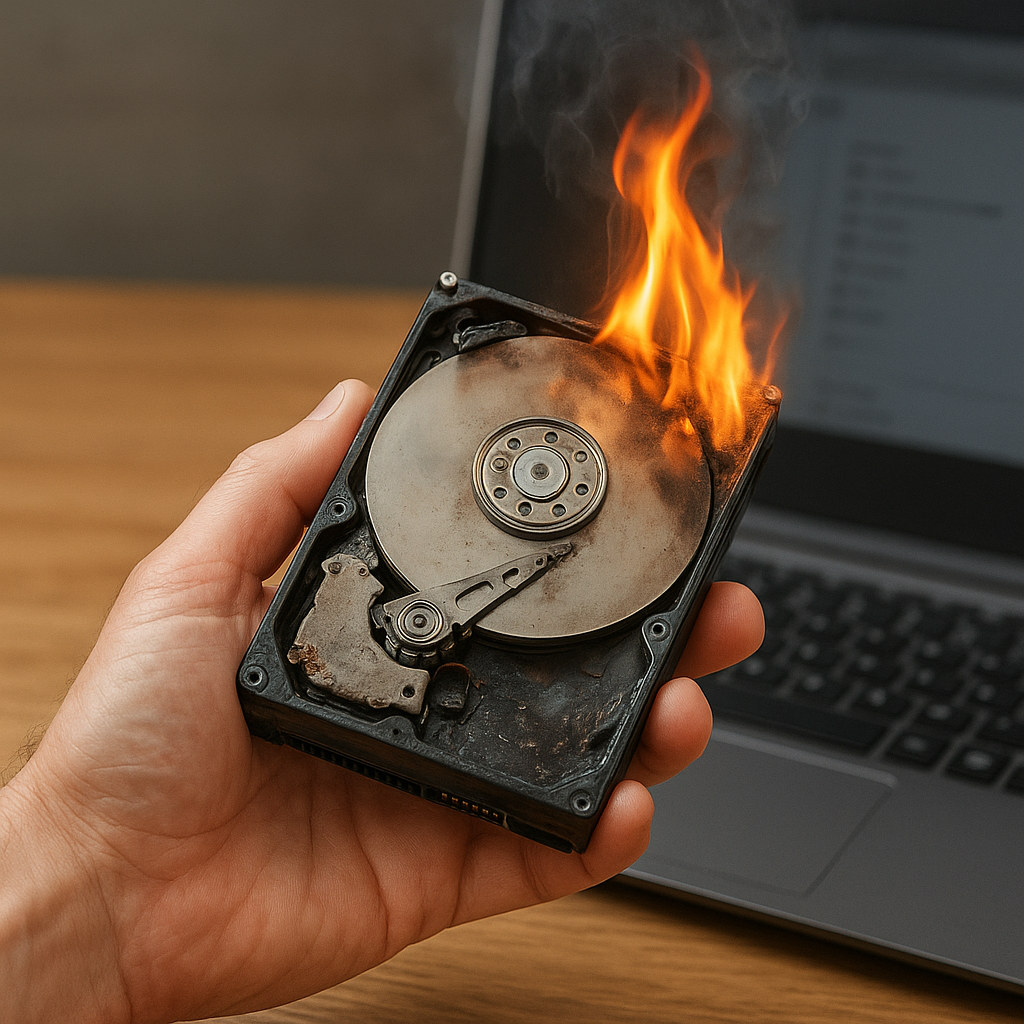
Experiencing a sudden software crash can be a daunting scenario, but understanding how to navigate the aftermath is essential to safeguarding your digital assets. This guide will explore methods for recovering lost files, highlight essential tools, and outline strategies to minimize future data loss.
Understanding Software Crashes and File Loss
When an application or operating system fails unexpectedly, several factors contribute to file loss. A software crash often involves memory corruption, unstable drivers, or power interruptions. Damaged file tables, incomplete write operations, and unexpected system shutdowns can render files inaccessible. Recognizing the root causes of a crash helps in choosing the right approach for recovery.
Common reasons for data loss include:
- Hardware failures such as bad sectors on a hard drive or SSD.
- Accidental deletion or formatting of partitions.
- File system corruption caused by improper shutdowns.
- Software bugs leading to write interruptions.
Immediate Steps to Take After a Crash
Acting promptly is crucial to prevent permanent data loss. Each additional write operation may overwrite sectors containing deleted or damaged files. Follow these steps to maximize your chances of successful retrieval:
- Power down the affected machine or unmount the drive to avoid further writes.
- Connect the drive to a separate, stable system as a secondary disk or via a USB adapter.
- Use a write-protected environment when scanning for lost files to preserve existing data integrity.
- Document the file system type (NTFS, FAT32, ext4) and partition layout before initiating recovery.
- Create a full disk image if possible, ensuring no further harm to the original.
Using Recovery Software: Tools and Techniques
Commercial Software Options
Paid utilities often provide more user-friendly interfaces and advanced features like deep scanning and file signature analysis. Some leading solutions include:
- Disk Drill: Offers raw file recovery for over 400 formats, clear previews, and optional recovery vault integration.
- EaseUS Data Recovery Wizard: Known for its simple wizard-driven approach, supporting both lost and formatted partitions.
- Stellar Data Recovery: Provides options for encrypted drive recovery and RAID reconstruction.
These tools typically guide you through selecting the target drive, scanning for lost data, and previewing recoverable files. They often include advanced filters to locate specific file types and support export of scan results for future reference.
Free and Open Source Tools
If budget constraints are an issue, several reliable free tools are available:
- PhotoRec: Despite its name, it supports recovery of documents and archives by scanning for fragmentation signatures.
- TestDisk: Specializes in repairing partition tables and recovering lost partitions on a variety of file systems.
- Recuva: User-friendly Windows tool with basic deep scan capabilities, suitable for quick file recovery.
Open source solutions often lack polished GUIs but compensate with powerful command-line options. Combining multiple tools can increase success rates, for example using TestDisk to restore a partition and PhotoRec to extract individual files.
Advanced Recovery Strategies
Working with Disk Images
Creating a complete disk image is a critical step in professional recovery. By cloning the suspect drive, you can run multiple analyses without risking additional damage.
- Use tools like ddrescue or Clonezilla for byte-for-byte cloning.
- Verify image integrity with checksums to ensure no alterations occur during the cloning process.
- Mount the cloned image in read-only mode and perform all recovery operations on it.
This approach is especially important when dealing with drives that exhibit signs of hardware failure. If the drive becomes unreadable during scanning, you still have the original image untouched.
Seeking Professional Help
In cases of severe physical damage or failed DIY attempts, consider engaging a data recovery specialist. Professionals utilize cleanroom environments and specialized hardware to:
- Repair or replace damaged read/write heads.
- Recover data from drives that emit strange noises or fail to spin up.
- Reconstruct data from parts of the drive that are inaccessible to consumer-grade tools.
While service costs can be significant, they often represent the last hope for critical data recovery, especially when dealing with corporate servers or irreplaceable personal files.
Preventative Measures to Avoid File Loss
Prevention is always preferable to cure. Implementing robust data protection strategies helps reduce downtime and stress in the event of a crash:
- Backup regularly using a combination of local drives and cloud solutions.
- Schedule automated snapshots or versioning on critical directories.
- Keep the operating system and applications up to date to minimize bug-induced failures.
- Monitor drive health with S.M.A.R.T. utilities to detect signs of impending failure.
- Employ uninterruptible power supplies (UPS) to avoid data corruption from sudden power loss.
Establishing a clear disaster recovery plan, including periodic tests of backup restoration, ensures you can swiftly resume operations without lengthy data loss episodes.