
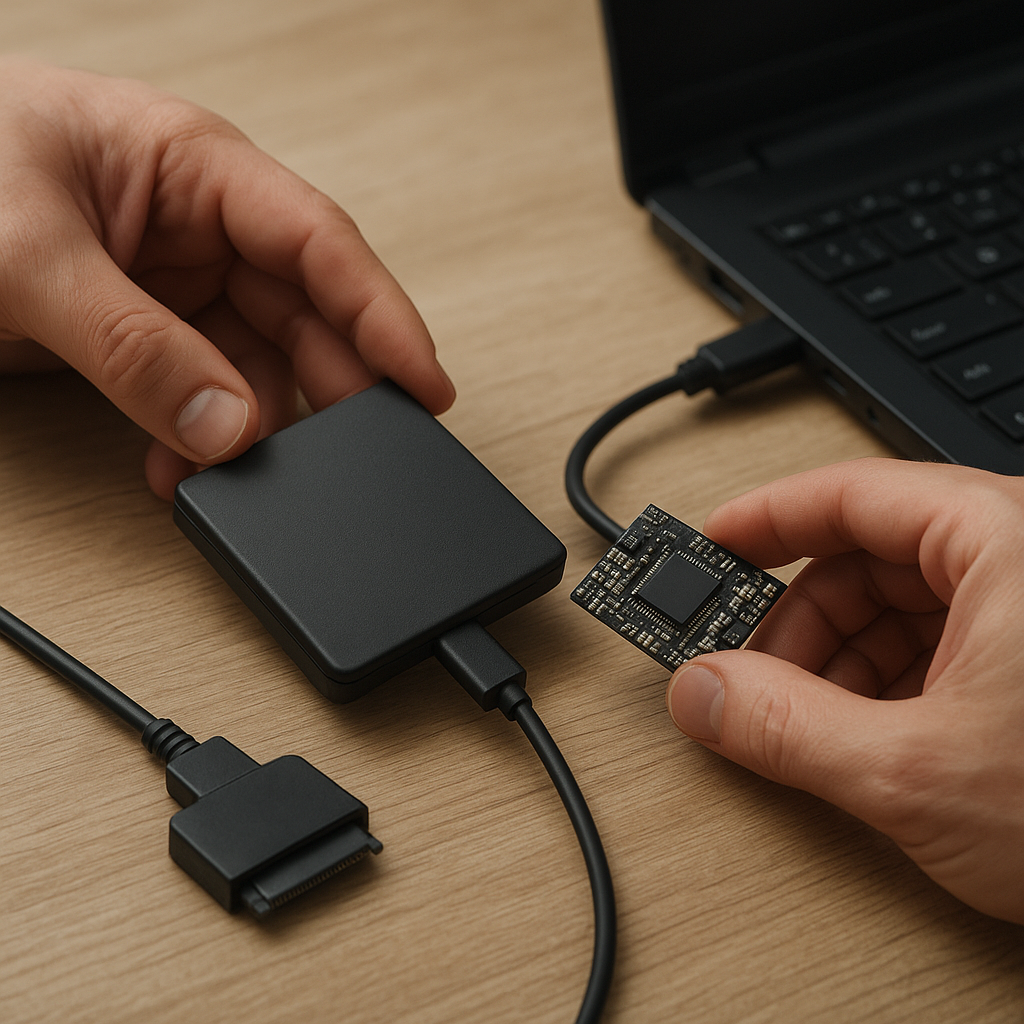
When an external solid-state drive (SSD) suddenly stops responding or exhibits erratic behavior, the prospect of losing precious files can be alarming. Before panic sets in, it’s important to approach the situation methodically. This article explores how to identify underlying issues, prepare your system for an effective recovery, utilize specialized data recovery software, and adopt strategies that minimize future risk.
Recognizing Underlying Issues
Proper recovery starts with accurately diagnosing the problem. External SSDs can fail for a variety of reasons—some internal, others environmental. By understanding the signs, you can tailor your approach and choose the most suitable tools.
Common Failure Indicators
- Device not detected by the operating system
- Repeated error messages when accessing files
- Unusual noises or overheating
- Drive appearing in BIOS but not mounting
- File system inconsistencies and frequent crashes
These symptoms may point to controller malfunctions, firmware glitches, bad memory cells, or logical corruption in the file table. In many cases, you can resolve minor issues through simple diagnostics and software-based repair. However, if the controller is burnt out or physical damage is evident, professional intervention might be required.
Preparatory Steps Before Recovery
Once you’ve identified the failure type, follow a clear sequence of preparations. This ensures you don’t inadvertently worsen the condition or overwrite critical sectors.
1. Power and Connection Check
- Use a different USB cable or port—preferably USB 3.0 or higher.
- Test the SSD on another computer to rule out host-side issues.
- Avoid using USB hubs, which can introduce power instability.
2. Create a Drive Image
Rather than working on the original drive, always operate on a bit-for-bit copy. This clone preserves every sector, even those marked as bad, allowing you to attempt recovery multiple times without risking the original data. Recommended tools include open-source and commercial utilities that support raw imaging of SSDs.
3. Verify Hardware Health
- Run SMART tests using tools like CrystalDiskInfo or smartctl.
- Check temperature and power draw—abnormal readings suggest electrical or thermal faults.
- Inspect connectors for bent pins or corrosion.
Inspecting the SMART attributes will indicate wear leveling, reallocated sectors, and uncorrectable errors. If the drive’s health rating is extremely low, prioritize imaging and consider professional services before further DIY attempts.
Using Specialized Recovery Software
After securing a stable clone and confirming hardware status, you’re ready to apply recovery tools. A range of programs cater to different failure types, from simple file deletion to metadata corruption and RAID configurations.
Selecting the Right Tool
- For deleted or lost partitions: choose software with robust partition table reconstruction.
- For damaged file systems (NTFS, exFAT, EXT4): select a tool that can handle low-level repairs and integrity checks.
- For SSD-specific issues: look for utilities that support TRIM-detection and firmware-aware scanning.
- For encrypted volumes: ensure the solution respects your encryption method and doesn’t alter headers.
Step-by-Step Recovery Workflow
- Load the disk image into your chosen software.
- Perform a quick scan to locate partition headers and recover easily accessible entries.
- Initiate a deep scan—this uses signature-based search and algorithms that recognize known file types by their headers and footers.
- Preview recoverable files to verify content quality before restoration.
- Export recovered files to a different storage medium—never back to the corrupted clone.
During deep scans, the software reconstructs file entries by analyzing data patterns across multiple sectors. Some advanced tools even offer manual hex editors, enabling you to fine-tune recovery if automated methods fall short. Always save logs and session files to resume lengthy operations without starting from scratch.
Handling Complex Cases
Faulty SSDs sometimes exhibit intermittent read errors or a high count of reallocated memory blocks. In these situations:
- Throttle the input/output rate to reduce stress on failing chips.
- Use long-duration scanning modes that can skip bad blocks swiftly and retry later.
- Combine multiple recovery methods: if one tool hits a roadblock, switch to another that utilizes different signature databases or heuristics.
Adopting Preventive Best Practices
Once your files are safely restored, the next step is safeguarding your data against future incidences. Prevention isn’t just about backups; it’s a holistic approach involving hardware choices, routine checks, and disciplined habits.
1. Regular Backups
- Implement the 3-2-1 rule: three copies, on two different media, with one offsite.
- Automate backups with incremental and full-snapshot schedules.
- Verify backup integrity periodically to ensure files can be restored without error.
2. Monitor Drive Health
- Continue using SMART monitoring tools for real-time alerts.
- Set threshold alarms for reallocated sectors and uncorrectable errors.
- Replace SSDs approaching write-cycle limits, especially for intensive workloads.
3. Mindful Usage and Maintenance
- Avoid full-disk writes; leave at least 10–20% free space for wear leveling.
- Keep firmware updated to benefit from controller optimizations and bug fixes.
- Use UPS systems to guard against power surges and abrupt shutdowns.
4. Evaluate Storage Solutions
Depend on SSDs tailored to your use case. For instance, choose enterprise-grade drives for servers, and consumer NVMe models for everyday tasks. Understanding endurance ratings helps you align drive specifications with workload intensity, ensuring long-term reliability and optimizing cloning operations when needed.
By combining accurate diagnosis, disciplined preparation, effective software tools, and rigorous preventive measures, you can recover data from a crashed external SSD and dramatically reduce the likelihood of repeat disasters. Staying informed about evolving algorithms, emerging threats, and hardware advancements will further enhance your data protection strategy.











