When a digital storage device undergoes unexpected failures, the resulting corruption can strike fear into anyone who relies on critical files. Whether caused by power surges, abrupt system crashes, or hardware wear, a compromised file system demands swift and accurate intervention. This article explores the mechanisms of corruption, outlines proven methods to recover valuable data, and offers guidance on selecting robust recovery tools.
Understanding File System Corruption
File system corruption arises when the metadata that organizes files becomes damaged or inconsistent. Each storage medium—be it HDD, SSD, USB flash drive, or memory card—relies on structures such as superblocks, inodes, and allocation tables. When these elements are altered unintentionally, the operating system might refuse to mount the volume or display erratic file sizes, missing folders, and error messages like “Invalid sector” or “Partition not found.”
Common Causes of Corruption
- Sudden power loss during write operations
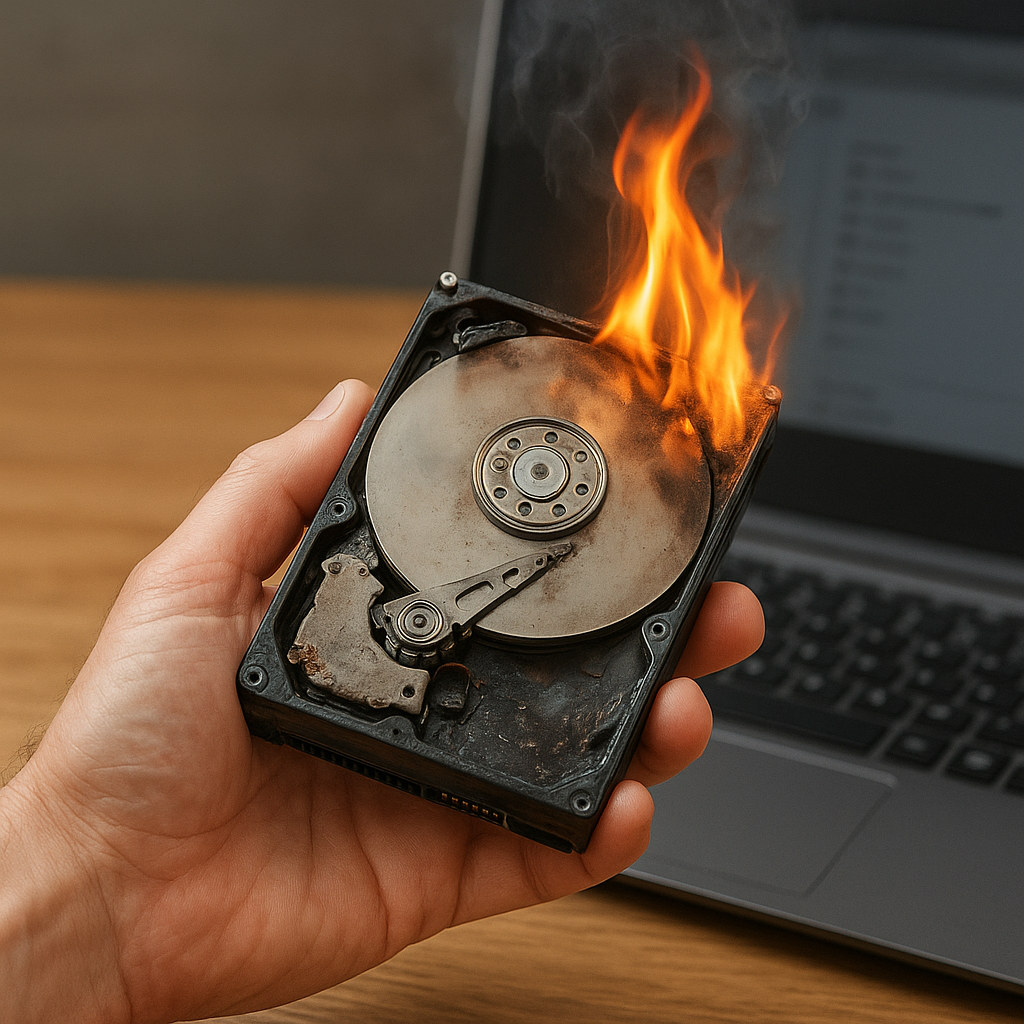
- Physical damage to the storage medium
- Virus or malware attacks targeting critical sectors
- File system driver bugs or improper unmounting
In most scenarios, the underlying magnetic or flash memory remains intact; only the logical map linking files to sectors and clusters is scrambled. Understanding this distinction is crucial: it highlights the possibility of full data recovery if approached correctly.
Effective Data Recovery Strategies
When confronted with a corrupted volume, a disciplined strategy increases the odds of retrieving intact files while minimizing further damage. Below are essential steps recommended by data experts:
1. Immediate Read-Only Access
Never attempt to write new data onto the affected drive. Each write operation may overwrite fragments of lost data, reducing reliability. Instead, create a bit-by-bit backup image or clone the device using read-only mode. Tools like ddrescue (Linux) or specialized forensic utilities can preserve every recoverable byte.
2. Logical Analysis and File Carving
After securing a disk image, run a two-pronged approach:
- File System Repair: Utilities such as chkdsk (Windows), fsck (Linux), or Disk Utility’s First Aid (macOS) attempt to rebuild corrupted tables. These can remedy minor inconsistencies but carry a small risk of discarding unreadable fragments.
- Data Carving: If repair fails, file carving tools scan raw data for known headers and footers, reconstructing documents, images, and archives regardless of the file system type. Popular carving utilities include PhotoRec, Scalpel, and commercial packages.
3. Advanced Sector-Level Techniques
For severely damaged media, low-level recovery might be necessary. Algorithms designed to interpolate and reassemble bits from partially failing sectors can retrieve information even when the file system is beyond logical repair. This often requires professional hardware controllers that interface directly with the drive’s platters or NAND flash chips.
Choosing the Right Recovery Software
With dozens of recovery products on the market, selecting the optimal tool depends on your technical proficiency, budget, and the severity of corruption. Key factors to consider include:
- Supported File Systems: NTFS, FAT32, exFAT, ext4, HFS+ and others
- Recovery Modes: Quick scan, deep scan, raw recovery
- User Interface: Command-line for professionals vs. GUI for novices
- Speed vs. Thoroughness: Fast scans might miss fragmented files; deep scans take longer but maximize retrieval.
Free vs. Commercial Solutions
Open-source utilities often excel at simple tasks such as undeleting recently removed files. However, commercial suites frequently offer guided wizards, advanced filtering, and dedicated technical support. Examples include:
- Recuva (free/basic): Easy undelete for Windows
- R-Studio (commercial): Cross-platform, supports extensive file systems
- GetDataBack (commercial): Known for high integrity restoration rates
- TestDisk & PhotoRec (open-source): Specialized in partition repair and file carving
Before purchasing, test free trial editions on a cloned drive. Assess whether recovered files open correctly and if the interface aligns with your workflow.
Preventing Future Data Loss
Once data is successfully retrieved, it’s vital to implement proactive measures. Prevention is far simpler than recovery. Incorporate these best practices into your routine:
- Maintain regular backups using the 3-2-1 rule: three copies on two different media, one off-site.
- Monitor drive health with S.M.A.R.T. reporting tools, alerting you to early warning signs.
- Use uninterruptible power supplies (UPS) to guard against sudden outages.
- Schedule periodic integrity checks on critical volumes.
By understanding the mechanics of corruption, applying systematic recovery techniques, and selecting reliable software, organizations and individuals can restore lost files and safeguard digital assets from future mishaps.