
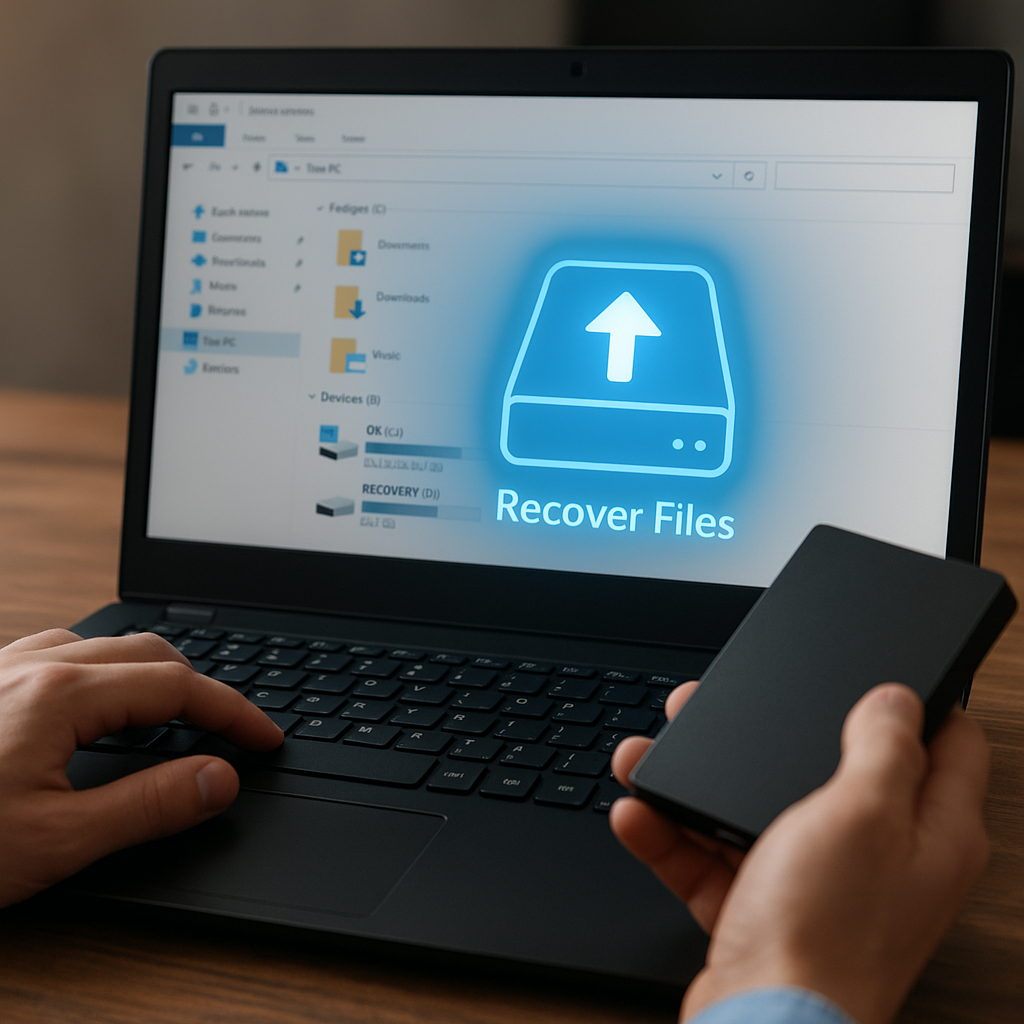
Recovering files from a **deleted partition** can be a daunting task for anyone who has accidentally wiped important data. Fortunately, modern **recovery software** offers robust tools designed to scan storage media, rebuild file structures, and restore lost content. This article will guide you through understanding why partitions get deleted, how to select the best recovery tool, and detailed steps for retrieving your files safely.
Understanding Partition Deletion and Data Loss
When a partition is deleted, the operating system merely removes references to the partition’s file system; the underlying data remains until it’s overwritten. Yet, without a valid partition entry in the Master Boot Record (MBR) or GUID Partition Table (GPT), the space becomes inaccessible to standard file explorers. Recognizing the difference between logical and physical data loss is crucial. Logical loss occurs when partition entries or file system metadata are corrupted, while physical loss implies actual damage to the storage medium.
Common causes of **data loss** include:
- Accidental deletion during disk management tasks
- Malware or virus attacks that corrupt partition tables
- Failed operating system installations or upgrades
- Power surges and hardware failures
Recovering from a deleted partition relies on scanning the raw sectors of the disk to detect file signatures, reconstructing the original **metadata**, and then restoring directory structures. Time is of the essence: every write operation risks overwriting the very data you hope to recover.
Choosing the Right Recovery Software
Selecting a reliable tool can mean the difference between complete restoration and permanent loss. When evaluating **recovery software**, consider the following factors:
Supported File Systems
- NTFS, FAT32, exFAT for Windows environments
- HFS+ and APFS for macOS systems
- EXT3, EXT4, XFS for Linux partitions
Scanning Modes
- Quick scan for recently deleted partitions
- Deep scan for corrupted or overwritten data
- Raw recovery relying on file signatures
User Interface and Ease of Use
An intuitive wizard or step-by-step guide helps non-technical users navigate the recovery process without introducing additional risks.
Preview Functionality
Being able to **preview** recoverable files, such as images, documents, and videos, ensures you prioritize the most critical data before performing restoration.
Cost and Licensing
Evaluate trial versions to gauge success rates. Some tools limit the amount of data you can recover until you purchase a full license.
Step-by-Step Guide to Recovering Files
Below is a generic workflow applicable to most commercial and open-source recovery applications.
- Install the recovery software on a different drive to avoid overwriting lost data.
- Launch the application and select the target disk where the partition was deleted.
- Choose the appropriate scanning mode—start with a Quick Scan; if results are insufficient, proceed to a **Deep Scan**.
- Wait for the scan to complete. This may take from minutes to hours based on disk size and health.
- Review the list of recoverable partitions and files. Use the preview feature to verify integrity.
- Select the files or directories you wish to restore. Avoid writing them back to the original drive; choose an external or separate internal disk.
- Initiate the recovery process and monitor progress until completion.
After restoration, verify that all critical documents open properly. Pay special attention to large files like videos and databases, which are more prone to fragmentation.
Advanced Techniques and Troubleshooting
In scenarios where standard recovery fails, consider these advanced approaches:
Partition Table Repair
Utilities like TestDisk can rebuild MBR or GPT entries by scanning for valid file system headers.
Disk Imaging
Create a sector-by-sector image of your failing drive using tools such as ddrescue. Working on an image preserves the original device and allows repeated attempts without further risk.
Raw Signature Recovery
If file system structures are heavily damaged, rely on raw signature scanning. This method locates files based on known headers and footers, but often loses original names and folder paths.
Combining Multiple Tools
Sometimes one program may spot partitions that another misses. Export recovered file lists from one tool, then import them into another for more thorough rescanning.
Handling Bad Sectors
Use disk utilities to map out and isolate bad sectors. Some recovery tools can skip damaged blocks and reassemble surviving fragments of files.
Preventing Future Data Loss
Once you’ve successfully retrieved your important files, implement **backup strategies** to minimize the risk of future emergencies.
- Maintain regular full-disk or incremental backups using reputable backup software.
- Adopt the 3-2-1 rule: three copies of data on two different media, with one offsite or in the cloud.
- Use **disk imaging** solutions to create snapshots of entire system states.
- Schedule periodic health checks of storage devices to detect early signs of failure.
- Encrypt sensitive backups to ensure **data security** and compliance with privacy regulations.
By combining proactive measures, robust tools, and informed recovery practices, you can significantly reduce downtime and data loss, keeping your digital assets safe and accessible.











