
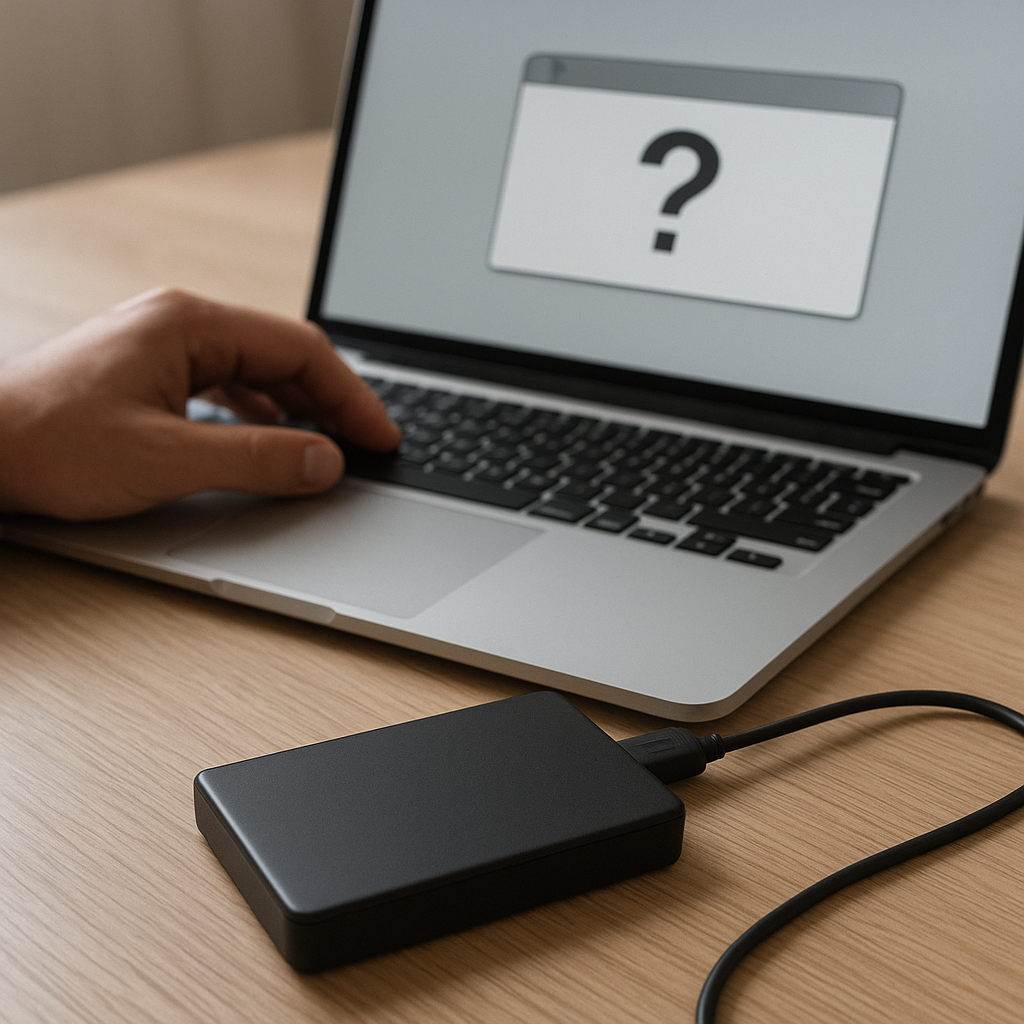
Discovering that an external drive has vanished from your computer’s file manager can spark immediate concern, especially if it contains critical work documents, cherished family photos or essential backups. This guide delves into both the logical and physical challenges of recovering files from an unrecognized external drive. You’ll gain insight into how operating systems detect and mount storage devices, the leading causes of drive invisibility, and the best software tools to restore your data. With step-by-step instructions, advanced techniques and proactive measures, you can navigate the complexity of modern recovery scenarios and safeguard against future data loss.
Understanding Drive Recognition Mechanisms
Operating systems rely on a multi-layered process to detect and mount external storage. At the hardware level, the USB, Thunderbolt or eSATA controller negotiates power delivery and signal protocols. Once communication is established, the OS queries device descriptors to identify the storage class and capacity. Next, the system reads the primary partition table to enumerate volumes and determine file system types. If any stage fails—be it a firmware fault, driver mismatch or partition inconsistency—the drive may remain hidden or inaccessible.
On Windows, you can inspect Device Manager and Disk Management; on macOS, Disk Utility and the command-line tool “diskutil” reveal drive presence. Linux users turn to “lsblk”, “fdisk -l” and “dmesg” logs for low-level diagnostics. Understanding these recognition steps arms you with clues about the nature of the failure—hardware or logical—guiding you toward the appropriate recovery approach.
Common Reasons Why External Drives Become Unrecognized
Before attempting file recovery, identify the root cause of an unrecognized drive. This preliminary analysis prevents unnecessary operations that could worsen corruption or physical damage.
- Faulty Cables and Ports
USB cables and ports endure wear over time. A bent connector or broken pin can interrupt power or data lines. Always trial a different cable, USB port or hub. If you’re using a USB hub, connect the drive directly to the host port to rule out hub-related power issues. - Driver and Firmware Conflicts
Outdated or incompatible device drivers may prevent the OS from loading the correct USB Mass Storage driver. Visit the drive manufacturer’s site to download the latest firmware and host controller drivers. On macOS, ensure you’ve installed any vendor-supplied kernel extensions. - File System Damage
Abrupt ejections, system crashes or malware attacks often corrupt the file system. The OS might detect the raw hardware but refuse to mount any partitions. Tools like chkdsk (Windows), fsck (Linux/macOS) can attempt repairs, though you should clone the disk first to avoid exacerbating the issue. - Partition Table Failures
The partition table serves as the roadmap to your data. A damaged table means the drive looks blank. Utilities such as TestDisk can rebuild or recover partitions by scanning for known signatures in unallocated space. - Mechanical Wear and Tear
Hard drives have moving parts that degrade over years. Signs include clicking noises, slow spin-up or failure to start. SSDs, while free of mechanical components, may suffer from firmware bugs that brick the device. Physical issues often necessitate professional service.
Choosing the Right Recovery Software
Selecting a tool suited to your scenario is vital. Features such as advanced scanning algorithms, file previews and drive imaging options enhance the likelihood of successful recovery.
Free vs. Commercial Solutions
Free utilities like PhotoRec, TestDisk and Recuva serve well for basic recovery tasks, especially when you’re on a tight budget. However, they may lack user-friendly interfaces and support for modern file systems such as exFAT or APFS. Commercial options—Disk Drill, EaseUS Data Recovery Wizard and R-Studio—offer robust features, including:
- Bootable recovery media
- Automatic byte-level cloning in read-only mode
- Selective file preview and filtering by size, date or file type
- Technical support and continuous updates
Critical Features to Evaluate
- Sector-by-Sector or block-level scanning to find lost fragments
- Support for diverse file types—databases, compressed archives, multimedia
- Integrity checks to verify recovered file consistency
- Partition recovery and deep scan modes for severe logical damage
- Cross-platform compatibility if you switch between Windows, macOS and Linux
- Ability to recover metadata such as original timestamps and folder structure
Step-by-Step Guide to Recover Files from an Unrecognized Drive
Adhering to a methodical process reduces the risk of overwriting data and ensures maximum preservation of recoverable content.
- Cease All Write Operations
Immediately stop any processes that might write to the affected drive. Continued writes may overwrite lost files beyond retrieval. - Create a Disk Image
Use a tool like ddrescue (Linux/macOS) or the imaging feature in commercial software to capture a full device image. For example:ddrescue -f -n /dev/sdb drive_image.img drive.mapfile
This first pass clones undamaged sectors. Follow up with:
ddrescue -d -r3 /dev/sdb drive_image.img drive.mapfile
to retry read errors up to three times.
- Inspect with Disk Utilities
On Windows, open Command Prompt and runchkdsk E: /f /r. On macOS, usediskutil verifyDisk /dev/disk2to check block integrity. - Perform a Quick Scan
Launch your recovery software in standard mode to quickly identify intact files and folders. Use the preview pane to confirm file readability. - Run a Deep Scan
If the quick scan yields limited results, switch to deep scan or raw recovery. This mode analyzes every sector for known file signatures, rebuilding fragmented files. - Review and Export Recovered Files
After scanning, sort by file type, size or modification date. Restore files to a different storage device to avoid overwriting data on the source image.
Advanced Techniques for Complex Scenarios
Logical errors and simple mechanical fixes aside, some situations demand more specialized methods. Whether you face persistent read failures or intermittent connectivity, these approaches can offer a path forward.
- Docking Stations and Direct Connections
Removing the drive from its enclosure and connecting it via a SATA-to-USB adapter or docking station can bypass a faulty interface board. - Firmware and Controller Repairs
Certain drive models suffer from firmware bugs that render them invisible. Manufacturer-supplied firmware update utilities can revive these devices, but follow instructions precisely to prevent bricking. - Environment Manipulation
Carefully cooling a drive in a sealed bag or placing it in a room-temperature-controlled environment can temporarily stabilize failing electronics. Never freeze a drive outside of an anti-static bag. - Professional Clean Room Recovery
For drives with damaged sector-by-sector mechanics—such as head crashes or platter scratches—only a certified data recovery lab can safely open the drive in a dust-free environment. - Log Analysis and Scripting
Advanced users can parse system logs (Windows Event Viewer, Linux dmesg) to identify error codes. Custom scripts leveraging libusb or smartmontools can automate repeated read attempts.
Tips for Preventing Future Data Loss
Implementing a proactive data management strategy helps you avoid the stress of unrecognized drives and ensures rapid recovery when issues arise.
- Regular Backups
Follow the 3-2-1 rule: maintain at least three copies of your data, on two different media types, with one copy stored offsite or in the cloud. - Monitor Drive Health via S.M.A.R.T.
Schedule periodic scans to detect early signs of failure such as reallocated sectors, high temperature or read error rates. - Use High-Quality Cables and Enclosures
Investing in reliable connectors and drive cases can dramatically reduce interface-related failures. - Safely Eject or Unmount Drives
Always use the system’s eject function before disconnecting external storage to prevent corruption. - Rotate and Replace Old Drives
Magnetic hard drives have a limited lifespan. Consider replacing drives every three to five years to maintain optimal reliability.











