Repartitioning a storage device can be a daunting task, especially when you realize that important files have vanished. This guide delves into effective methods and advanced tools designed to help you recover data after a partition change. By understanding the nuances of how file systems work and leveraging the right software, you can restore your precious documents, photos, and videos with minimal hassle.
Understanding Data Loss After Repartitioning
How Repartitioning Affects the File System
When you repartition a disk, the operating system modifies or replaces the partition table. This table serves as a map, telling the computer where each segment of the file system resides. Altering this map without proper backups may render previously allocated sectors inaccessible. Although the raw data often remains intact on the drive, the loss of partition pointers means the OS no longer knows where to find your files.
The Difference Between Quick and Full Formats
A quick format simply erases the partition table entries, leaving the actual data intact until overwritten. A full format, in contrast, can overwrite every sector with zeros. Understanding this distinction is crucial, as a quick format offers a higher chance of successful recovery while a full format severely reduces it. Always opt for unmounted, read-only access when attempting to recover from a full format, if possible.
Common Signs of Partition Table Corruption
- Error messages such as “Partition not found” or “File system not recognized.”
- Inability to mount the drive in the OS’s file explorer.
- Missing or incorrect drive letter assignments on Windows.
- Disk utility reports sectors marked as “unallocated” despite previous usage.
Key Strategies for File Recovery
Immediate Steps to Prevent Further Data Loss
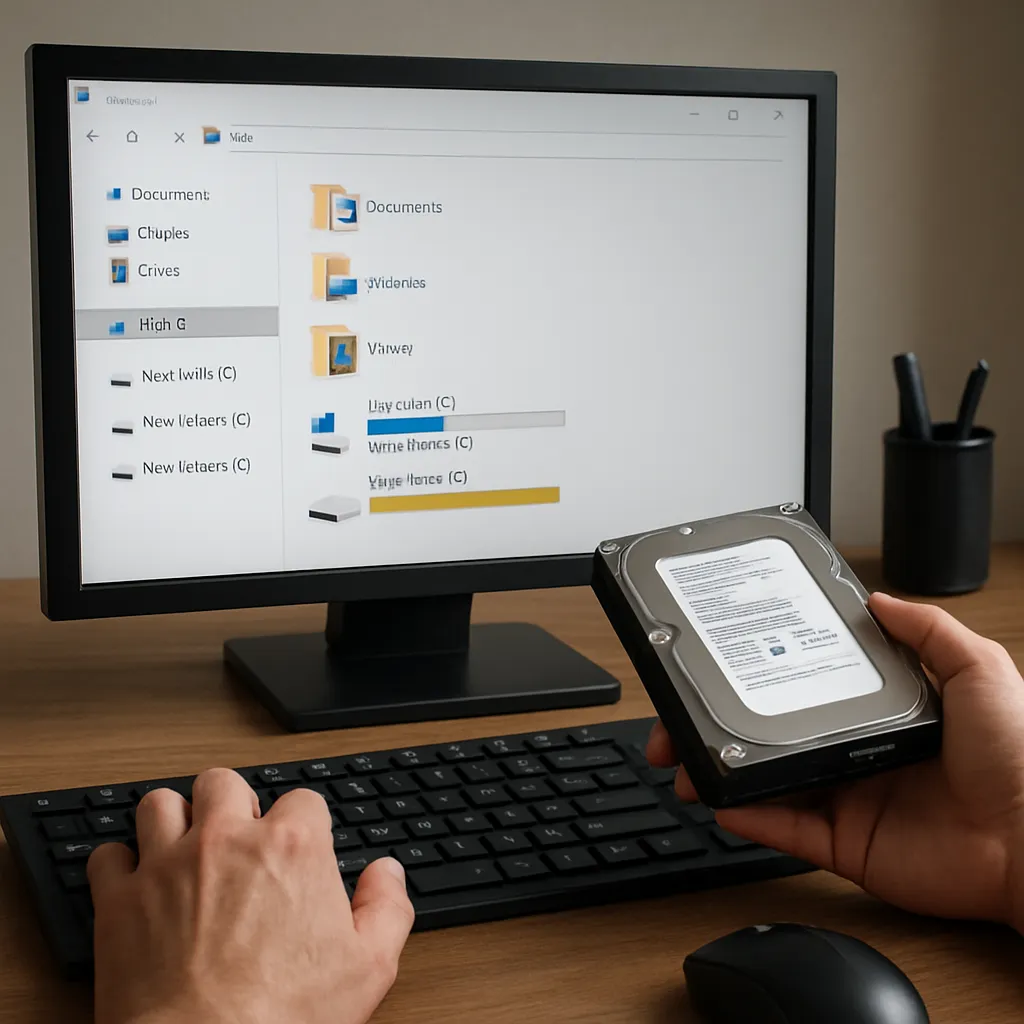
First and foremost, stop any write operations on the affected drive. Every new file saved increases the risk of overwriting sectors containing lost data. If possible, remove the drive and connect it to a secondary machine as a non-bootable secondary disk. This reduces accidental writes from background services or updates.
Choosing the Right Recovery Tool
Not all recovery utilities are created equal. When evaluating tools, consider the following:
- Support for various file systems (NTFS, FAT32, exFAT, EXT4, HFS+).
- Ability to scan raw sectors for signature-based recovery (often called “deep scan”).
- User-friendly interface versus advanced features for IT professionals.
- Preview function to verify recoverable file integrity before restoration.
Step-by-Step Data Retrieval Process
- Install the chosen recovery software on an external or separate internal drive.
- Launch a preliminary scan to detect lost partitions and file structures.
- Review the scan results, filtering by file type, size, or date.
- Select files for recovery, prioritizing critical documents and media.
- Specify a safe destination path on a different physical drive to avoid overwriting.
- Execute the recovery operation and verify the recovered files for integrity.
Advanced Techniques and Best Practices
Deep Scan Versus Quick Scan
A quick scan reads only the partition table and file allocation table (FAT) entries, offering fast but sometimes incomplete results. A deep scan, on the other hand, parses every sector looking for known file signatures. Although time-consuming, this method can unearth files even when the partition table is severely damaged or overwritten.
Using Disk Imaging for Safe Recovery
Creating a disk image or clone of the affected drive is a best practice for preserving the original data state. This image can be used for repeated recovery attempts without risking further damage to the source disk. Popular imaging formats include raw (dd) and compressed containers compatible with mainstream recovery suites.
Command-Line Utilities and Scripting
For users comfortable with terminals, command-line tools like TestDisk and PhotoRec offer powerful, scriptable interfaces. Custom scripts can automate repetitive scans across multiple disk images or filter recovered files by metadata. This approach is especially valuable for IT professionals managing large-scale recovery projects.
Integrating Backup Solutions
Prevention remains the most reliable path to data safety. Incorporate a solid backup strategy to mitigate future losses:
- Regular automated backups to local NAS or cloud storage.
- Versioned snapshots enabling rollback to previous states.
- Offsite storage for critical business data to safeguard against physical damage.
Legal and Privacy Considerations
Handle recovered files with care, particularly in professional or legal contexts. Ensure compliance with data protection regulations such as GDPR. When working on third-party drives, obtain explicit authorization and maintain audit logs to document each recovery step.