
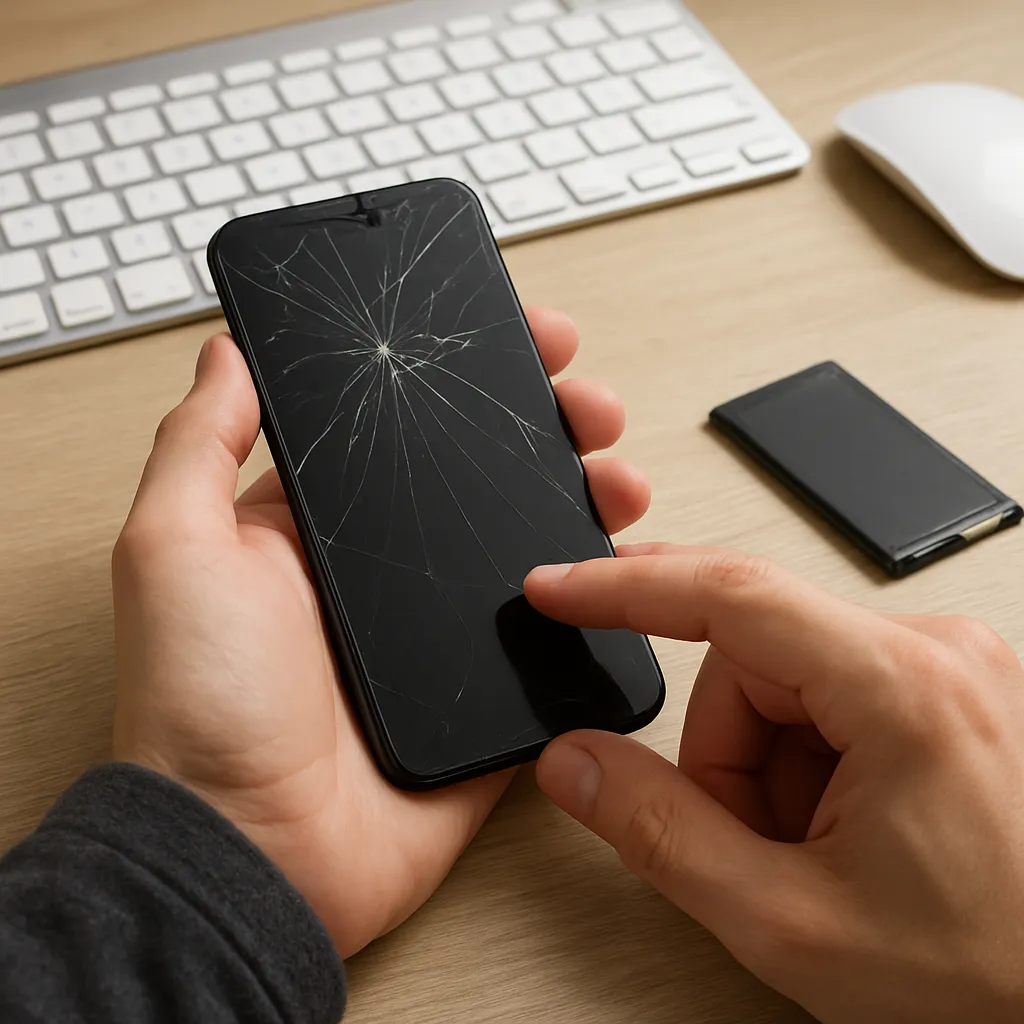
Before you rush to buy a brand-new phone, laptop, or tablet, it is worth taking a calm look at what may actually be wrong with your current device. Many seemingly “dead” gadgets only suffer from minor, fixable issues like a corrupted system file, a worn-out cable, or a misconfigured setting. With some patience and a few simple checks, you can often bring your device back to life, save money, and reduce electronic waste. If you are unsure how to proceed step by step, visit fix your device safely for structured guidance. In this article, you will learn practical, easy-to-follow recovery measures to try before deciding that replacement is the only option.
Start with a Calm Assessment
When a device stops working, panic and frustration can push you to replace it immediately. Instead, begin with a short assessment. Ask yourself what exactly changed before the problem appeared: a new update, a drop to the floor, a liquid spill, or an unknown cause. Writing down a short description helps you identify patterns and narrow down the likely source of the fault.
Check whether the problem is constant or intermittent. A device that works sometimes but not always often points to loose connections, overheating, or a failing component rather than complete failure. The more specific you are, the easier it will be to select the right recovery step.
Verify Power and Charging
Many “dead” devices actually suffer from a very basic issue: insufficient power. Before assuming internal damage, carefully verify the entire power path from the outlet to the device.
- Try a different wall socket to rule out problems with the outlet.
- Inspect the power cord or charger for cuts, bends, or exposed wires.
- Use another compatible charger or cable, especially for phones and laptops.
- Check that any power strips or surge protectors are switched on and working.
Look at the device’s power indicator lights. Even a very faint or blinking light gives a clue that the device is at least receiving some power. Leave devices with deeply discharged batteries, such as phones or tablets, charging for at least 20–30 minutes before trying to power them on.
Perform a Forced Restart
Modern electronics sometimes freeze so completely that they appear broken, even though the hardware is intact. A forced restart can clear temporary errors and restore normal function.
For laptops and desktops:
- Hold the power button down for around 10–15 seconds until the device fully powers off.
- Disconnect the power adapter and, if removable, the battery.
- Wait at least 30 seconds, then reconnect power and turn it on again.
For phones and tablets, use the manufacturer’s key combination for a hard reset, such as holding the power button along with a volume button for several seconds. This process does not usually erase your data; it just forces the operating system to restart.
Check for Display Problems
Sometimes the device is running, but you cannot see anything because the display is faulty or configured incorrectly. This can be mistaken for a complete breakdown.
- Shine a flashlight at an angle on the screen; if you see faint images, the backlight might have failed.
- On laptops and desktops, connect an external monitor or TV using HDMI or another cable.
- Listen for startup sounds, vibration, or fan noise that suggest the system is actually booting.
If an external display works, your main device is likely suffering from a screen, cable, or backlight issue. These are often cheaper to repair than replacing the entire device, and in many cases, a skilled technician can complete the job quickly.
Inspect for Physical Damage
Look closely for visible signs of harm. Cracks, dents, and bent ports can all explain malfunctioning behavior. Pay special attention to charging ports and headphone jacks. Dust, lint, or broken pins may block proper connections.
Use a small, soft brush or compressed air to gently clean around these areas. Avoid metal objects like needles, which can scratch contacts or cause short circuits. If you see serious structural damage, avoid powering the device on repeatedly, as this could make the damage worse or create safety risks.
Respond Quickly to Liquid Spills
Liquid exposure is frightening, but immediate and correct action can limit the damage. If your device gets wet:
- Turn it off immediately and disconnect all power sources.
- Remove external accessories, cases, and, if possible, the battery.
- Gently dry the exterior with a soft, absorbent cloth.
- Leave the device to dry in a warm, ventilated space for at least 24–48 hours.
Avoid using a hair dryer on high heat or placing the device directly on radiators, as excessive heat can warp plastics and damage components. Do not attempt to charge or power it on until you are certain it is fully dry. If the data is critical, consider consulting a professional quickly, as corrosion can begin soon after the spill.
Disconnect External Devices and Accessories
External devices sometimes cause conflicts or short circuits that prevent normal startup. Printers, USB drives, docking stations, and external hard drives may all be responsible.
- Power down the main device.
- Unplug all external accessories, including memory cards and USB hubs.
- Turn the device on with only essential cables attached.
If the system now starts correctly, add peripherals back one by one until the problem returns. This process isolates the faulty accessory without risking further damage to the main device.
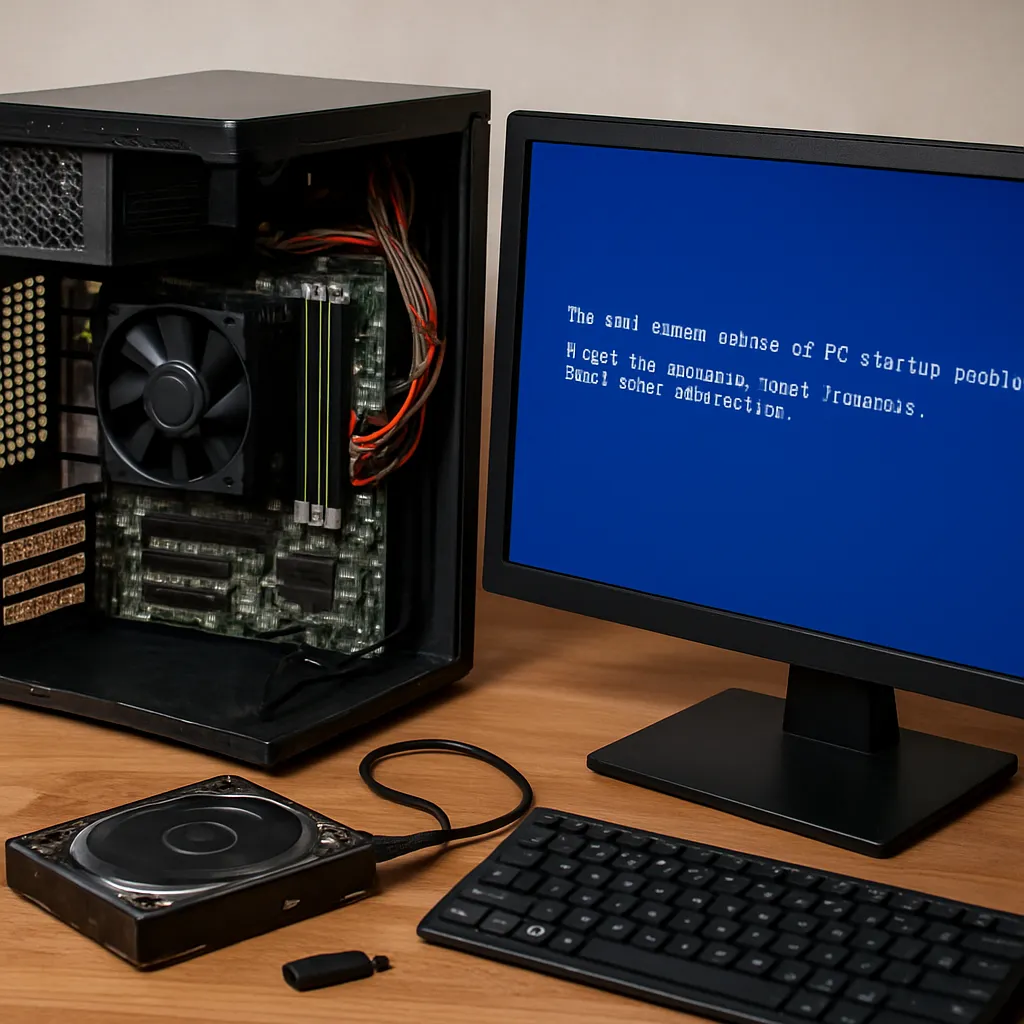
Boot into Safe or Recovery Mode
Operating systems usually provide a stripped-down startup environment that loads only essential components. If your device cannot start normally, this recovery mode can be very helpful.
Once in safe or recovery mode, you can:
- Uninstall recently added software or drivers that may be causing conflicts.
- Run built-in diagnostics and repair tools.
- Restore system settings to a previous working state.
Use these options cautiously, reading each message before confirming. Avoid formatting or erasing drives unless you have a backup or the data is not important.
Run Basic Diagnostics
Most devices include built-in tools that test memory, storage, and other components. While not perfect, these tests can reveal whether the issue is more likely hardware or software related.
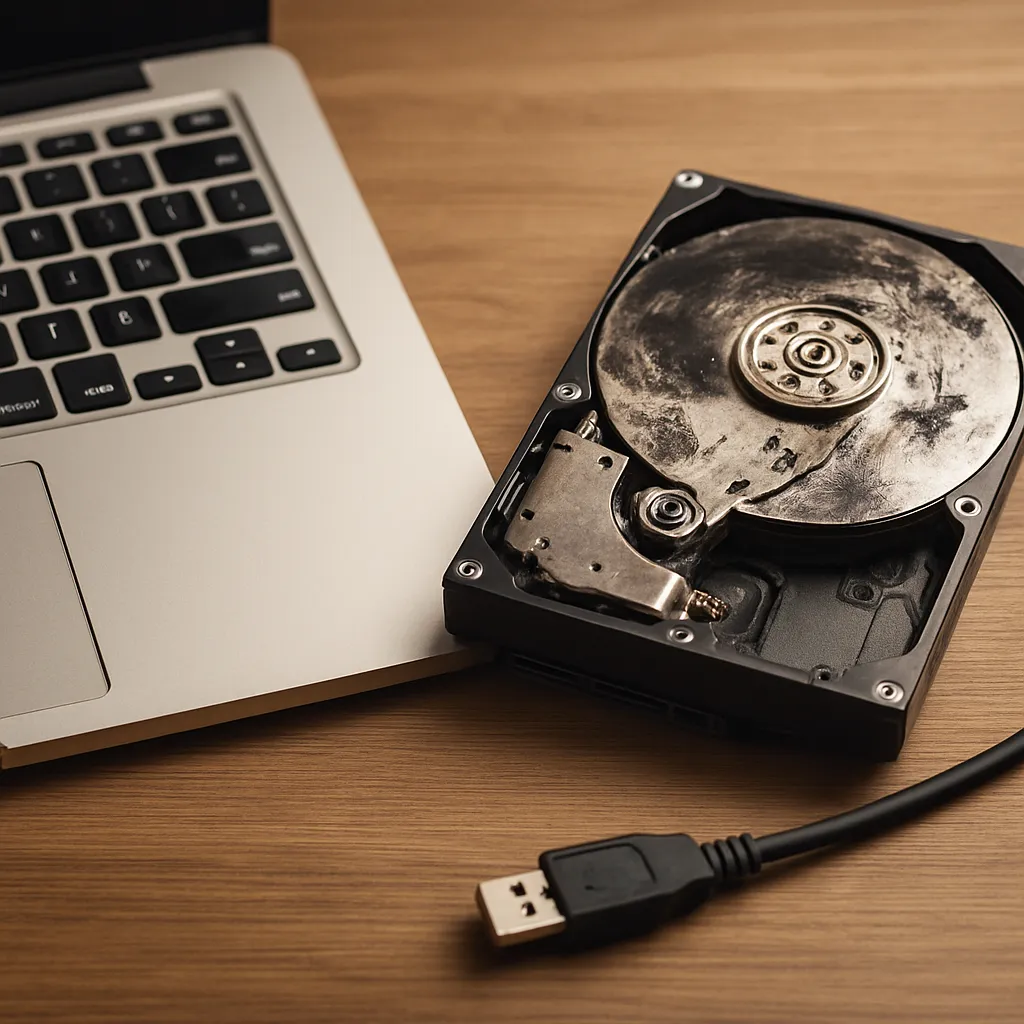
- Check storage health to see if the drive is failing.
- Run memory tests to identify problematic RAM.
- Review any error codes displayed by the diagnostic tool.
If diagnostics show clear hardware failure, repair may still be possible. Replacing a hard drive or RAM module is often cheaper than purchasing a completely new device, and in some cases, you can even upgrade performance at the same time.
Free Up Storage and Remove Problematic Apps
Devices with nearly full storage can slow down dramatically or fail to operate correctly. If your system still boots, even slowly, check available storage space.
- Delete large files you no longer need, such as outdated videos or installers.
- Remove apps you rarely use, especially those that run in the background.
- Clear temporary files and caches through system tools.
Also consider whether a particular app started malfunctioning shortly before the problems began. Removing or disabling that app can sometimes restore normal behavior without deeper repairs.
Update or Roll Back Software
Software updates often fix security flaws and bugs, but occasionally they introduce new problems. If you notice that issues appeared immediately after an update, you may want to investigate your options.
- Check for small patch updates that may correct the initial bug.
- Review system logs or notifications for update-related errors.
- Consider rolling back to a previous version if the device allows it.
On the other hand, very outdated software can cause compatibility and stability problems. If your device is running an old operating system, installing the latest supported version may resolve crashes and improve overall reliability.
Back Up Your Data as Soon as Possible
Whenever a device shows signs of instability, protecting your data becomes the top priority. Even if the device seems usable, take time to create a fresh backup.
- Copy important documents, photos, and videos to an external drive.
- Use cloud storage if available to create an off-site backup.
- Export account details, contacts, and app settings where possible.
If the system fails completely later, these backups will significantly reduce stress and potential loss. In many situations, recovering files is more important than reviving the hardware itself.
Consider a Factory Reset with Caution
When software becomes too corrupted or cluttered to repair easily, a factory reset can restore the device to its original condition. This often fixes serious performance problems, recurring crashes, or strange behavior.
However, a factory reset usually erases user data. Before taking this step:
- Ensure that your files are safely backed up.
- Sign out of important accounts and remove security locks if required.
- Read the reset instructions carefully to avoid incomplete or repeated resets.
After the reset, reinstall only the apps you truly need. Monitor performance as you gradually add software; if issues reappear, a particular application or configuration is likely the cause.
Evaluate Repair vs Replacement
Once you have tried these recovery steps, you will have a much clearer picture of the device’s condition. Compare the cost of professional repair with the price of a new or refurbished replacement. Take into account the age of the device, its expected remaining lifespan, and any performance limitations you have already experienced.
New devices can be attractive, but repairing a solid, slightly older device often provides excellent value. It also reduces environmental impact by keeping functioning hardware in use rather than adding to electronic waste. When you choose to repair, ask for a clear explanation of the problem and the work to be done so that you understand exactly what you are paying for.
Adopt Habits That Prevent Future Failures
Even if your current device cannot be saved, the experience can guide better habits in the future. Simple daily actions can greatly extend the life of your next phone, laptop, or tablet.
- Use protective cases and screen covers to reduce physical damage.
- Avoid exposing devices to extreme heat, cold, or moisture.
- Keep vents clear and avoid soft surfaces that block airflow.
- Charge batteries within recommended ranges rather than constantly to 100%.
- Install updates regularly but review major changes before confirming.
With these protective measures, your devices will remain more reliable, more efficient, and easier to maintain. Combined with the recovery steps described earlier, they help you make thoughtful, informed decisions instead of rushed replacements.
Knowing When to Seek Professional Help
Some signs indicate that it is safer to stop troubleshooting on your own and contact a qualified technician. These include burning smells, sparking, repeated sudden shutdowns, serious overheating, or visible swelling of batteries. In such cases, continued use can be dangerous.
A professional can perform advanced diagnostics, handle delicate components, and offer options you might not have considered, such as board-level repair or data-only recovery. While not every device can be saved, combining your initial troubleshooting with expert support usually leads to the best outcome for both your budget and your peace of mind.
By following these straightforward steps before replacing a broken device, you give yourself the chance to recover valuable data, save money, and reduce waste. Many problems that seem fatal at first are actually caused by simple, fixable issues with power, software, or individual components. Patience, methodical checks, and timely backups turn a stressful breakdown into a manageable, often solvable challenge. Over time, these habits build your confidence in handling technical problems and help keep your digital tools functional, secure, and durable for as long as possible.


Leave a Reply