
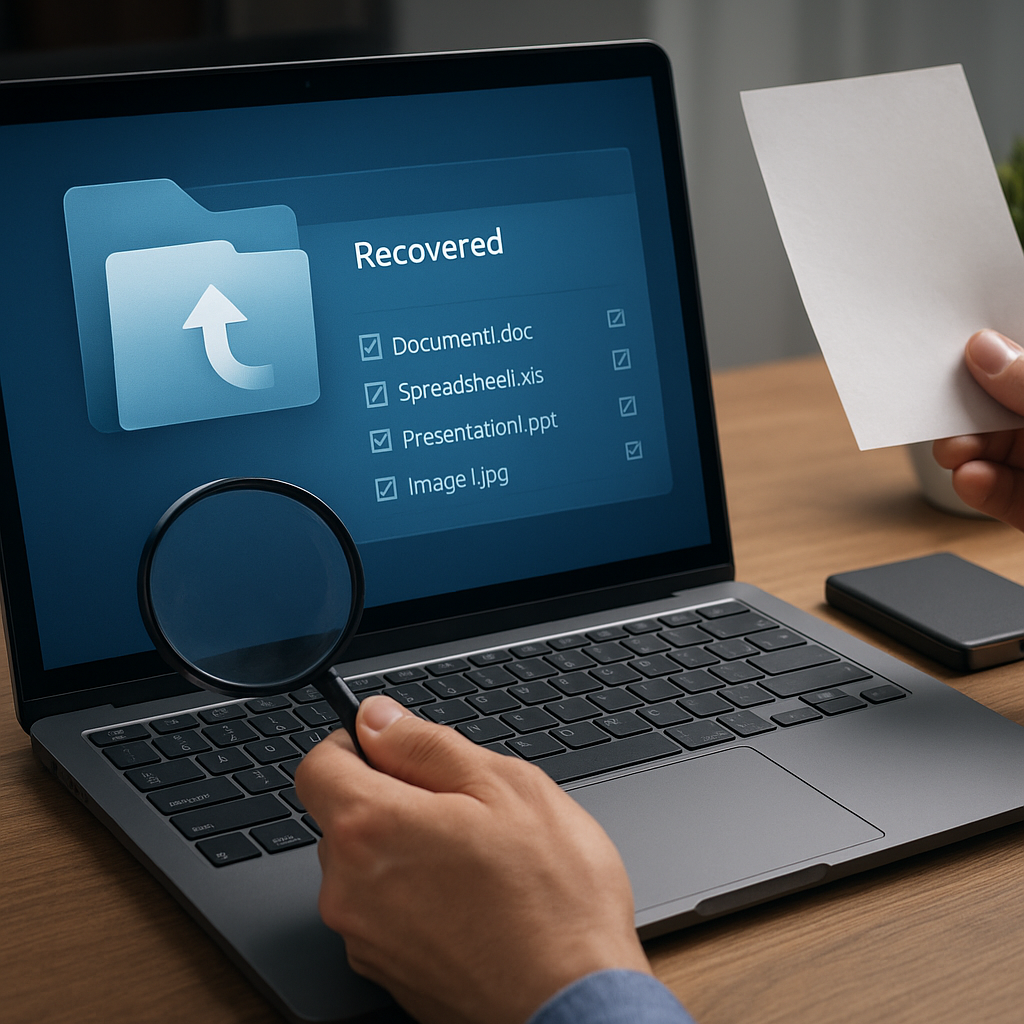
Antivirus programs serve as the first line of defense against malware, but they can sometimes delete or quarantine important files by mistake. This article explores the underlying reasons for such incidents and presents a detailed guide on how to recover files deleted by antivirus solutions. By understanding the recovery process and implementing proper precautions, you can minimize data loss and maintain system integrity.
Why Antivirus Software Deletes Files
Antivirus applications rely on various detection methods to identify potential threats. While these methods are generally effective, they can also generate false positives that flag legitimate files as malicious. The primary techniques include:
- Signature-based detection – Matching file code against a database of known threat signatures.
- Heuristic analysis – Checking code behavior for suspicious patterns.
- Behavioral monitoring – Observing runtime actions that mimic malware.
When a file is deemed dangerous, the antivirus may move it to quarantine to prevent execution or delete it outright. In some cases, a file’s incomplete download or outdated signature database can trigger a removal.
Immediate Steps After Detection
Once you discover that an antivirus tool has deleted a crucial file, prompt action is essential. Follow these measures:
- Disable real-time scanning or pause the antivirus service temporarily.
- Check the quarantine folder for recoverable items.
- Avoid creating new files on the affected drive to reduce the risk of data overwriting.
Accessing the Quarantine Folder
Most antivirus products provide a quarantine manager within their interface. Navigate to the quarantine section and look for your missing file. If found, use the “restore” feature. Keep in mind that you should only restore files from trusted sources to prevent potential reinfection.
Choosing the Right Recovery Tool
Selecting an effective recovery software is crucial when files are permanently deleted. Key criteria include:
- Support for your file system (NTFS, FAT32, exFAT, etc.).
- Ability to handle different file types (.docx, .xlsx, .jpg, .mp4, etc.).
- Scanning depth: Quick scan vs. deep scan for thorough integrity checks.
- User-friendly interface and preview capabilities.
Leading solutions often come with features like disk imaging, secure deletion prevention, and advanced filters. Popular choices include TestDisk, Recuva, and commercial utilities that offer professional-grade recovery.
Recovery Process Explained
A structured approach ensures the highest chance of successful file retrieval. The steps below outline a typical workflow:
1. Install and Configure the Tool
Download the recovery application to a separate drive or external device to prevent overwriting lost data. Install it and adjust settings for a comprehensive deep scan.
2. Perform an Initial Scan
Begin with a quick scan to identify recently deleted files. If you don’t find your file, switch to a full or deep scan, which might take longer but searches every sector on the disk.
3. Preview and Select
Use the tool’s preview pane to verify file quality. Look for intact headers in documents or playable snippets in media files before recovering.
4. Recover to a Safe Location
Always restore files to a different storage device. This prevents accidental data corruption and gives you peace of mind during the verification phase.
Advanced Techniques for Stubborn Cases
In situations where standard recovery fails, consider these advanced strategies:
- Disk imaging: Create a sector-by-sector clone of the drive and perform recovery on the image.
- Command-line utilities: Tools like PhotoRec or Foremost can bypass GUI limitations.
- Hex editors: Inspect raw data structures to manually carve out lost files.
Employing these methods requires technical expertise, but they can salvage files that elude conventional tools.
Best Practices to Prevent Future Loss
Prevention is always preferable to cure. Implementing the following measures reduces the likelihood of unintended deletions:
- Regular backups – Use automated cloud or local backup solutions.
- Whitelist management – Add important directories to the antivirus exclude list.
- Update signature databases frequently to lower false positive rates.
- Layered security – Combine endpoint protection with behavior-based monitoring.
By integrating these practices into your IT routine, you ensure data remains protected without compromising on security.
Understanding File Restoration Limitations
While modern recovery tools are powerful, they have inherent constraints. Overwritten sectors, physically damaged media, and encrypted containers can hamper the restoration process. It’s crucial to act quickly and to maintain a reliable backup strategy to avoid relying solely on recovery efforts.
Legal and Compliance Considerations
From a regulatory standpoint, organizations must adhere to data protection guidelines. Accidental deletion by security software can conflict with compliance requirements if critical records are lost. Document every recovery attempt and maintain audit trails to demonstrate due diligence.
Conclusion
Recovering files deleted by antivirus programs demands a blend of rapid response, the right recovery tools, and preventive measures. By understanding how antivirus detection works, choosing suitable software, and enforcing robust backup policies, you can mitigate data loss and maintain operational continuity.











