
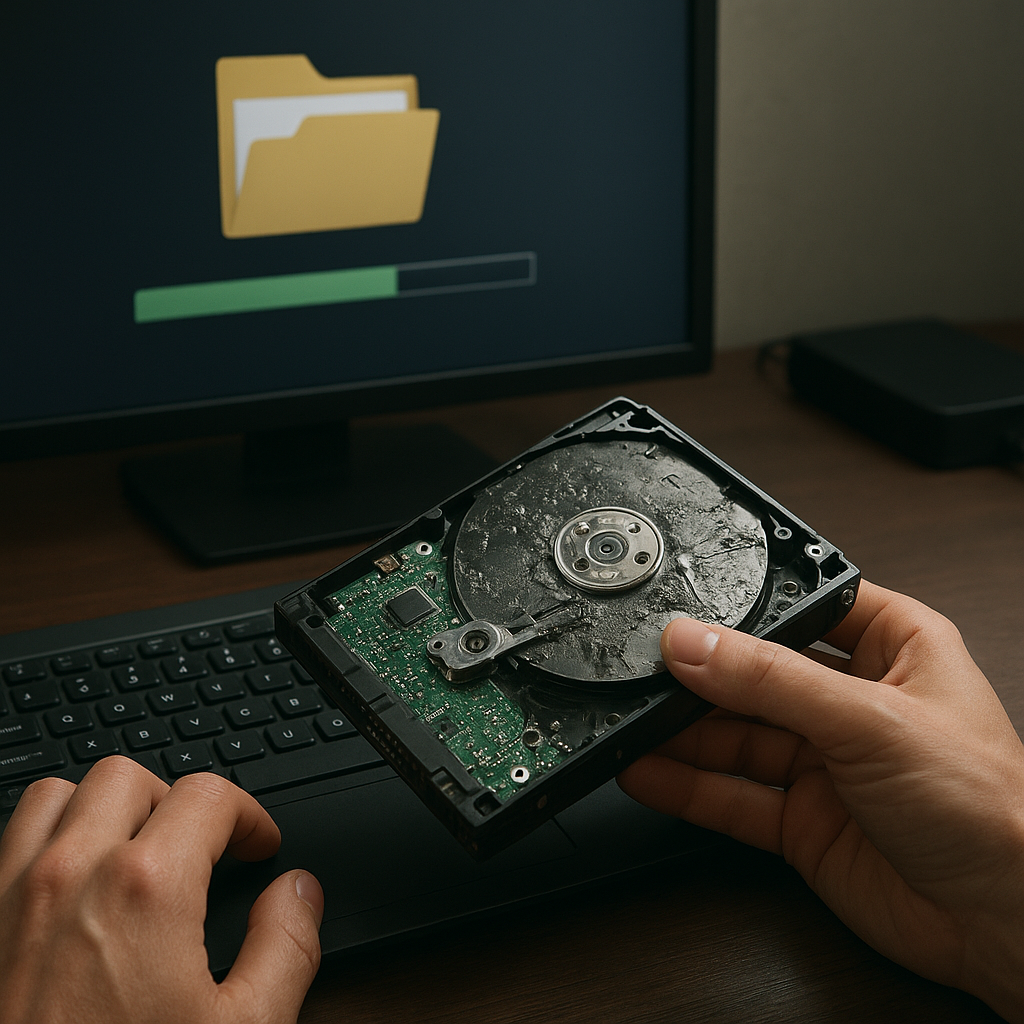
Partition damage can strike unexpectedly, leaving users stranded with inaccessible files and disrupted workflows. Whether caused by sudden power outages, software glitches, or physical drive issues, a corrupted partition poses a serious threat to valuable documents, images, and multimedia. This article delves into the technical roots of partition corruption, explores proven strategies to recover files effectively, reviews leading recovery tools, and outlines preventative measures to safeguard against future data loss.
Understanding the Causes and Mechanics of Partition Corruption
Before embarking on any recovery mission, it’s essential to grasp how and why partitions become corrupted. While the term “partition corruption” might sound complex, it generally refers to damage in the file system structures that organize and index stored data. Key factors include:
- Unexpected power outages or abrupt system shutdowns interrupting write operations.
- Malware or virus attacks targeting file system metadata.
- Improper disk ejection or formatting errors.
- Physical hardware failure such as bad sectors or a failing disk controller.
- Software bugs or conflicts during partition resizing, cloning, or reformatting.
When corruption occurs, essential components like the master boot record (MBR), partition table, or file allocation table (FAT/NTFS master file table) can become unreadable or inconsistent. The operating system may report errors such as “drive not formatted,” “raw partition,” or complete absence of directory listings. At this stage, any attempt to write new data risks overwriting remnants of the original files, further complicating recovery efforts.
Key Strategies for Successful File Recovery
Recovering files from a corrupted partition requires a structured approach that minimizes additional damage while maximizing the chance of retrieving intact data. Follow these steps to optimize your recovery process:
- Immediate Drive Isolation: Disconnect the affected drive as soon as corruption is detected. Continued use may overwrite sectors containing lost files. If the partition is on your system disk, power down the machine and attach the drive as a secondary disk on a healthy system.
- Create a Sector-Level Image: Use disk-imaging utilities to clone the corrupted partition bit-by-bit. By working on an image rather than the original disk, you preserve the damaged media and reduce the risk of further data loss. Tools like ddrescue or commercial cloning software offer robust imaging features, often skipping unreadable sectors while still salvaging maximum data.
- Choose the Right Recovery Software: Not all recovery tools are created equal. Depending on the file system (NTFS, exFAT, ext4, HFS+), you may require specialized software that can interpret specific metadata structures and apply suitable recovery algorithms. We’ll examine popular options in the next section.
- Perform a deep scan: Also known as a raw or signature-based scan, this method analyzes disk sectors for known file signatures, bypassing corrupted index tables. While more time-consuming, deep scans can locate fragmented or partially overwritten files by identifying header and footer patterns for multimedia, documents, and archives.
- Preview Recovered Files: Quality recovery software offers pre-recovery previews. This feature lets you verify that critical files like documents, spreadsheets, or images are intact before saving them to another storage device.
- Save Recovered Data Externally: Always direct recovered files to a separate drive. Placing them on the same partition risks overwriting additional lost data and can render further recovery impossible.
Advanced Techniques: Manual File Table Reconstruction
In severe corruption scenarios, automated tools may fail to rebuild the partition table or file system structures. Advanced users with technical expertise can attempt manual reconstruction:
- Analyze the existing MBR or GUID Partition Table (GPT) backups located at the end of the disk.
- Use hex editors to inspect and correct disk signatures, partition start/end addresses, and sector alignment.
- Recreate file allocation entries by mapping found file headers to their respective clusters.
This method demands a firm understanding of file system internals and carries significant risk. It is recommended only when software-based recovery has been exhausted and expert consultation is available.
Popular Recovery Software Solutions
With countless recovery tools on the market, selecting a reliable solution is crucial. Below are several leading applications known for their robust algorithms, user-friendly interfaces, and compatibility across diverse file systems:
- Recuva: A lightweight, free utility for Windows that excels at recovering deleted files and damaged partitions. It supports NTFS, FAT, and exFAT, and offers both quick and deep scans. Although its advanced features are limited, Recuva is a solid starting point for basic recovery tasks.
- R-Studio: A premium tool favored by professionals for its powerful sector-level scanning and file system recognition capabilities. R-Studio handles complex RAID configurations, dynamic disks, and loss of partition tables. Its extensive preview and hex Viewer empower advanced users to inspect raw data before recovery.
- EaseUS Data Recovery Wizard: Known for its intuitive wizard-style interface, EaseUS guides users through each step of the recovery process. It supports Windows and macOS, with features to recover deleted, formatted, and inaccessible data. The software also offers a scan resumption function, saving time when dealing with large volumes.
- Disk Drill: A versatile recovery suite for both Windows and macOS, Disk Drill provides a polished interface and robust scanning engines. The application offers added health monitoring tools, drive backup utilities, and duplicate detection to streamline future integrity checks.
- TestDisk & PhotoRec: Open-source companions designed for rigorous recovery. TestDisk excels at partition table repair and boot sector recovery, while PhotoRec focuses on file carving. Although command-line based and lacking a graphical interface, these tools are highly regarded for their effectiveness and zero cost.
Best Practices to Prevent Future Data Loss
Even the most reliable recovery software cannot guarantee a 100% restoration rate. The best defense is a proactive data protection strategy that eliminates single points of failure and ensures rapid recovery in the event of corruption:
- Regular backup routines: Implement automated backups using the 3-2-1 rule—three copies of your data, on two different media types, with one copy offsite. Cloud-based services and versioning systems add an extra layer of resilience against local hardware failures.
- Disk health monitoring: Employ SMART monitoring tools and periodic surface scans to detect early signs of drive degradation. Addressing warnings promptly can prevent sudden disk failures and partition damage.
- Surge protection and UPS: Power irregularities are a common cause of file system corruption. Uninterruptible power supplies (UPS) and surge protectors safeguard against voltage spikes and give you time to shut down cleanly during outages.
- Safe ejection procedures: Always unmount external drives properly before disconnection. Abrupt removal can corrupt file system tables and result in inaccessible partitions.
- Regular file system checks: Schedule periodic chkdsk (Windows), fsck (Linux), or Disk Utility (macOS) scans to detect and repair minor issues before they escalate into major corruption events.
Training and Documentation
Well-documented recovery plans and user training can dramatically reduce response time in an emergency. Maintain an up-to-date incident response guide that outlines:
- Steps to isolate affected disks.
- Approved imaging and recovery software.
- Contacts for internal IT teams or external data recovery services.
- Procedures for testing and validating recovered files.
Consistent practice drills ensure that staff members can execute recovery protocols efficiently under pressure, minimizing downtime and preserving business continuity.











