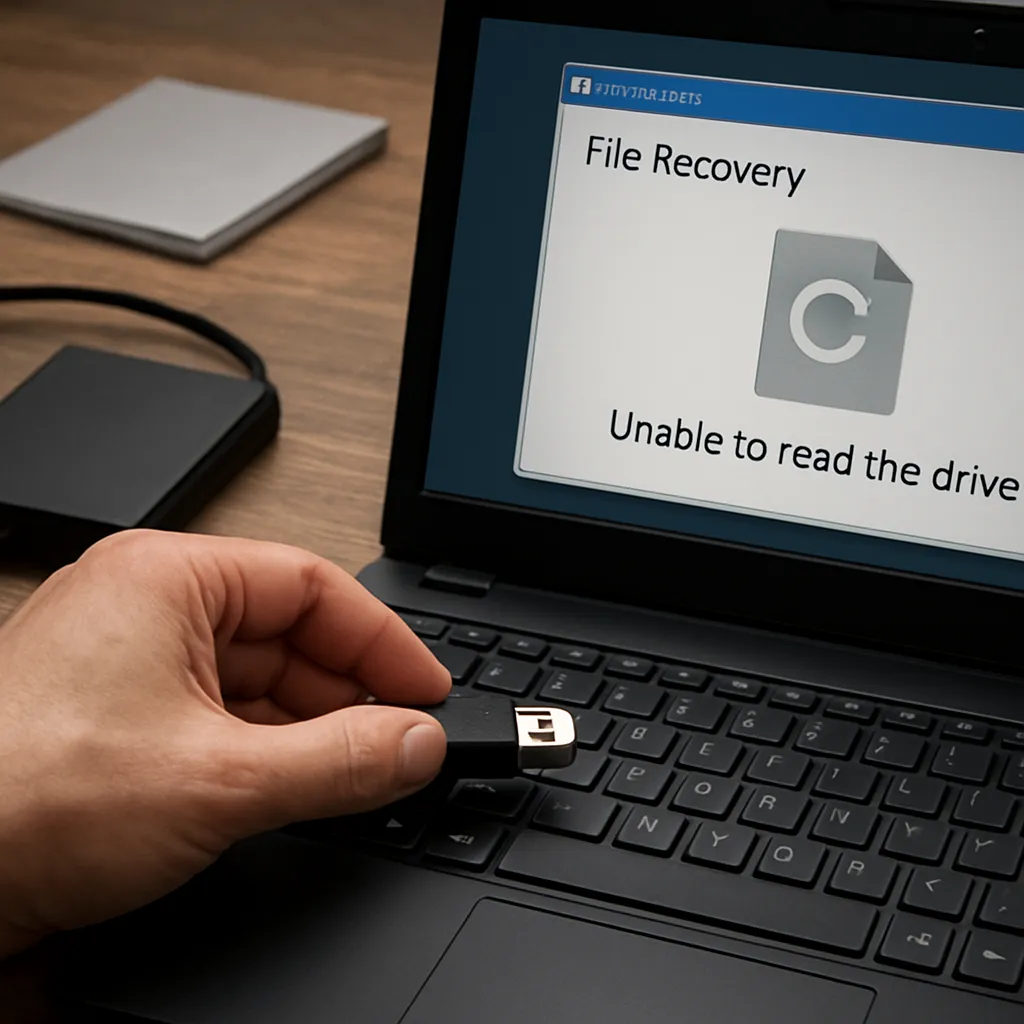
Recovering data from an unreadable USB stick can feel like navigating a digital minefield. Understanding the underlying issues and choosing the right tools will increase your chances of successful retrieval. This guide outlines proven methods and essential precautions to restore your files with minimal risk of permanent loss.
Common Causes of Flash Drive Malfunctions
Physical Damage and Wear
Repeated insertion and removal, exposure to moisture, and extreme temperatures can compromise the flash drive housing or connector. Even minor dents or loose pins may prevent the device from being recognized by your operating system. In many cases, attempting to power on a physically damaged drive repeatedly can worsen internal faults.
Logical Errors and Corruption
File system corruption often arises when a device is removed during an active transfer, leading to incomplete writes or directory damage. Viruses and malware can also alter or encrypt directory structures, making the drive appear unreadable. Over time, bit rot in NAND memory cells may cause scattered data corruption, resulting in a drive that mounts but refuses to open files.
Initial Diagnostic and Preparation Steps
Verify Connectivity and Port Issues
Before diving into advanced techniques, inspect your USB port and cable. Try connecting the flash drive to a different port or another computer to rule out port-specific faults. If your device is detected under a different machine or OS version, you can proceed with confidence.
Disk Management and Device Recognition
On Windows, open Disk Management to see if the drive appears as unallocated space or an uninitialized disk. In macOS, use Disk Utility. Linux users can run lsblk or fdisk -l in the terminal. If the drive shows its full capacity but no partition, the partition table may be damaged.
Setting Up a Safe Environment
Always work with a copy or a byte-for-byte image of the unreadable drive. Tools like dd or dedicated imaging software can create a disk image that you’ll use for all recovery attempts. This prevents further wear and tear on the original drive and preserves its current state.
Choosing the Right Recovery Software
Free vs Commercial Tools
There are numerous recovery software offerings, ranging from open-source utilities to professional-grade suites. Free tools often provide basic scanning and file preview features, but may limit the total amount of recoverable data. Commercial packages typically include advanced filters, deep scan options, and technical support.
Key Features to Look For
- Read-only Mode: ensures the software never writes to the damaged medium
- Deep Scanning: locates files by signature, ideal for severe file system errors
- Preview Functionality: verify file health before recovery
- Partition Recovery: reconstruct a lost partition table
- Bad Sector Handling: skip or recover data from bad sectors
- Automation and Scripting: useful for repetitive batch operations
Step-by-Step Recovery Process
1. Running a Quick Scan
Start with a fast scan to detect recently deleted files and basic directory structures. Many tools list recoverable items almost instantly, letting you save critical documents quickly. If you find key files here, back them up immediately to avoid further actions that might jeopardize the process.
2. Performing a Deep Scan
If the quick scan yields limited results, launch a comprehensive or deep scan. This process examines the entire flash drive sector by sector, reconstructing files from raw binary data. While much slower, deep scans are more likely to uncover fragmented or severely corrupted items.
3. Previewing and Selecting Files
Use the built-in preview to inspect recoverable documents, images, or audio clips. Look for intact headers and readable content. Highlight the files you truly need—unnecessary recovery can clutter your destination drive and prolong the process.
4. Saving Recovered Data Safely
Always save files to a different drive or partition. Writing back to the original device can overwrite unrecovered areas and diminish your chances of retrieving additional data. Maintain an organized folder structure and name recovered items clearly to avoid confusion.
Validating Recovered Files and Post-recovery Actions
Checking File Integrity
After recovery, open a sample of each file type to ensure it’s not corrupted. For documents, verify text formatting and embedded elements; for images, confirm resolution and color fidelity. This step helps detect partial recoveries that may require a second pass with adjusted settings.
Restoring Partition Table if Needed
If you’ve successfully recovered most data but wish to repair the drive for future use, consider tools that rebuild the partition table or file system. Proceed with caution—improper restoration can render the drive completely inaccessible. Always keep a backup of the raw image before attempting repairs.
Implementing a Robust Backup Strategy
To avoid future data loss, adopt a reliable backup strategy. The 3-2-1 rule recommends keeping at least three copies of your data, on two different media, with one copy offsite. Cloud services, network-attached storage, and versioned backups provide layers of protection against hardware failures, malware, and accidental deletion.
Best Practices and Tips for Long-term Reliability
Handle with Care
Store flash drives in protective cases, away from magnets and direct sunlight. Label them clearly and avoid using a single device for all critical transfers—rotate between multiple drives to distribute wear evenly.
Monitor Drive Health
Use tools that report SMART attributes or perform regular surface scans to detect emerging issues early. Address minor errors before they escalate into irreversible failures.
Stay Updated
Keep your operating system and recovery tools up to date. Developers frequently release patches that improve compatibility, add support for new file formats, and optimize scanning algorithms.
Conclusion
Recovering data from an unreadable flash drive demands patience, caution, and the right recovery software. By diagnosing underlying issues, creating a secure environment, and following structured recovery steps, you maximize the odds of restoring your vital files. Remember: frequent backups and careful handling are the best defenses against future incidents.