
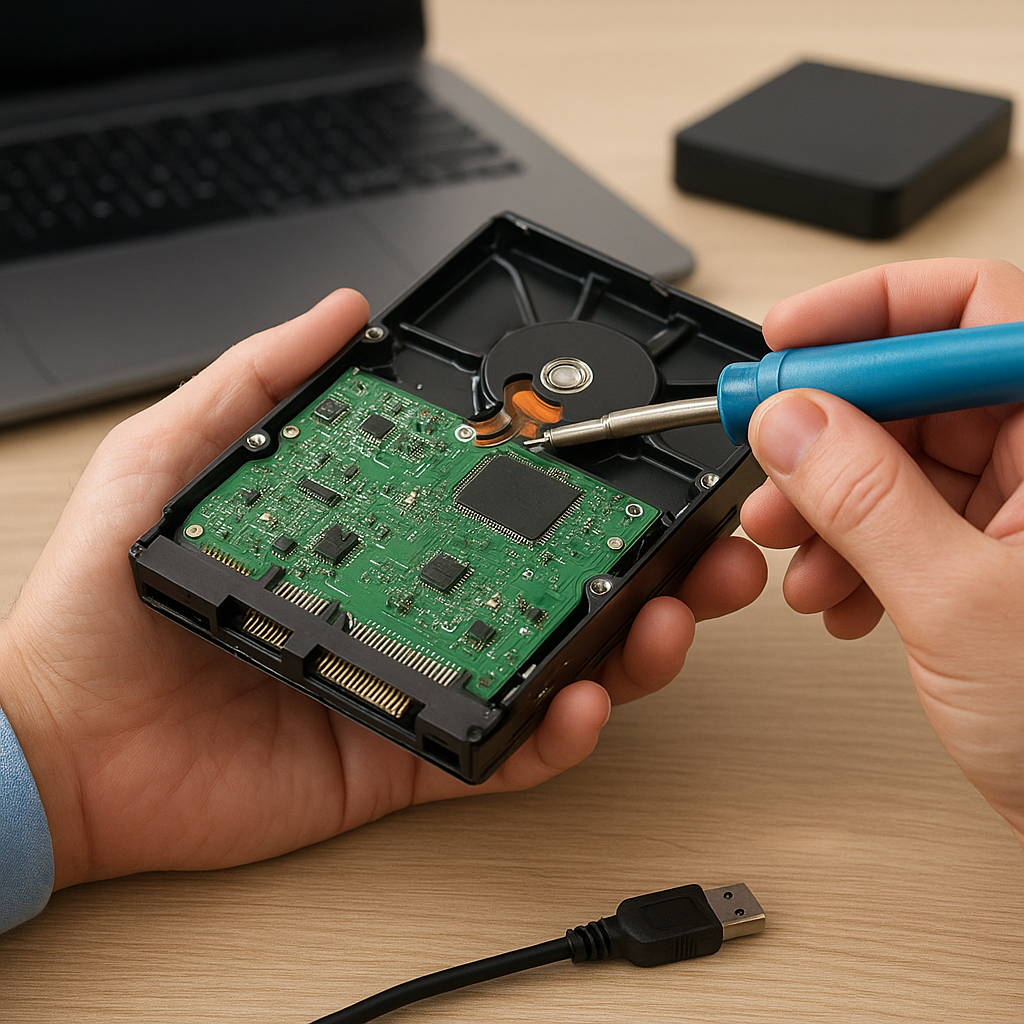
Retrieving files from a dead hard drive can feel like a daunting task, but with the right approach, it’s possible to recover valuable data. Whether you’re dealing with a mechanical failure or a corrupted file system, understanding the underlying issues and using specialized tools will increase your chances of success. This guide covers essential steps and techniques, offering insights into reliable recovery software and advanced recovery methods.
Understanding Hard Drive Failures
A hard drive can fail due to various reasons, each requiring different strategies. Knowing whether you’re facing a mechanical, electronic, or logical issue is crucial for selecting the appropriate tools and minimizing further damage.
Mechanical vs. Logical Failures
- Mechanical Failure: Occurs when physical components such as the read/write heads, spindle motor, or platters malfunction. Symptoms include strange noises (clicking, grinding) or the drive not spinning up.
- Electronic Failure: Involves the drive’s circuit board or firmware. Signs include the operating system failing to recognize the drive or sudden power issues.
- Logical Failure: Happens when file systems become corrupt, partitions disappear, or data is accidentally deleted. The drive remains physically intact but the data is inaccessible.
First, inspect the drive for visible damage. Smell for burnt electronics, listen for unusual sounds, and check connections. This initial assessment helps you decide whether to pursue a DIY recovery or consult a professional service.
Preparing for Data Recovery
Before diving into software solutions, take steps to protect the existing data and set up a stable recovery environment. Skipping these precautions can lead to data integrity issues or permanent loss.
Creating a Data-Safe Environment
- Power off immediately if the drive shows mechanical issues. Continued use can worsen damage.
- Use an anti-static work surface to avoid electrostatic discharge that could harm sensitive components.
- Do not open the drive enclosure unless you have a cleanroom environment or specialized tools. Exposing internal platters can cause irreparable contamination.
- Have a secondary storage device ready with enough capacity to hold all recovered data.
Essential Tools and Equipment
- SATA/USB adapter or dock: For connecting the suspect drive to another computer.
- Disk imaging software: To create a sector-by-sector clone before attempting recovery. Tools like ddrescue excel in preserving every readable sector.
- Data recovery software suite: Select programs offering deep scan, file carving, and partition reconstruction.
- Power supply stabilizer or surge protector: To prevent voltage fluctuations during the recovery process.
Choosing and Using Recovery Software
Selecting the right recovery software is key. Different applications excel at handling specific scenarios, from minor file deletions to serious file system corruption.
Top Recovery Software Solutions
- Recuva: User-friendly and ideal for quick file recovery on Windows systems.
- R-Studio: Advanced features for professional users, including RAID reconstruction and hex-level editing.
- EaseUS Data Recovery Wizard: Offers a guided approach, suitable for logical failures and partition loss.
- TestDisk: Open-source tool that specializes in partition recovery and fixing corrupted file systems.
- PhotoRec: Works alongside TestDisk, focusing on file carving to recover files by signature.
Step-by-Step Recovery Process
- Connect the drive via SATA/USB adapter. Ensure stable power and a reliable USB or SATA cable.
- Launch your chosen software and allow it to perform a preliminary scan. This identifies the file system structure and existing partitions.
- Run a deep scan or sector-by-sector scan if the initial pass finds limited results. Deep scans take longer but yield higher recovery rates.
- Preview recoverable files. Most applications let you verify file integrity before restoring.
- Select a different destination drive for recovered data to avoid overwriting.
- Monitor the recovery process and address any errors or read failures as they appear.
Advanced Techniques and Professional Considerations
When standard software methods fail or the drive exhibits severe physical damage, advanced strategies and professional intervention become necessary. These approaches maximize the chance of restoring critical data.
Disk Imaging and Sector Analysis
Creating a complete disk image ensures you work on a copy, preserving the original drive. Use tools like GNU ddrescue for robust error handling:
- First pass: Copy all readable sectors quickly.
- Subsequent passes: Target bad sectors with smaller block sizes for maximum data retrieval.
Once the image is complete, mount it as a virtual disk in your recovery software. This minimizes risks to the failing drive and speeds up repeated scans.
DIY vs. Professional Service
Minor logical errors and accidental deletions are often resolved with desktop software. However, if you encounter any of the following, consider professional recovery:
- Persistent clicking noises or drive stalling.
- Burnt electronics odor or visible circuit board damage.
- Firmware corruption requiring machine-grade tools.
- Extremely valuable or sensitive data where any loss is unacceptable.
Professional labs offer cleanroom facilities and specialized equipment for head swaps, platter transfers, and firmware restoration. While more costly, these services provide the highest success rates for complex failures.
Preventing Future Data Loss
After successfully recovering files, implement best practices to protect data going forward. Prevention is always more cost-effective than recovery.
- Regular backups: Employ the 3-2-1 rule—three copies, two different media types, one offsite.
- Use RAID arrays or network-attached storage for redundancy.
- Monitor drive health with S.M.A.R.T. utilities to detect early failure signs.
- Avoid abrupt power-offs and use uninterruptible power supplies (UPS) for critical systems.
- Update firmware and drivers to maintain compatibility and stability.
By combining cloning, reliable disk imaging, and the right software, you can effectively retrieve data from a dead hard drive. Coupled with preventive measures, these strategies ensure your valuable files remain safe in the future.











