
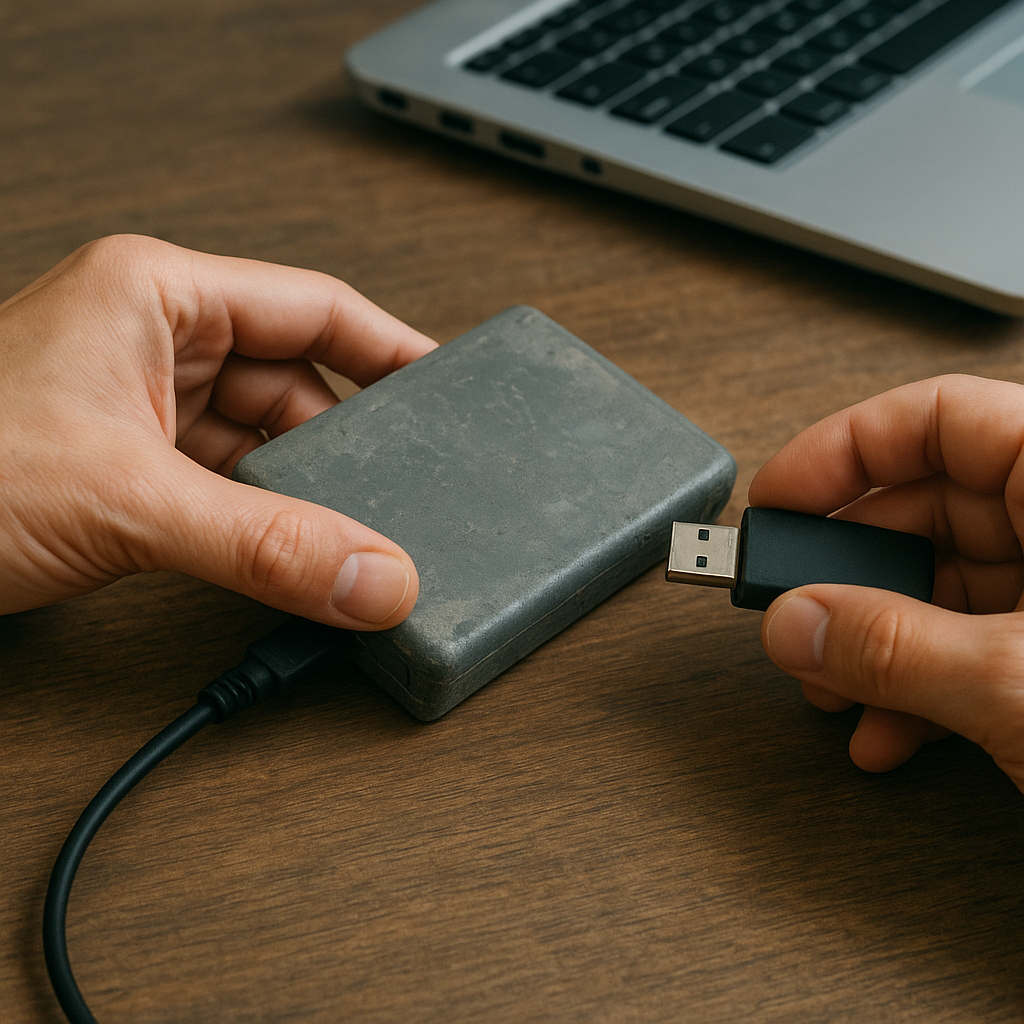
Retrieving files from an old external drive can feel like embarking on a digital treasure hunt. Whether the drive stopped responding due to mechanical wear or accidental formatting, the right approach can make the difference between permanent data loss and a successful recovery. This article walks you through recognizing drive issues, preparing a safe environment, selecting effective recovery software, and executing detailed recovery steps, all while preserving the integrity of your precious files.
Recognizing Common Issues with Aging External Drives
Before diving into recovery, it’s crucial to understand why an external drive may fail. Some frequent problems include:
- Physical wear and tear causing read/write errors
- File system corruption (for example on NTFS or FAT32 partitions)
- Accidental formatting or partition deletion
- Bad sectors leading to slow access times
- Firmware glitches or USB interface failures
Signs of impending trouble often manifest as unusual sounds, frequent crashes, or being unable to mount the drive. Monitoring SMART attributes with dedicated tools can alert you to bad sectors and temperature anomalies.
Preparing for a Successful Recovery Process
1. Establish a Controlled Environment
Working under stable conditions minimizes further damage. Key steps include:
- Connecting the drive to a reliable computer with adequate power supply.
- Using a high-quality USB cable or port to avoid intermittent connections.
- Disabling any background processes that might write to the drive unexpectedly.
2. Create a Disk Image
Rather than working directly on the failing drive, generate a sector-by-sector copy or disk image. This preserves the original media in case you need to retry with different software. Popular imaging tools support copying to formats like IMG or ISO.
3. Allocate Recovery Storage
Ensure you have another storage device with sufficient free space. This destination must hold all the recovered data, because overwriting the source drive can render lost files irrecoverable.
Choosing the Right Recovery Software
Not all recovery tools perform equally. When selecting software, consider:
- Compatibility with your drive’s file system.
- Ability to perform both quick scans and deep scans.
- Preview functionality to verify file integrity before restoration.
- Support for recovering various file types: documents, images, archives, databases.
- User-friendly interface balanced with advanced options for power users.
Examples of reputable solutions include tools that leverage signature-based recovery, directory structure reconstruction, and sector remapping algorithms. Always download from official sources to avoid malicious clones.
Step-by-Step Guide to Retrieving Lost Files
1. Initial Quick Scan
Begin with a quick scan to locate recently deleted or formatted files. This mode reads partition metadata and file tables, recovering items that remain pointers in the directory.
2. Deep Scan for Fragmented Data
If the quick scan yields incomplete results, switch to a deep or thorough scan. This method examines raw drive surface and identifies file signatures. Expect longer runtimes, especially on large-capacity drives.
3. Select and Preview Recoverable Files
Once scanning completes, sort files by type and date. Use the preview pane to confirm that images open correctly and documents display intact content. Mark only those files you truly need.
4. Recover to a Safe Destination
Choose your designated recovery storage. Avoid restoring files to any folder on the original drive. This step safeguards against overwriting remaining data.
5. Check File Integrity Post-Recovery
Open each recovered file to verify its usability. For critical documents, compare against backups or checksums. Corrupted fragments might require re-running the deep scan or using another tool.
Advanced Techniques and Best Practices
When standard methods fail, consider these advanced strategies:
- Partition Table Repair: Tools can rewrite or reconstruct the partition map to restore access without moving data.
- Hex Editor Analysis: Skilled users can manually extract file headers and raw data segments for specialized recovery.
- RAID or Enclosure Diagnostics: If the drive was part of an external enclosure or RAID array, repair the controller or rebuild the array before scanning.
- Data Carving: Employ carving utilities to salvage fragments based on known headers and footers of common file formats.
- Professional Services: As a last resort, labs with cleanroom facilities can disassemble the drive and replace faulty components.
Important Note: Always maintain a regular backup schedule to reduce reliance on recovery software. Implement the 3-2-1 rule: three copies of data, on two different media, one off-site.











