
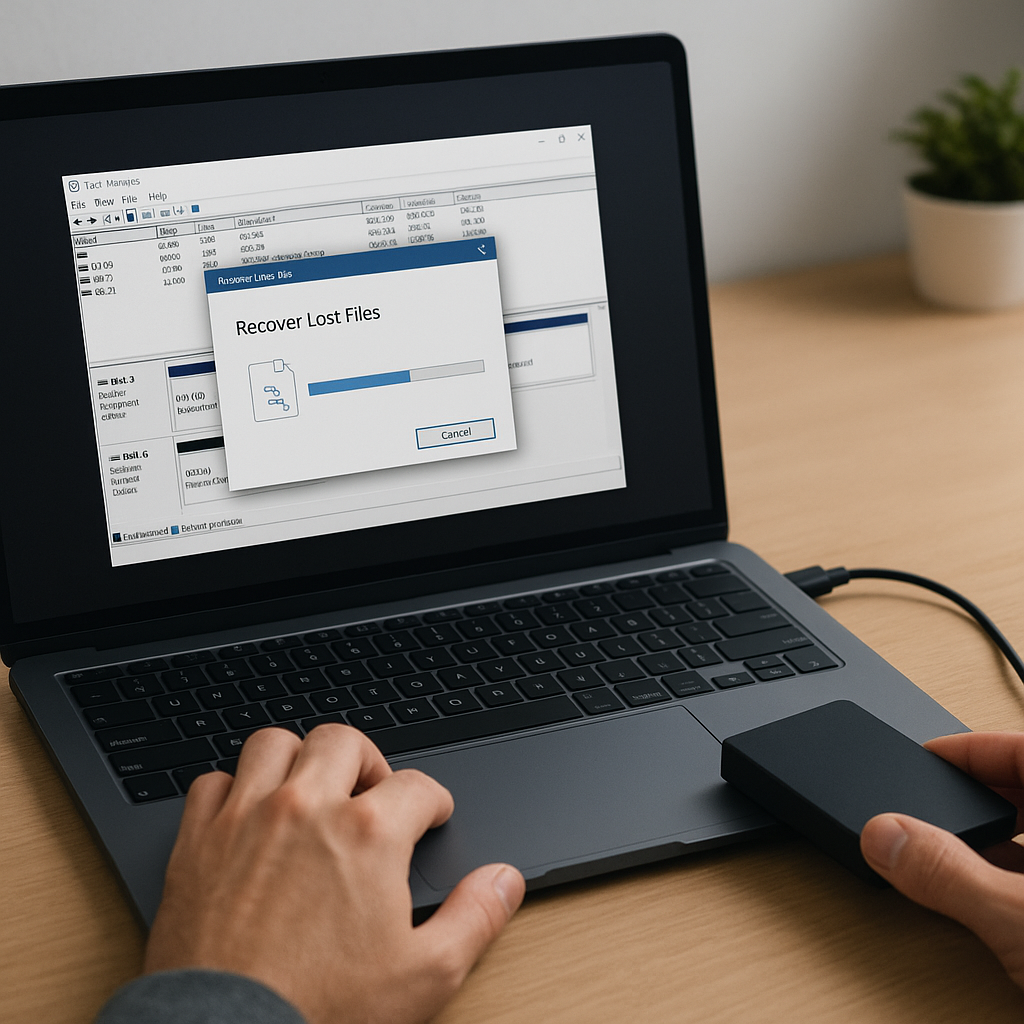
Accidental use of the Diskpart clean command can leave you staring at an empty drive, seemingly devoid of all partitions and data. Whether you run the clean command on a USB flash drive, external hard disk, or internal SSD, the result is the same: **lost** volumes and inaccessible files. Thankfully, the right combination of **software**, meticulous **scanning** methods, and a basic understanding of partition **metadata** can often bring your precious data back from the brink.
Understanding Diskpart Clean Command
Diskpart is a powerful Windows utility designed to manage storage devices. When you issue the clean command, Diskpart removes the drive’s existing partition table, wiping entries in both Master Boot Record (MBR) and GUID Partition Table (GPT). This action does not overwrite data sector by sector but zeroes out key structures that define where each partition begins and ends. The results:
- Lost partition table entries
- Sectors remain intact, but no pointers to files
- Drive appears unallocated in Disk Management
While data remnants linger on the surface, they lack the vital roadmap that operating systems need to present files and directories. Reconstructing this map often hinges on specialized **algorithms** designed for **forensic** recovery.
MBR vs GPT Considerations
MBR partitions store metadata in a single sector. GPT structures spread metadata across multiple protective headers, offering redundancy. When you clean an MBR disk, almost all pointers vanish at once. For GPT, one header may survive, giving recovery tools a foothold.
- MBR: Single recovery chance, vulnerable to corruption
- GPT: Primary and backup headers, better resilience
Data Recovery Techniques
Recovery hinges on three pillars: software capability, methodical scanning settings, and restraint (to avoid overwriting existing sectors). Commercial and open-source applications offer features such as deep sector analysis, file signature identification, and synthetic partition rebuilding. Below are key methods used by most top-tier tools.
1. Signature-Based Carving
Carving examines raw sectors for known file headers and footers. By matching binary patterns, it can extract files like JPEGs, PDFs, and DOCX. This approach is powerful when directory structures are wiped but suffers from:
- Fragmentation issues: Parts of a single file may scatter across the disk
- False positives: Random binary sequences may mimic file signatures
2. Metadata Rebuilding
Advanced tools scan for leftover partition **metadata**. They look for remnants of NTFS Master File Table (MFT) records, EXT4 superblocks, and FAT boot sectors. Once located, the tool reconstructs the partition layout, enabling a standard file system view. This method maintains original file names, dates, and directory hierarchy.
3. Deep Sector Scan
Deep **scanning** reads every sector, comparing content against comprehensive file type databases. While time-consuming, it improves recovery rates for obscure file formats. You can often pause and resume these scans, exporting intermediate results.
- Pros: Higher recovery ratio, support for rare formats
- Cons: Longer processing times, increased CPU usage
Step-by-Step Recovery Workflow
Follow this sequence to maximize your chances of complete restoration:
- Stop using the affected disk immediately to preserve data integrity.
- Create a sector-by-sector image of the drive using a cloning tool or dd in Linux.
- Load the image into your chosen recovery application to work on a safe copy.
- Select a recovery method: partition rebuild, signature carve, or deep scan.
- Review the recovered files; most tools provide a preview feature.
- Save all recovered data to a different physical drive to avoid overwriting.
Best Practices and Preventive Measures
Recovering data after a clean command is an intricate process that may not always return 100% of files. The best strategy is to reduce risk through regular **backup** and prudent disk management.
Regular Backups
- Implement automated backups to local and cloud storage
- Use versioned backups to access older file states
Validate Commands Before Execution
- Double-check Diskpart selections with list disk and list volume
- Use the detail disk command to confirm target devices
Maintain Data Integrity
- Enable journaling file systems to reduce corruption risks
- Use SMART monitoring tools to predict hardware failures
Educate and Train
Team members dealing with disk utilities should receive proper training. Emphasize the difference between clean and clean all commands, and demonstrate safe imaging practices.
Choosing the Right Tool
Not all recovery utilities are equal. When evaluating options, consider these differentiators:
- File System Support: FAT, NTFS, exFAT, EXT, HFS+
- User Interface: Guided wizards vs. command-line flexibility
- Recovery Depth: Partition rebuild vs. raw **file recovery** modes
- Pervasive Updates: Algorithm improvements for new file types
Top-tier applications often integrate DDI (Direct Disk I/O) for low-level access and leverage **forensic** modules to ensure sector-level accuracy. Free tools may suffice for simple cases, but commercial solutions shine in complex scenarios.
Speed Optimization and Performance
Speed matters when scanning multi-terabyte drives. Here are ways to accelerate the process without sacrificing quality:
- SSD over HDD: Faster random access speeds dramatically reduce scan times
- Multi-threading: Take advantage of multi-core processors
- Selective Scanning: Target specific file types or directories first
By balancing deep scans with targeted searches, you optimize resource usage and obtain crucial files sooner.
Legal and Ethical Considerations
When handling sensitive or proprietary data, always adhere to legal and organizational policies. Utilize proper chain-of-custody protocols and maintain logs of recovery activities. **Forensic** recovery tools often include audit trails to support compliance requirements.
Final Thoughts on Data Recovery
Beyond technical prowess, successful recovery relies on swift action, correct tool selection, and disciplined procedures. Harnessing robust **algorithms** and leveraging built-in redundancy in partition schemas can restore what once seemed irretrievable. By embracing best practices—regular **backup**, education, and cautious command execution—you can transform a near-disaster into a routine file restoration exercise.











