
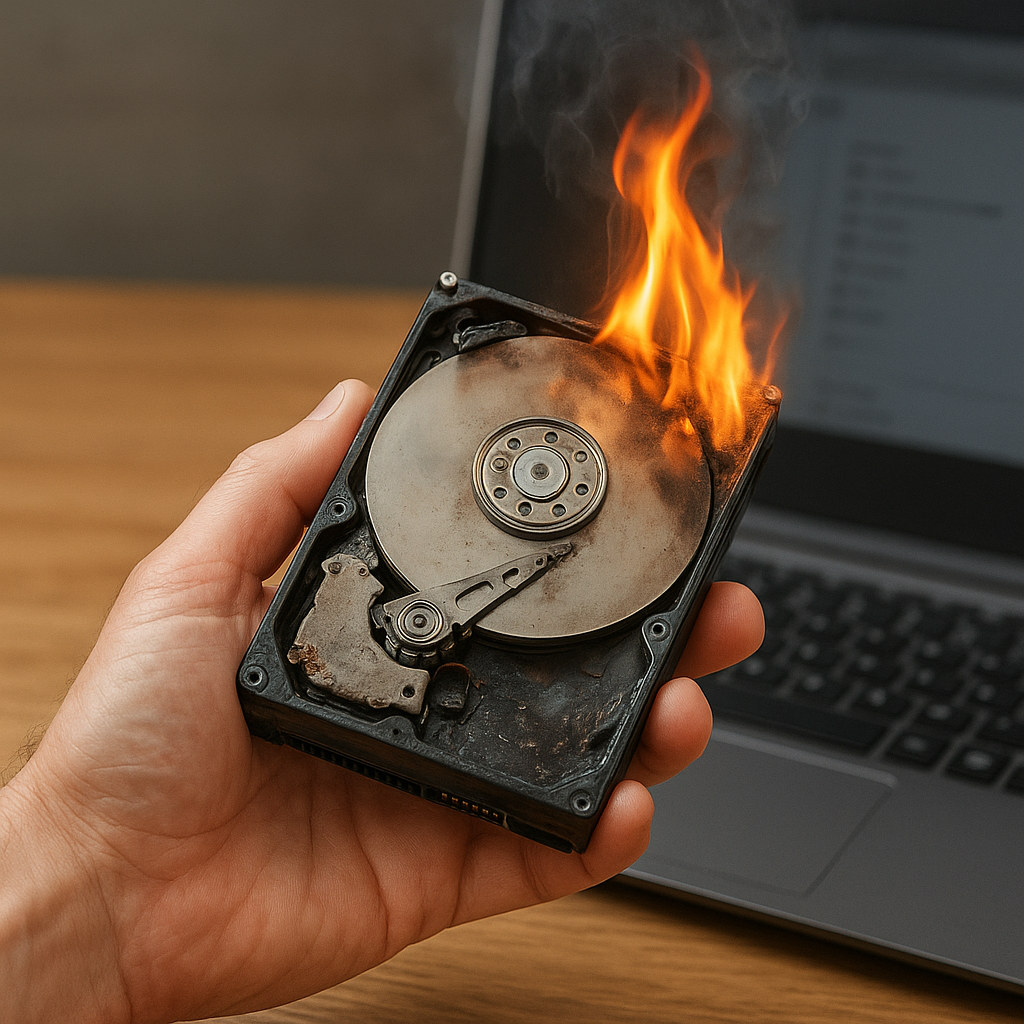
Recovering files from a compromised storage device demands a solid understanding of the causes, careful preparation, and the right selection of reliable tools. This article explores the critical steps to rescue your data after experiencing hard drive stress due to excessive heat.
Understanding the Risks of Hard Drive Overheating
Mechanical disk drives and even solid-state drives can suffer performance degradation or permanent damage when exposed to sustained overheating. Excessive temperature can distort internal components, warp magnetic platters, and degrade electronic circuits. Modern drives include thermal sensors to regulate temperature and shut down before irreversible harm, but these safeguards do not always prevent data loss. Recognizing the root causes of overheating is crucial:
- Poor Ventilation in computer cases blocks airflow around the drive bays.
- Dust Accumulation clogs fans and heatsinks, raising internal temperatures.
- High Workload from heavy read/write operations increases drive activity and heat output.
- Faulty Cooling Systems due to broken fans, dried thermal paste or misaligned heat pipes.
Consequences of Elevated Temperatures
- Magnetic bit desorption from platters, leading to file system corruption.
- Increased head crashes when read/write heads dip too close to the disk surface.
- Electronic component failure on the drive’s controller board.
- Reduced drive lifespan and greater risk of sudden device failure.
Preparation and Initial Response After Overheating
Once you suspect that a storage device has overheated, immediate action can mean the difference between a full recovery and permanent data loss. Follow these guidelines:
1. Power Down and Cool Off
- Shut down the system to prevent further heat exposure.
- Allow the device to cool in a controlled environment—avoid rapid cooling with compressed air or refrigeration.
2. Assess Physical Condition
- Inspect the drive enclosure, looking for warped metal, burnt odor or discolored circuit board.
- Check for loose connectors; reseat SATA or power cables if necessary.
3. Establish a Recovery Environment
- Use a separate computer dedicated to recovery tasks.
- Set up boots from a live USB or CD-based operating system to avoid writing new data to the damaged drive.
- Keep a backup medium ready, such as an external USB drive with enough capacity.
Selecting and Using Recovery Software
Choosing the right software tools can streamline the data recovery process. Not all utilities are created equal—some focus on logical errors while others tackle physical drive imaging. Key considerations include:
- Ability to perform sector cloning and create full disk images for analysis.
- Support for multiple file systems (NTFS, FAT32, exFAT, HFS+, ext4).
- Error-tolerant read operations to skip bad sectors and salvage readable data.
- User-friendly interface with a step-by-step wizard for novices.
Top Recovery Software Options
- Disk imaging utilities that perform byte-by-byte copies.
- File carving tools to reconstruct lost files from raw sectors.
- Partition recovery applications to restore missing or deleted partitions.
Sector Cloning Techniques
A reliable recovery plan often begins with creating a bit-level clone of the failing disk. This method ensures you work on a safe copy, minimizing additional stress on the original drive. To perform a sector clone:
- Connect both source and target drives to the recovery system.
- Launch the imaging software and select “clone disk” mode.
- Set read retries and timeouts to handle problematic sectors gracefully.
- Verify the image checksum to confirm integrity before proceeding.
Recovering Files from the Image
Once the disk image is prepared, mount it in read-only mode. Next, employ file recovery modules to:
- Scan the image for file headers and directory entries.
- Reconstruct fragmented files by analyzing file allocation tables.
- Export recovered items to a safe volume on another device.
Preventive Measures and Long-Term Protection
Minimizing the risk of future overheating incidents helps ensure the longevity of your storage devices. Implement these preventive maintenance strategies:
- Maintain proper airflow with well-placed case fans and unclogged air filters.
- Monitor drive temperatures using built-in SMART data and third-party monitoring utilities.
- Schedule regular diagnostic software checks to detect early signs of failure.
- Keep firmware updated to benefit from manufacturer’s performance and temperature optimizations.
- Adopt robust backup strategies such as the 3-2-1 rule: three copies of data on two device types, one off-site.
By understanding the hazards of overheating, preparing an appropriate recovery environment, leveraging specialized recovery software, and enforcing proactive maintenance, you can protect critical data and avoid the costly consequences of thermal damage.











