
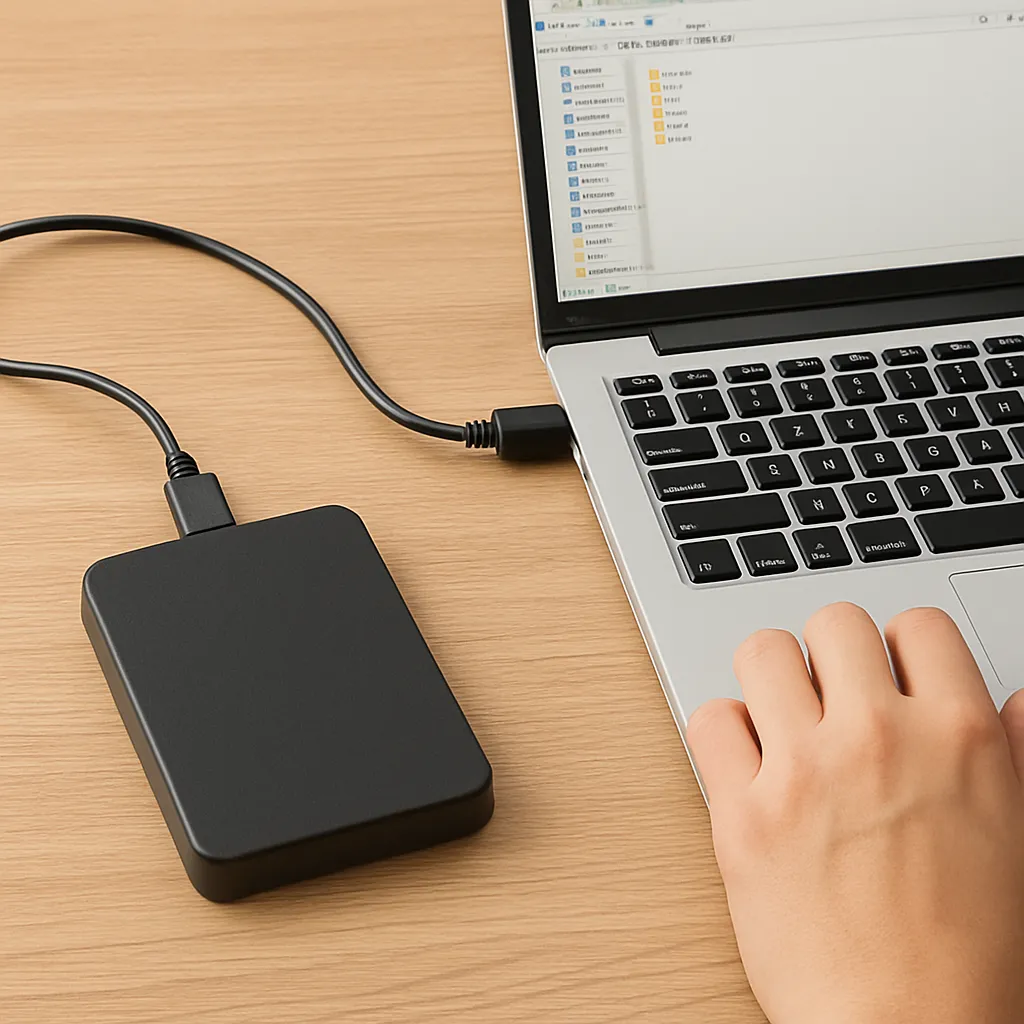
Accidental deletion, sudden power outages, or file system corruption can render an external drive inaccessible, leaving you desperate to recover precious documents, photos, or videos. Fortunately, you don’t need to format the drive to restore your files. By leveraging specialized data recovery tools and following a systematic process, you can retrieve lost information while preserving the existing drive structure and metadata.
Understanding Data Loss on External Drives
Common Causes of File Inaccessibility
- File system corruption due to improper ejection or power failure
- Accidental deletion or formatting operations
- Partition table damage
- Bad sectors caused by physical wear or manufacturing defects
- Malware or virus infections that hide or delete files
How the File System Affects Recovery
The file system (e.g., NTFS, FAT32, exFAT) maintains an index of file locations on the disk. When this index is damaged, the operating system can’t locate your lost files. However, the underlying data often remains intact until overwritten. Recovery software can bypass the corrupted index and search raw sectors for file signatures, restoring your data without altering the original directory structure.
Preparing for Recovery: Tools and Precautions
Selecting the Right Recovery Software
Choosing proven recovery software is critical. Look for solutions offering:
- Deep scan capability to locate fragmented or partially overwritten files
- Preview function so you can verify recoverable files before restoring
- Compatibility with your drive’s file system
- Read-only scanning to avoid further damage
- Support for disk imaging to create a sector-by-sector backup
Essential Precautions
- Stop using the affected drive immediately to prevent data overwriting
- Use a separate computer or a different drive letter for recovery operations
- Create a full image of the external drive if the software supports it
- Avoid installing or downloading software directly onto the source drive
Step-by-Step Guide to Recovering Files Without Formatting
1. Connect and Identify the Drive
Safely connect your external drive to a stable computer. Launch the recovery software and allow it to detect all connected storage devices. Verify the partition table and note the drive letter or device ID.
2. Perform a Quick Scan
Begin with a quick or standard scan to locate recently deleted files and minor file system errors. This process is faster and can recover files with intact directory entries.
- Select the target drive in the software interface
- Choose “Quick Scan” or “File Recovery” mode
- Review the scan results and use the preview function to confirm file integrity
3. Execute a Deep Scan
If the quick scan yields incomplete results, initiate a comprehensive deep scan. This mode reads every sector on the drive, reconstructing files based on their signatures.
- Switch to “Deep Scan” or “Raw Recovery” mode
- Allow the scan to finish, which may take several hours depending on drive capacity
- Filter results by file type or date to locate specific documents
4. Recover and Save Files
After locating the desired files, select them and choose a recovery destination. Always save recovered data to a different drive to avoid overwriting.
- Check file previews for completeness
- Choose a secure folder on another internal or external drive
- Click “Recover” and monitor the progress
5. Verify and Organize Recovered Data
Once recovery completes, browse recovered folders to ensure files are intact. Rename and reorganize as needed. If some files remain corrupted, consider running additional scans or using alternative recovery tools specialized for multimedia or document repair.
Advanced Techniques and Best Practices
Using Disk Imaging for Safer Recovery
Creating a sector-by-sector image of the failing drive can safeguard data during recovery. Work on the image file instead of the original device:
- Use imaging tools to clone the drive to an image file (disk imaging)
- Mount the image as a virtual drive within your recovery software
- Perform scans and recovery on the virtual drive to prevent further harm
Repairing Corrupted File Systems
In cases where the file system is severely damaged but partition structures remain intact, you can attempt a repair:
- Use built-in utilities like CHKDSK (Windows) or fsck (Linux/macOS) in read-only mode to analyze errors
- Apply repairs sparingly—only if you have a backup or image
- Combine system repairs with recovery software to salvage metadata and original folder hierarchies
Optimizing Performance for Large Drives
Recovery on multi-terabyte drives can be time-consuming. To enhance throughput:
- Connect your external drive via USB 3.0, Thunderbolt, or eSATA for higher bandwidth
- Close background applications to free up system resources
- Adjust scan settings to prioritize certain file types or sectors
- Ensure your computer has sufficient RAM to buffer large data blocks
Preventive Measures for Future Data Safety
Regular Backups and Redundancy
Implement a robust backup strategy:
- Use the 3-2-1 rule: three copies on two different media, with one off-site
- Schedule automated backups to network-attached storage or cloud services
- Verify backup integrity periodically
Safe Ejection and Drive Handling
Proper usage reduces the risk of file system issues:
- Always use the “Safely Remove Hardware” option before unplugging
- Keep drives in protective cases to prevent physical damage
- Store drives at stable temperatures and humidity levels
Monitoring Drive Health
Proactive monitoring can alert you to imminent failures:
- Use S.M.A.R.T. utilities to track drive health metrics
- Run surface scans periodically to detect bad sectors early
- Replace aging drives before they become unreliable
Investing time in recovery preparations and adopting preventive measures ensures that you’re ready to tackle any data loss scenario. With the right approach, you can preserve your valuable files without the need to format your external drive, maintaining both integrity and accessibility.











