

When your computer starts dragging its feet, freezing, or taking ages to open basic programs, it is more than just an annoyance; it can be an early warning sign that something is about to fail. A slow machine often hints at overloaded software, insufficient resources, failing hardware, or even hidden malware. The good news is that you can usually restore performance, extend the life of your system, and protect your data with a few deliberate steps. While professional computer repair services are sometimes necessary, many problems can be prevented or delayed by regular maintenance and smart usage habits. In this guide, you will learn how to diagnose the real cause of slowness, apply practical fixes, and recognize the moment when it is safer to stop tinkering and secure your files before a complete breakdown happens.
Understand Why a Computer Becomes Slow
A computer rarely becomes slow for only one reason. Sluggish performance is usually the result of several small issues adding up. Common causes include overloaded startup programs, outdated software, insufficient RAM, nearly full storage, overheating, or a failing drive. Malware and poorly written applications can also consume a surprising amount of resources in the background.
To fix slowness before it turns into a crash, you first need to identify which of these factors is affecting your system. Pay attention to patterns: does the system slow down only when certain apps are open, when you are browsing the web, or even right after startup? Each pattern points to a different root cause, and focusing on that cause saves time and reduces the risk of data loss.
Check System Resource Usage
Before changing settings blindly, investigate what your computer is doing. Use the built-in task manager or performance monitor tools to see how CPU, memory, disk, and network are being used. When one of these is constantly at or near 100%, that resource is a bottleneck.
If the CPU is maxed out, a background process or malware might be responsible. If memory is nearly full, your system will start using the disk as virtual memory, which feels very slow. Constantly high disk activity can indicate indexing, updates, or a failing drive. Identifying the heaviest processes helps you decide whether to uninstall, update, or temporarily disable applications that are causing issues.
Reduce Startup Programs and Background Apps
Many applications add themselves to startup without asking. Over time, this list can grow long, making every boot slow and keeping your system busy even when you are doing nothing. Review all programs that launch when the system starts and disable anything nonessential.
Messaging apps, game launchers, cloud storage sync tools, and update managers often run in the background constantly. While some of them are useful, others only provide convenience at a noticeable performance cost. Trimming these down not only speeds up startup but also frees RAM and CPU for tasks that truly matter, reducing the risk that your system will freeze during heavy work.
Clean and Organize Storage
A drive that is almost full can cause major slowdowns, especially on traditional hard drives but also on solid-state drives. Systems need free space for temporary files, updates, and virtual memory. When there is not enough space, everyday operations like copying files, installing updates, or opening large projects can become painfully slow or fail entirely.
Remove unnecessary programs, old installers, temporary files, and large media that you no longer need. Use built-in disk cleanup tools to safely delete cache and logs. Organize your remaining data into clearly labeled folders so that finding and managing files is easier. Maintaining at least 15–20% free space on your main drive is a simple habit that can significantly improve overall responsiveness and stability.
Check the Health of Your Drive
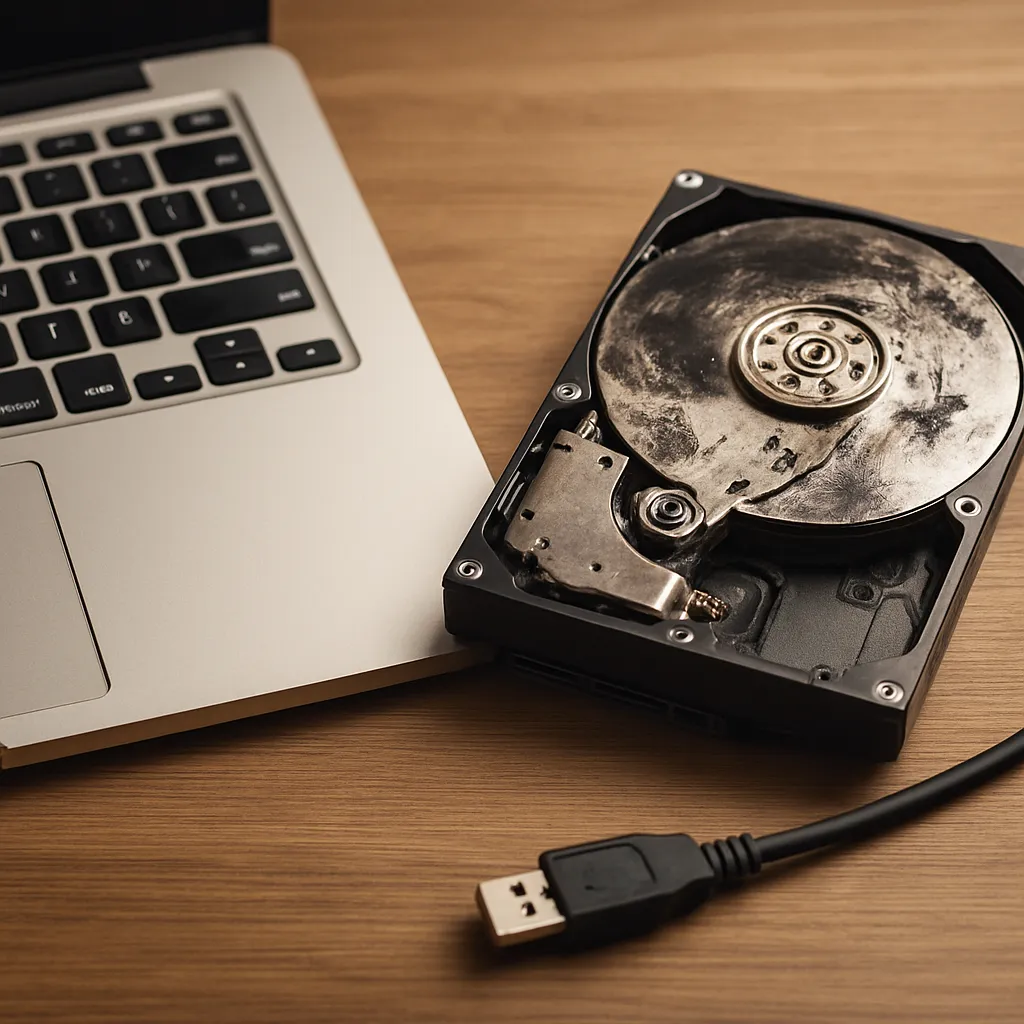
One of the most serious reasons a computer slows down is a failing storage drive. Early symptoms include random freezes, unusually long load times, strange clicking noises from a hard drive, or repeated file errors. Ignoring these can lead to sudden loss of access to important data.
Use SMART monitoring tools or the operating system’s diagnostics to check the health status of your drive. If you see warnings, increasing bad sectors, or frequent read errors, treat that as a sign to act immediately. Copy your most important documents, photos, and project files to another location. Consider replacing the drive with a new one, preferably a solid-state drive, which can offer a dramatic boost in speed and reliability compared with older mechanical drives.
Upgrade RAM and Consider an SSD
Even well-maintained systems can struggle when modern applications demand more memory than the hardware can provide. When RAM is insufficient, the system relies heavily on the disk, which is much slower, creating the feeling of constant lag. Upgrading RAM on compatible desktops and many laptops is one of the most cost-effective ways to restore performance.
Similarly, switching from a traditional hard drive to a modern solid-state drive often transforms a slow machine into a responsive one. Boot times shrink, applications launch faster, and file operations become smoother. Combining more RAM with an SSD upgrade does not only improve speed; it also reduces wear on components by shortening the time they stay under high load, lowering the chance of failure during demanding tasks.
Remove Malware and Unwanted Software
Malware is a frequent and dangerous cause of slowness. Infected systems may run hidden processes that use CPU, memory, and network bandwidth for malicious activities such as mining cryptocurrency, sending spam, or exfiltrating data. Adware and potentially unwanted programs can also slow browsing and generate pop-ups that interrupt your work.
Run a full system scan with reputable security software and consider using an additional on-demand scanner for a second opinion. Remove toolbars, unknown browser extensions, and any software you do not recognize or actively use. Keeping your operating system and security tools updated is essential, because outdated systems are much easier to infect, which over time can degrade performance and stability.
Update the Operating System and Drivers
Outdated operating systems and device drivers can cause performance bottlenecks, compatibility problems, and even data corruption. System updates often contain performance improvements, bug fixes, and security patches that help your computer run more efficiently and safely.
Check for pending system updates and apply them regularly. Also verify that crucial drivers, such as graphics, chipset, and storage drivers, are up to date. Updated drivers can fix glitches, reduce crashes, and optimize communication between your hardware and software, which directly affects how fast and stable your computer feels during everyday use.
Control Heat and Physical Dust
Excessive heat is a silent killer of performance and hardware. When your computer overheats, it often throttles the CPU and graphics processor, lowering their speed to prevent damage. This throttling feels like sudden slowdowns or stuttering even when software usage has not changed.
Make sure that air vents are not blocked and that fans are working properly. Dust accumulation inside the case or laptop can trap heat, so periodic cleaning with compressed air can restore proper airflow. Using the computer on soft surfaces like beds or couches restricts ventilation; a hard, flat surface or a cooling pad is much safer. Keeping temperatures under control helps maintain stable performance and prolongs the life of internal components.
Back Up Data Before Problems Get Worse
Whenever you notice persistent slowdowns, strange noises, or recurring errors, treat them as an early alert to protect your data. A system that is becoming unstable is more likely to experience sudden failure, which might leave you scrambling to recover lost files.
Create regular backups of your most important information to an external drive, network location, or secure cloud storage. Automating backups reduces the chance that you forget. Having a recent backup turns a potential disaster into a routine repair or replacement task, because you can restore your files onto a new or freshly repaired system without panic or rushed decisions.
Recognize When to Seek Professional Help
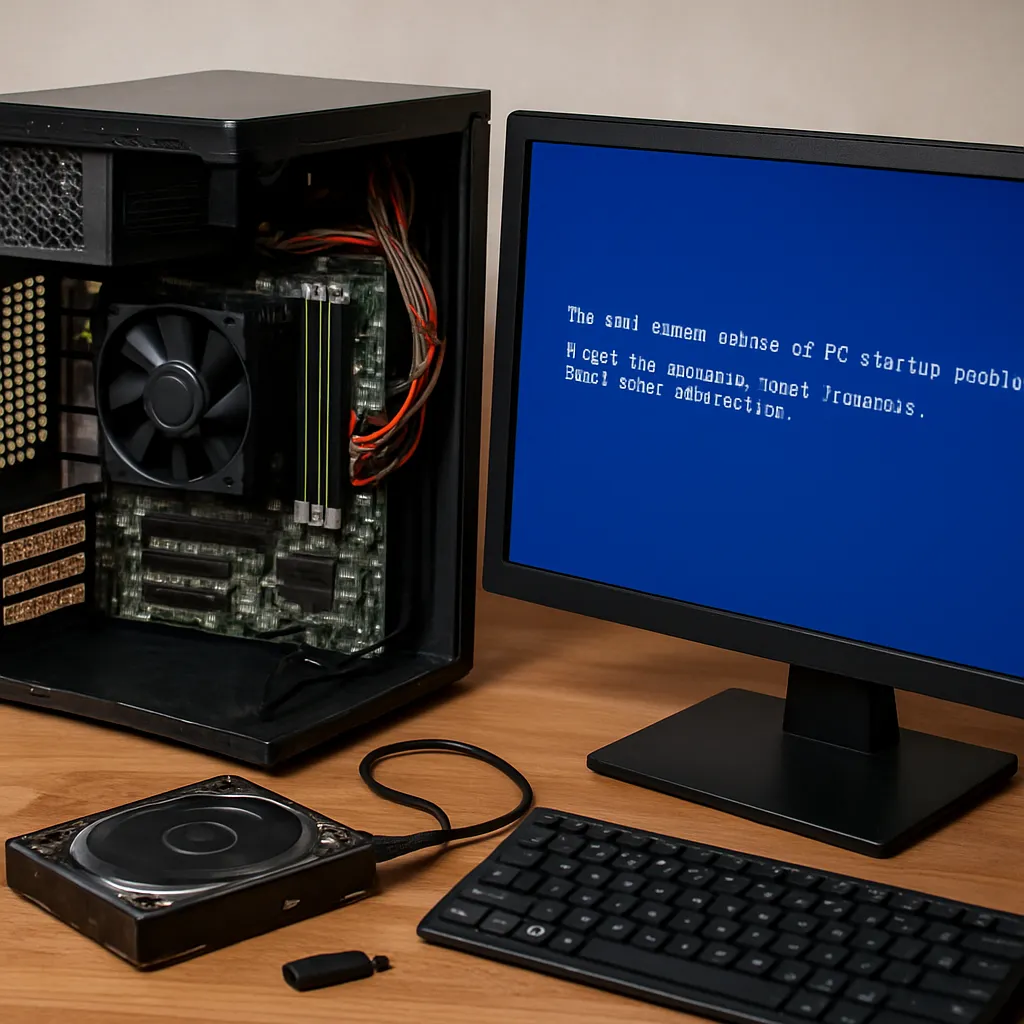
Most basic performance issues can be handled by careful cleaning, updates, and hardware checks. However, some symptoms signal deeper trouble that is risky to tackle without expertise. Repeated crashes, blue screens, frequent file corruption, or failed updates can indicate significant hardware faults or severe system damage.
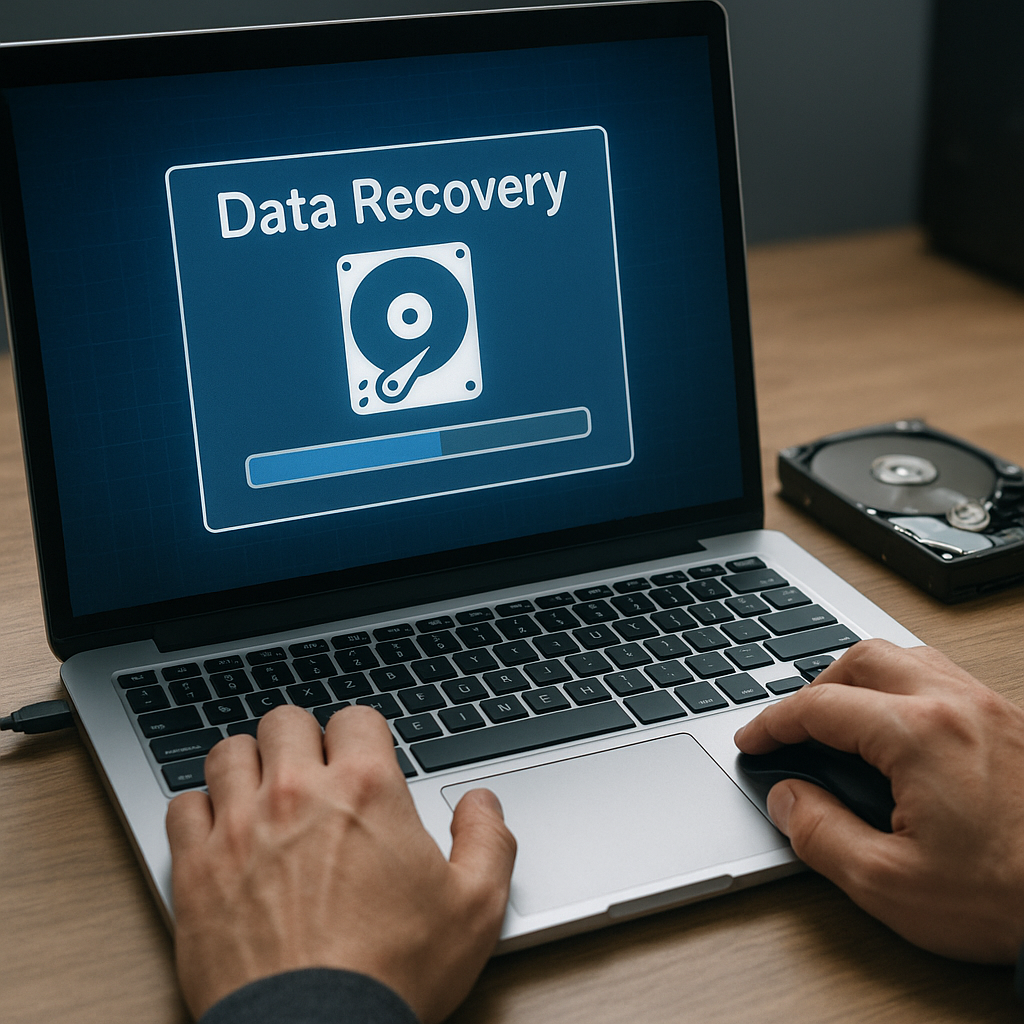
At that stage, trying random fixes can make things worse or overwrite data that might still be recoverable. If your machine exhibits these warning signs, or if drive health tools report critical status, consider stopping nonessential use immediately and consult a specialist. Acting early, before the system stops booting entirely, gives you the best chance to save important data and avoid more complicated and costly recovery procedures.
Build Good Long-Term Habits
Keeping a computer fast and reliable is not a one-time project but an ongoing process. Adopt habits that prevent slowdowns: uninstall programs you no longer use, clean temporary files, avoid suspicious downloads, and keep an eye on storage space. Schedule regular system and driver updates and run security scans on a consistent basis.
Good maintenance habits extend beyond software. Periodic physical cleaning, careful cable management, and maintaining proper airflow all contribute to a cooler, more stable system. By treating your machine as a tool that needs care rather than a disposable gadget, you reduce the likelihood of sudden breakdowns and preserve both performance and data over the long term.
Conclusion: Act Before Failure, Not After
A slow computer is often the first visible symptom that something is off. Ignoring it can lead to lost work, corrupted projects, or expensive emergency repairs. By monitoring resource usage, trimming unnecessary software, upgrading critical hardware, checking drive health, and backing up regularly, you can address most problems long before they become disasters.
This proactive approach not only restores speed; it also protects your important documents, memories, and professional projects from sudden loss. Investing time in thoughtful maintenance now is far less stressful than trying to salvage data from a failed system later. With deliberate care and timely action, your computer can remain a fast, reliable, and secure partner in your daily work for years to come.

Leave a Reply