
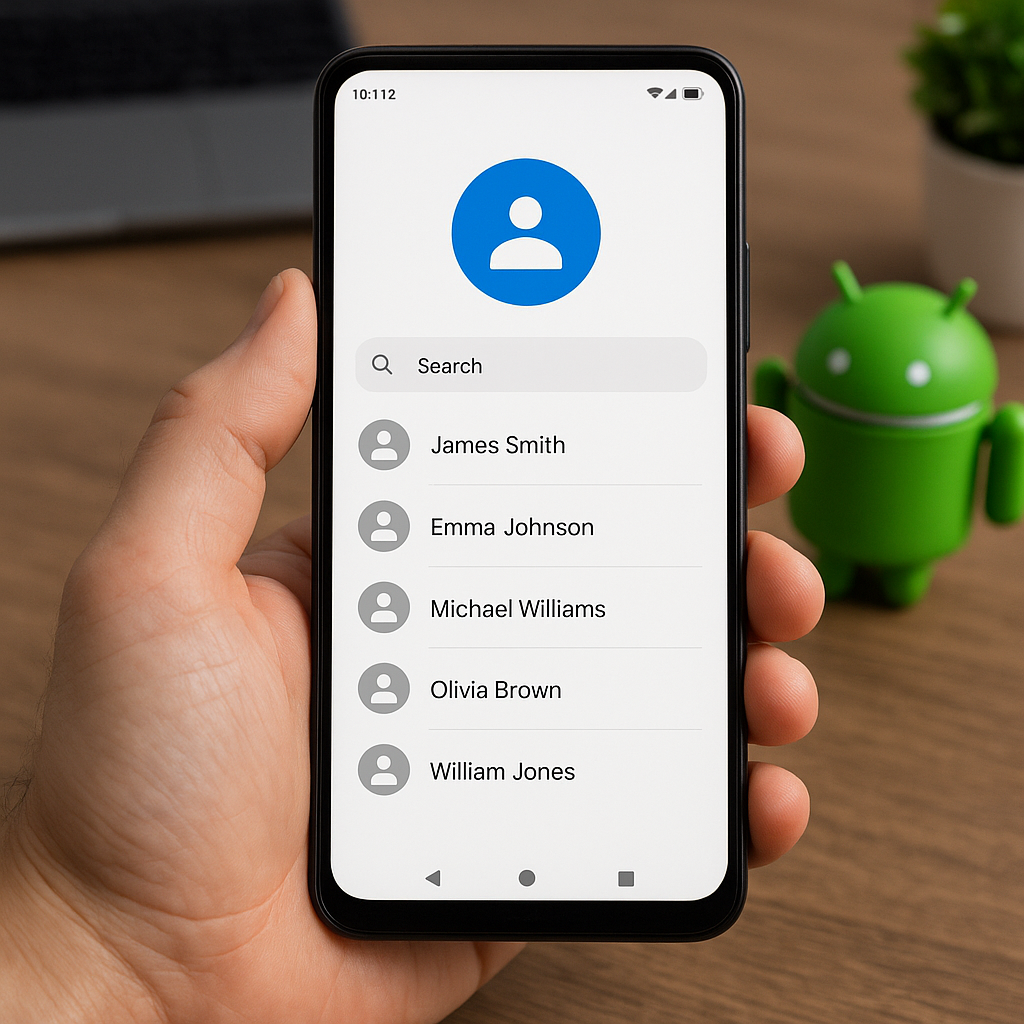
Recovering deleted contacts from an Android device can feel like navigating a maze without a map. Whether a simple tap error, a system glitch, or an unexpected device reset led to the loss, regaining your precious connections is still possible. This guide delves into the essentials of selecting reliable recovery tools, executing a thorough restoration, and adopting strategies to prevent future losses. With clear steps, expert insights, and practical tips, you’ll soon reclaim every lost phone number and email address.
Understanding Why Contacts Disappear
Android devices store contacts in a blend of cloud-based accounts, internal storage, and synchronized apps. However, various scenarios can lead to data disappearance:
- Accidental deletion: A misclick when managing contacts might delete multiple entries.
- Factory reset: Returning a device to its original settings erases all user data.
- Software glitches: Updates or app conflicts can corrupt the contacts database.
- Sync errors: Inconsistent communication between Google Contacts, Samsung Cloud, or other backup services.
- Malware or unauthorized access: Harmful apps or hackers deleting entries during attacks.
Understanding the root cause of contact loss is crucial. It determines the most effective recovery approach and helps you avoid repeating mistakes. Before diving into recovery, check whether the lost information is available in your Google Contacts web interface or a recent backup. If it appears there, restoration can be nearly instantaneous.
Selecting the Most Effective Recovery Software
Choosing the right recovery software can make or break your success. Look for these key features:
- Compatibility with various Android versions and device models.
- Ability to scan both internal memory and external SD cards.
- Preview functionality, allowing you to view recoverable items before restoration.
- High retrieval success rates for multiple data types (contacts, messages, media).
- A straightforward, user-friendly interface to guide non-expert users.
- Robust security measures ensuring no further data loss or privacy breaches.
Several renowned recovery tools stand out:
1. Dr.Fone – Data Recovery (Android)
- One of the pioneers in mobile recovery, offering selective retrieval.
- Supports preview and export in multiple formats (CSV, VCF).
- Cloud backup integration for seamless restoration.
2. EaseUS MobiSaver for Android
- Fast scanning engine and clear categorization of lost files.
- Free trial version to evaluate recovery potential.
- Compatible with a wide range of Android devices.
3. FonePaw Android Data Recovery
- Specializes in contact and message retrieval.
- Offers deep scan mode for stubbornly missing entries.
- Options to restore directly to device or export to PC.
When selecting a tool, download only from the official website to avoid malicious imitations. Verify that system requirements match your Android OS, and ensure you have a stable internet connection for activation.
Step-by-Step Restoration Process
Follow these steps to maximize the chances of a full restore:
Step 1: Stop Using the Device Immediately
Continuing to use your phone can overwrite the space where deleted contacts were stored. Power off any unneeded apps, disable automatic updates, and refrain from adding new contacts until recovery is complete.
Step 2: Enable USB Debugging
- Navigate to Settings > About Phone > tap Build Number seven times.
- Return to Settings, open Developer Options, and toggle on USB Debugging.
Step 3: Install and Launch the Recovery Tool on Your Computer
Connect your Android device via USB cable. The software should detect it automatically. If prompted, grant permission on your phone to allow debugging.
Step 4: Select Data Types and Scan Mode
Choose “Contacts” and any other relevant categories. Opt for a deep scan if the standard mode fails to locate missing entries. Be patient: thorough scans can take several minutes to an hour.
Step 5: Preview and Recover Contacts
Once scanning completes, browse the list of recoverable entries. Preview details to confirm accuracy, then select items for recovery. Choose “Restore to Device” to repopulate your contacts app, or “Export to VCF” for manual import.
Step 6: Verify Your Contacts
Open your phone’s Contacts app and refresh the list. Check for completeness and correct any duplicated or misformatted entries. If necessary, re-sync with your Google or Samsung account to ensure consistency across devices.
Advanced Tips and Best Practices
To minimize future deletion scares, adopt these strategies:
- Regular backups: Schedule weekly backups to cloud services or local computers.
- Use dual backup methods: Keep copies in both Google Contacts and a third-party cloud storage.
- Sync settings awareness: Confirm that automatic sync is active and error-free.
- App permissions management: Restrict access for apps that don’t require contact data.
- Security enhancements: Install reliable antivirus and avoid suspicious downloads.
- Contact management apps: Use dedicated apps that offer version histories and recycle bins.
For corporate environments, consider enterprise-grade Mobile Device Management (MDM) solutions. These platforms provide centralized control over backups, encryption, and compliance policies.
Lastly, periodically export your contacts into a universal VCF file and store it offline. This simple habit acts as a last-resort safety net, ensuring your phonebook remains intact no matter what technical mishaps occur.











