
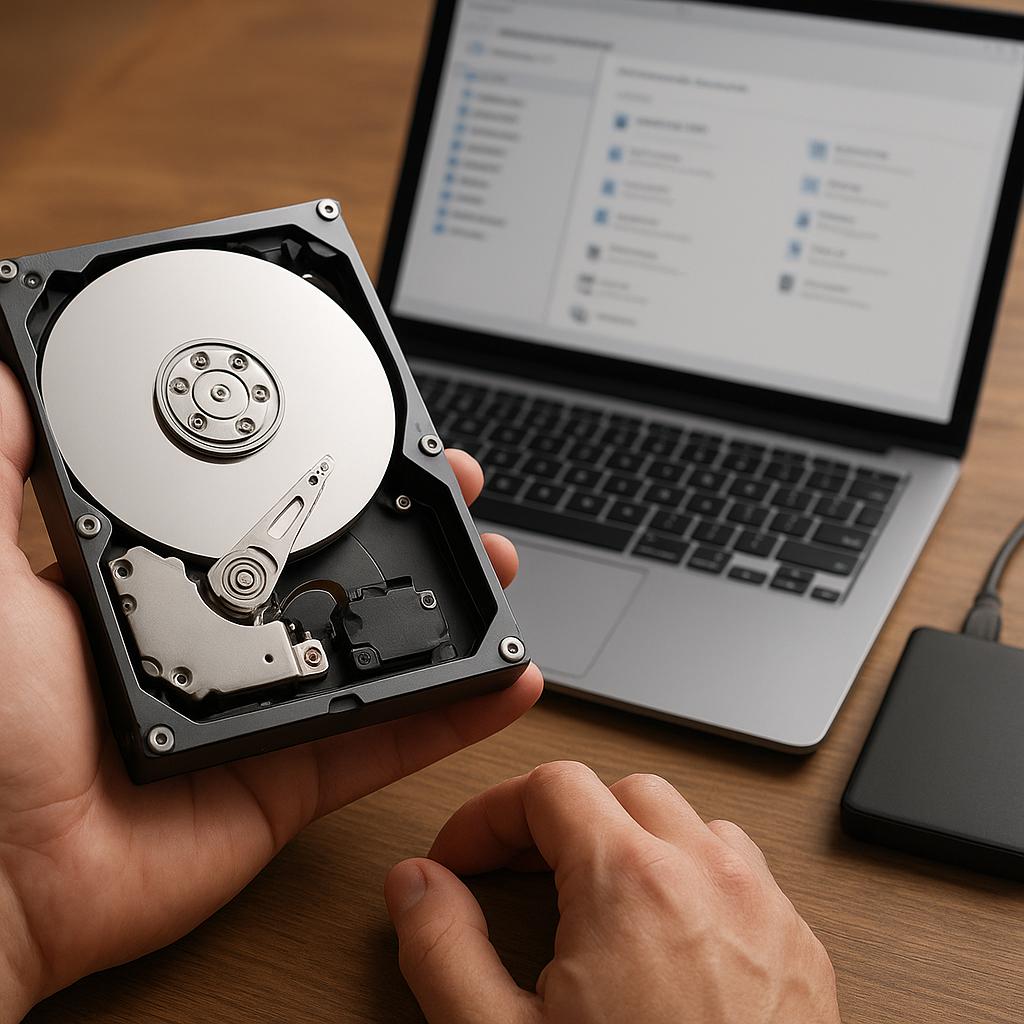
Recovering files after reformatting a drive can feel like navigating a maze without a map. You might think all your precious documents, photos, and videos are gone for good, but with the right approach and tools, there’s a high chance of restoring what was lost. This guide explores the causes of data loss, explains different recovery methods, and offers tips on choosing and using reliable recovery tools to maximize success.
Causes of Data Loss and the Impact of Reformatting
Data loss can occur due to various scenarios: accidental deletion, sudden power failure, virus infection, or hardware malfunction. Reformatting a drive—whether accidental or intentional—signals the operating system to erase its file system structures, making the drive appear empty. However, most of the underlying data often remains intact until it’s overwritten. Understanding why reformatting doesn’t immediately destroy all files is crucial for successful recovery.
The File System vs. Physical Data
- File System: This is the organizational layer (NTFS, FAT32, exFAT) that tracks file locations. Formatting rebuilds this structure, marking all previous entries as free space.
- Physical Data: Actual bits stored on magnetic platters or flash cells. They persist until new data overwrites them.
When you reformat, the system only removes references to files in the file system tables; it doesn’t immediately overwrite the physical sectors. That means specialized software can scan the drive, detect fragments of existing data, and reconstruct files.
Factors Affecting Recovery Success
- Time Since Reformat: The longer you use the drive post-format, the higher the chance of overwriting old data.
- Type of Reformat: Quick formats often preserve data, while full formats may zero out sectors, reducing recovery prospects.
- Drive Health: Bad sectors or mechanical issues on HDDs can hamper scanning and retrieval processes.
- Operating System Activity: Booting or installing new software on the same drive increases the risk of data loss.
Effective Methods for Recovering Formatted Drives
Selecting the right method depends on your technical skills and the severity of data loss. Below are three common approaches that cater to different levels of expertise and resource availability.
1. Using Dedicated Recovery Software
Specialized tools are designed to perform deep scans of formatted drives, identify file signatures, and recover lost data. Many programs offer user-friendly interfaces and step-by-step wizards.
- Scanning Algorithms: Advanced solutions use multiple algorithms—file signature recognition, cluster analysis, and index reconstruction—to maximize file discovery.
- Supported File Types: Look for software that recognizes a wide range of formats (documents, images, audio, video, archives).
- Preview Feature: Allows you to verify file integrity before committing to recovery.
- Recovery Options: Some tools can reconstruct entire folders, preserve original timestamps, and rename files to avoid conflicts.
Examples of reputable recovery software include Recuva, EaseUS Data Recovery Wizard, and R-Studio. Always install the software on a different drive than the one you’re recovering to avoid data corruption.
2. Manual Disk Imaging and Forensic Analysis
For more advanced users, creating a disk image (bit-for-bit copy) is the safest way to prevent further data loss. Using forensic imaging tools like ddrescue or FTK Imager, you can work on the clone instead of the original drive.
- Imaging Benefits: Protects the source drive from accidental writes and allows repeated recovery attempts.
- Hexadecimal Analysis: Forensic analysts can manually inspect raw data, identify file headers, and carve out lost files.
- Professional Grade: This approach is standard in data recovery labs and law enforcement investigations.
While effective, manual imaging and analysis require deep knowledge of file systems, hex editors, and command-line tools. It’s recommended only when automated software fails or when recovering highly sensitive data.
3. Seeking Professional Data Recovery Services
If software solutions can’t retrieve your files—often due to physical drive damage or extremely thorough formatting—turning to a professional lab may be your best option. Certified technicians use specialized hardware, cleanrooms, and proprietary techniques to salvage data from failing drives.
- Cleanroom Facilities: Prevent dust contamination when opening hard drives.
- Advanced Tools: PCB replacement, head swaps, and micro-point laser scanning.
- Success Rate: Often exceed 90% for logical failures and around 70% for physical issues.
Professional recovery can be costly, and turnaround times vary based on case complexity. However, for critical business or personal data, the investment is often justified.
Best Practices to Minimize Future Data Loss
Prevention is always more efficient and cost-effective than recovery. Implement these strategies to protect your files before disaster strikes.
Regular Backups and Redundancy
- Maintain at least one local backup and one offsite or cloud copy. Use automated backup solutions to ensure consistency.
- Employ the 3-2-1 rule: Three total copies, on two different media, one offsite.
- Test your backups monthly to verify readability and integrity.
Use Reliable Storage Hardware
- Invest in quality SSDs or enterprise-grade HDDs with robust error correction.
- Monitor drive health using SMART data analysis tools.
- Avoid filling drives to maximum capacity to reduce write amplification and wear.
Implement Version Control and File Synchronization
- Leverage versioning features in cloud storage (e.g., OneDrive, Google Drive) to revert to previous file states.
- Use synchronization software to keep multiple devices up to date.
- Enable automatic file history in operating systems when available.
Secure Your Data Environment
- Install reputable antivirus and antimalware solutions to prevent corruption from malicious software.
- Restrict user permissions to reduce accidental deletions and format commands.
- Encrypt sensitive data at rest and in transit for an added layer of protection.
Choosing the Right Recovery Software
Not all recovery tools are created equal. When evaluating options, consider the following criteria to ensure you select a competent and trustworthy solution.
Feature Set and Compatibility
- Cross-Platform Support: Ensure the software runs on your operating system—Windows, macOS, Linux, or mobile platforms.
- Compatibility with various file systems: NTFS, FAT32, HFS+, APFS, EXT4, etc.
- Ability to recover from external drives, USB sticks, SD cards, RAID arrays, and virtual disks.
User Interface and Ease of Use
- Guided wizards and clear progress indicators reduce user error.
- Multilingual support and detailed help documentation.
- Option to save and resume recovery sessions.
Performance and Efficiency
- Scanning speed and resource usage should be balanced to avoid system slowdowns.
- Ability to filter scan results by file type, size, and date.
- Customizable scan depth—shallow scans for quick previews, deep scans for thorough searches.
Support and Licensing
- Check if the vendor offers free technical support or community forums.
- Understand licensing terms: per-device, subscription-based, or perpetual licenses.
- Look for trial versions that allow previewing recoverable files before purchase.
Conclusion
Reformatting a drive doesn’t necessarily mean your data is gone forever. By understanding how file systems work, choosing the appropriate recovery method, and using reliable software, you can significantly increase your chances of restoring lost files. Pair these strategies with robust backup and security practices to safeguard your digital life against future data disasters.











