
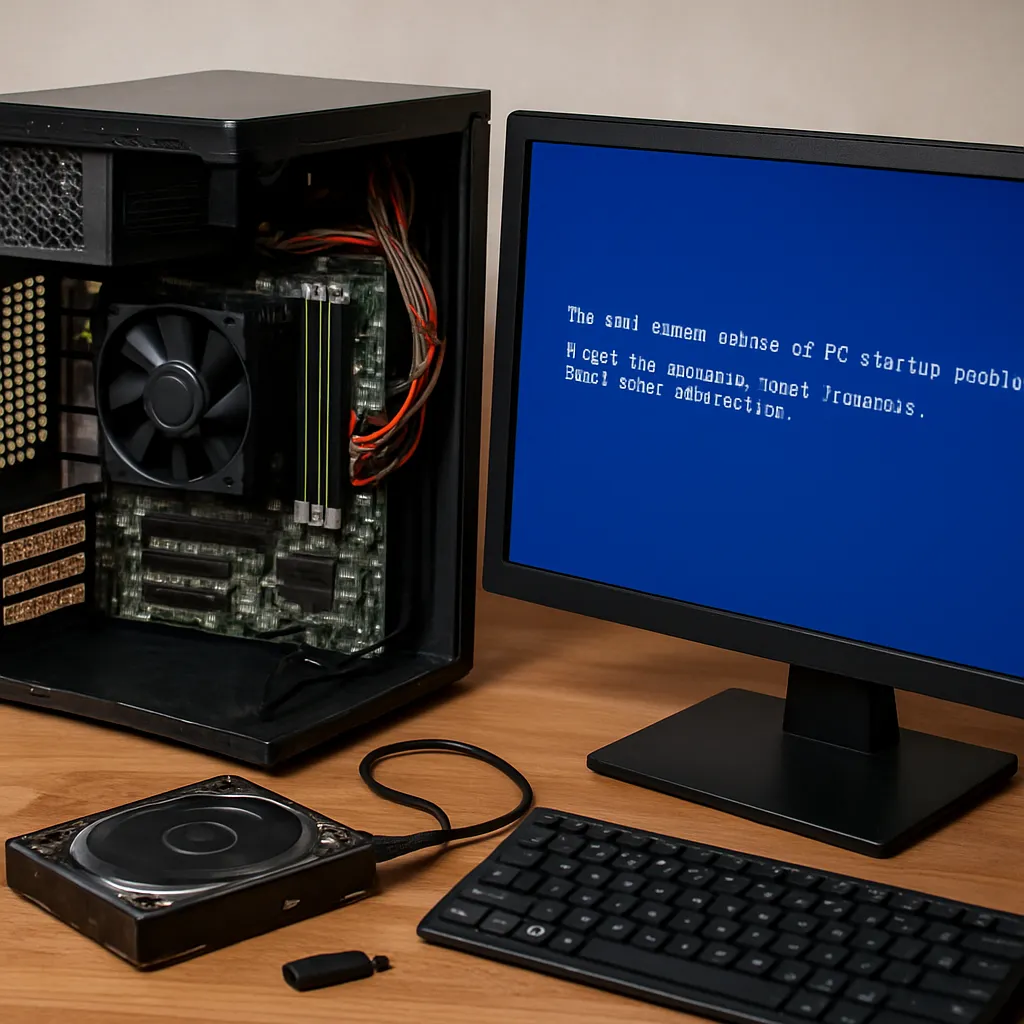
When your computer refuses to start, everything from work projects to cherished photos suddenly feels at risk. Understanding the most common causes of PC startup problems helps you react calmly instead of panicking. This practical PC repair guide explains why systems fail to boot, how to recognize the warning signs, and which basic checks you can safely perform yourself. We will walk through hardware faults, power issues, operating system corruption, BIOS and firmware errors, and problems with drives and peripherals. You will learn how to distinguish between minor glitches and serious failures that require professional help. With a structured approach, many startup problems can be detected early, downtime can be reduced, and the life of your PC can be significantly extended.
Understanding the PC Startup Process
Before diagnosing problems, it helps to understand what happens in a normal startup. When you press the power button, the power supply unit delivers electricity to the motherboard and connected components. The firmware (BIOS or UEFI) performs a Power-On Self-Test, checking CPU, memory, and basic devices. Then it looks for a bootable device, usually a hard drive or SSD, loads the bootloader, and finally hands control to the operating system.
If the sequence is interrupted at any step, you will see symptoms such as a black screen, beeping sounds, error messages, or the PC repeatedly restarting. Each stage has typical failure points: power delivery, basic hardware checks, drive detection, and operating system loading. Recognizing at which stage your PC fails is the first key to solving startup problems efficiently.
Power Supply and Electrical Issues
One of the most common causes of startup failure is a faulty or insufficient power supply. If the power supply unit cannot deliver stable current, the system may not start at all or may shut down seconds after powering on. No lights, no fans, and no response from the power button often indicate a power-related problem rather than a software issue.
Simple checks include verifying that the wall outlet works, the power cable is seated firmly, and the switch on the power supply (if present) is turned on. A failing power supply may emit unusual noises, such as clicking or buzzing, or trigger random restarts under load. Cheap or old units are particularly vulnerable to wear, voltage spikes, and overheating. Replacing a weak or unstable unit with a quality one often resolves mysterious and intermittent startup failures.
Loose or Faulty Cables and Connections
Inside the PC case, every component relies on secure connections. A slightly loose cable can prevent a drive from being detected or stop the system from receiving enough power. After moving a computer, cleaning it, or adding a new part, it is common for a connector to shift unintentionally and create startup issues.
Key areas to check are the main motherboard power connector, the CPU power connector, and the cables going to the drives. If the system powers on but cannot find an operating system, a disconnected data cable to the drive is a likely culprit. Gently reseating cables and ensuring all components are properly aligned on their slots is a simple yet powerful method of resolving many apparently complex problems.
RAM Problems and Memory Errors
Defective or poorly seated memory modules frequently cause startup failures, random reboots, or blue screens. During the initial hardware check, the system must access RAM reliably to proceed. If it cannot, you may hear beeps from the motherboard speaker or see the system freeze with no output on the monitor.
To diagnose memory issues, shutting down the PC, disconnecting power, and carefully removing and reinserting the RAM modules is a useful step. Testing one module at a time can help isolate a faulty stick. When only certain configurations of slots and modules allow the system to boot, the problem might be related to either the RAM itself or the memory slots on the motherboard. Long-term instability, especially under load or when opening many applications, often signals deeper memory faults.
CPU and Overheating Issues
The processor is the heart of the system, and if it overheats or lacks proper contact with the cooler, the PC may shut down almost immediately for protection. Dust buildup, dried thermal paste, or a broken fan can all lead to thermal problems that prevent reliable startup or cause crashes shortly after booting.
Common signs include sudden power-offs, loud fans ramping up, or warnings from the firmware about high temperatures. Ensuring that the cooler is firmly mounted, fans are spinning freely, and vents are not blocked is essential. Cleaning out dust and applying new thermal paste can significantly improve thermal performance and reduce startup instability related to overheating.
Graphics Card and Display Problems
Sometimes the PC actually starts, but you see nothing on the screen. This situation often points to a graphics or display problem rather than a complete startup failure. A loose graphics card, faulty video cable, or incorrect monitor input selection can all give the impression that the system is dead.
If your motherboard has integrated graphics, testing without a dedicated graphics card can quickly reveal whether the card itself is the issue. Reseating the card, trying another output port, or substituting a known-good cable and monitor are quick ways to narrow down the cause. Beeping patterns or indicator lights on the motherboard also provide clues about graphics initialization failures.
Storage Device Failures: HDD and SSD
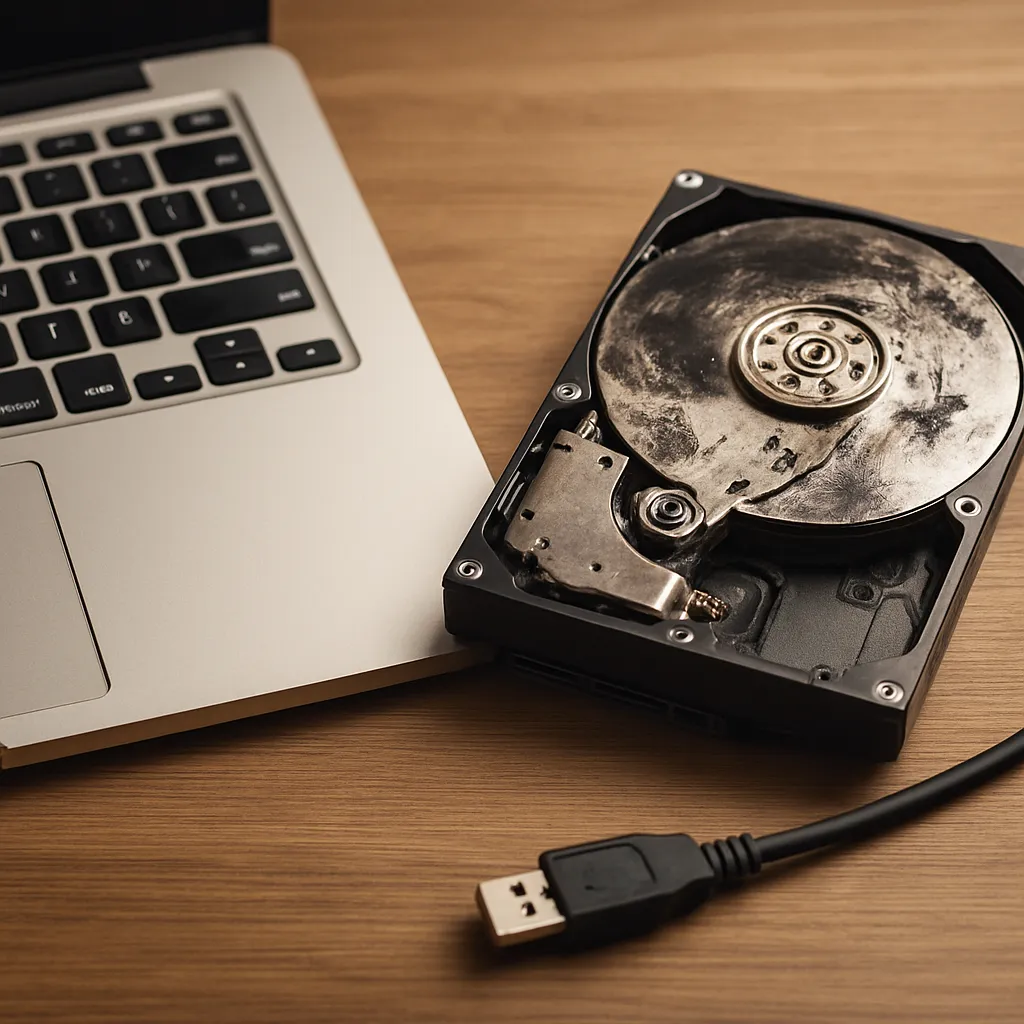
Modern operating systems rely heavily on stable and fast storage, and a failing hard drive or SSD is a leading cause of startup problems. Symptoms include messages indicating that no boot device was found, extremely slow loading times, grinding or clicking noises from mechanical drives, or repeated attempts to repair the filesystem.
Over time, drives develop bad sectors, wear out memory cells, or suffer from electronic faults. When damage affects system files or the bootloader, startup can fail outright. Running drive diagnostics, listening for unusual noises, and noting any error codes shown by the firmware are important steps. In severe cases, the priority should shift from repair attempts to protecting valuable data from further degradation.
Corrupted Operating System and System Files
Even with healthy hardware, corrupted system files can prevent Windows or other operating systems from loading. Improper shutdowns, sudden power losses, malware, or failed updates may damage critical components needed for boot. Typical signs are endless automatic repair loops, missing system file messages, or blue screens during early stages of loading.
Recovery environments, built-in repair tools, and startup repair options can sometimes restore damaged components. Restoring from a previous restore point or system image is also effective if available. When corruption is extensive, a clean installation of the operating system may be required. Ensuring regular backups and using reliable power protection greatly reduces the impact of these failures.
Bootloader and Partition Problems
The bootloader is the small but vital program that bridges the gap between firmware and the operating system. Misconfigured partitions, overwritten boot records, or installation of multiple systems without careful planning can all cause bootloader errors. As a result, the PC may stop at a black screen with a brief error message, or it may fail to find the operating system entirely.
Advanced tools allow inspection and repair of boot records, modification of active partitions, and reconstruction of the boot configuration. While some of these procedures are complex, understanding that the problem lies between firmware and system rather than in the hardware itself helps you choose the right approach. Avoiding abrupt shutdowns and carefully following installation instructions when adding another operating system reduces the risk of bootloader conflicts.
BIOS/UEFI Misconfiguration and Firmware Issues
The BIOS or UEFI firmware controls which devices the PC tries to boot from and how hardware components are initialized. An incorrect setting, such as disabling a crucial controller or assigning the wrong boot order, can make a functional system appear completely unbootable. Firmware updates that fail or are interrupted may also introduce serious problems.
Resetting BIOS or UEFI settings to their defaults often solves misconfiguration issues. Removing the motherboard battery or using a dedicated reset jumper, according to the manual, clears stored settings. Careful firmware updating, performed only when necessary and with reliable power, minimizes the risk of bricking the motherboard. Because firmware operates at such a low level, errors here have a strong impact on startup behavior.
Peripheral Devices and External Hardware Conflicts
Unexpectedly, something as simple as a faulty USB device can block the startup process. When the firmware tries to boot from a removable drive that is damaged or misidentified, it may hang or display an error. Printers, docking stations, and external drives that malfunction can all disrupt normal initialization.
Diagnosing peripheral conflicts is straightforward: disconnect all nonessential devices and try to start the PC with only keyboard, mouse, and display attached. If the system boots normally in this minimal configuration, reconnecting devices one by one identifies the problematic accessory. Adjusting the boot order so that internal drives take precedence also helps avoid confusion caused by external media.
Malware and Ransomware Damage
Malicious software can tamper with every layer of the startup process, from boot records to core system files. Certain types of malware hide in early-boot components, making detection and removal difficult once the system is already compromised. Ransomware may encrypt system files or interfere with services essential for successful startup.
When malware is suspected, starting the system from a clean rescue environment or trusted installation media allows scanning without activating the infected operating system. In severe cases, preserving important data and performing a complete wipe and reinstall is safer than attempting partial repairs. Maintaining current antivirus protection, updating software regularly, and practicing cautious browsing habits are key defenses against startup problems caused by infection.
Physical Damage and Environmental Factors
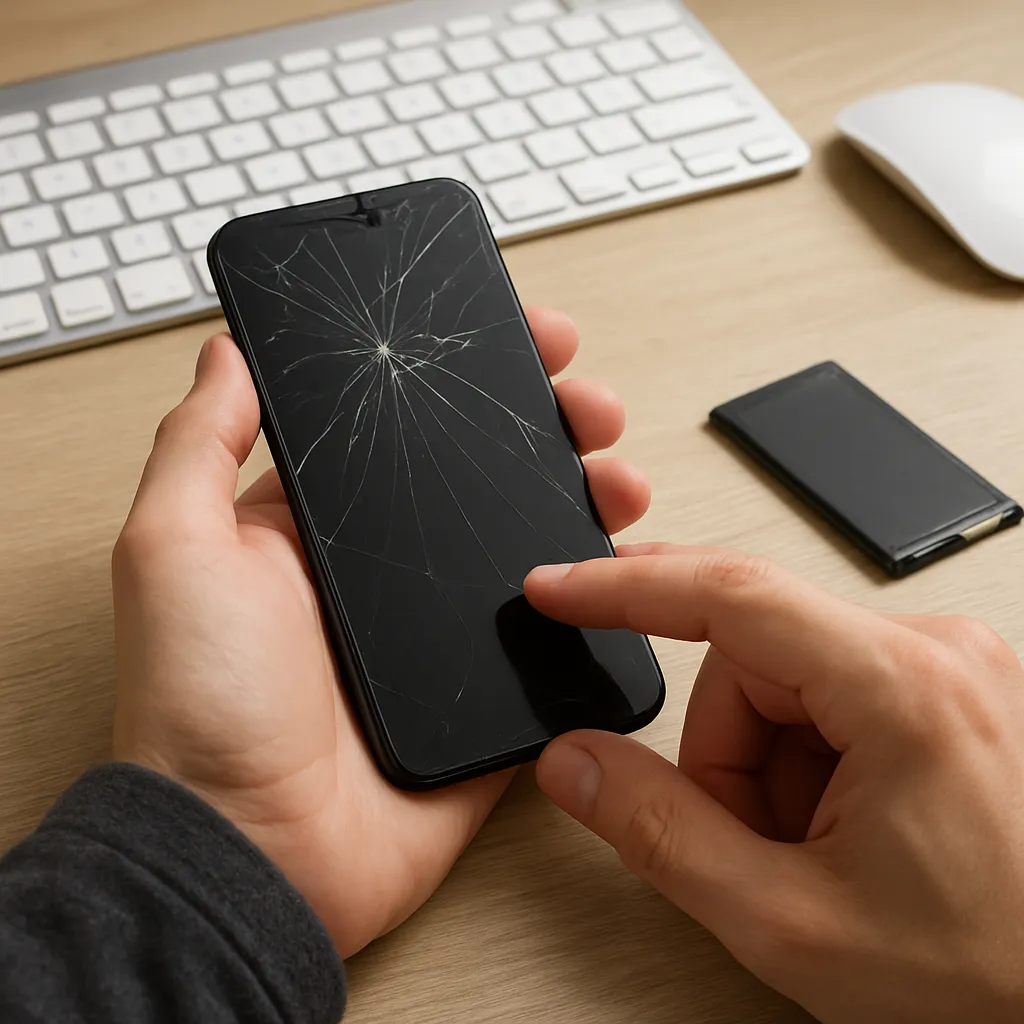
Physical shocks, spills, and extreme temperatures are often overlooked causes of startup failures. A PC that was dropped, exposed to moisture, or used for long periods in a hot, dusty room is at greater risk of hidden damage. Cracked circuit boards, corroded connectors, and warped components may not always be visible but can lead to intermittent or complete failure to boot.
Symptoms of physical damage include inconsistent behavior when moving the case, visible burn marks, corrosion, or the smell of burnt electronics. Once such damage is suspected, professional inspection becomes essential. Continuing to power on a system with clear signs of physical harm can worsen the problem and reduce the chances of saving data or repairing the device at a reasonable cost.
When to Seek Professional Help
While many basic checks are safe for users to perform, certain situations call for expert assistance. Repeated power cycling without progress, unusual sounds such as loud clicking from drives or high-pitched whining from the power supply, and visible smoke or sparks all demand immediate shutdown and professional evaluation.
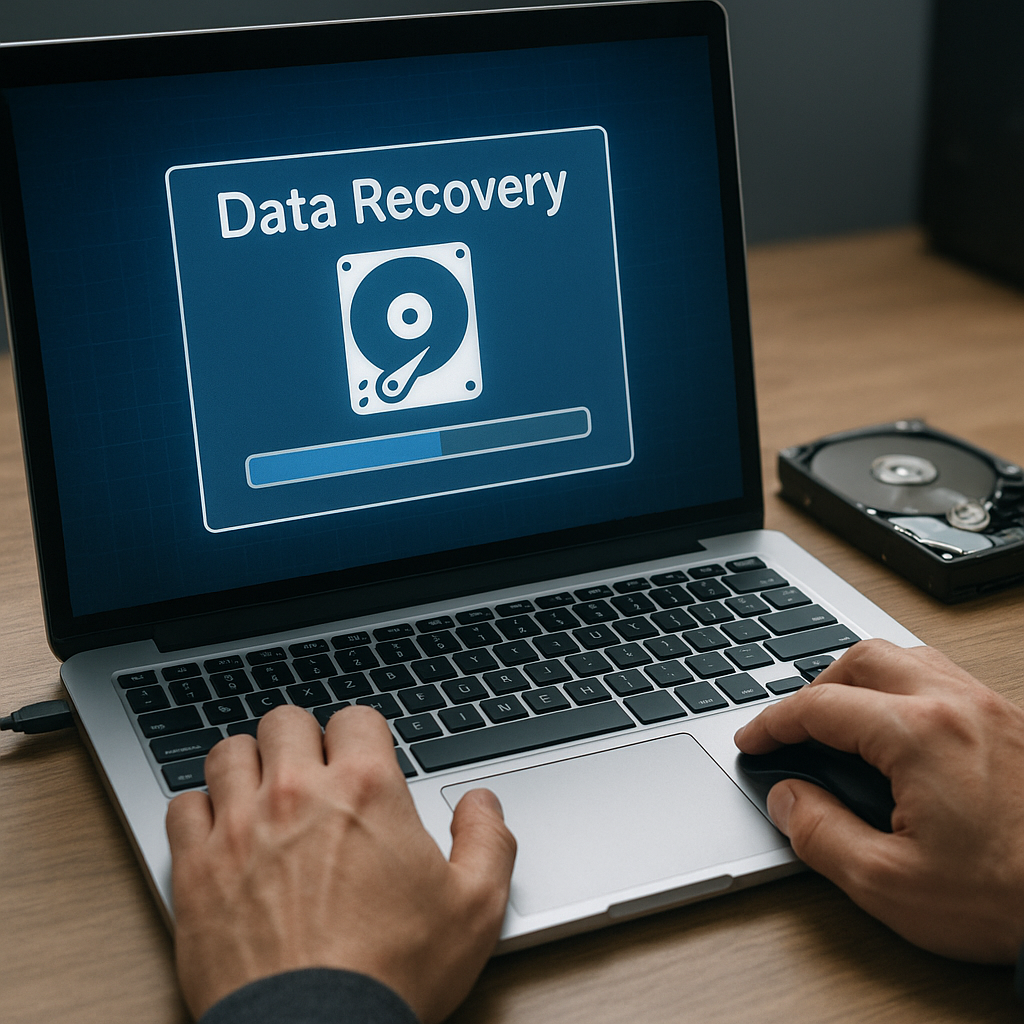
If valuable data is stored on a drive showing signs of failure, attempting repeated repairs at home can cause additional damage. Specialized tools and controlled environments are often needed to recover information reliably. Recognizing the limits of home troubleshooting is part of a responsible strategy to protect both your hardware and your irreplaceable files.
Preventive Measures to Reduce Startup Problems
Prevention is more effective than repair. Keeping your system clean, ensuring proper ventilation, and replacing failing fans promptly all help maintain stable temperatures. Using a surge protector or uninterruptible power supply guards against voltage spikes and sudden outages that can damage both hardware and system files.
Regular operating system updates, driver maintenance, and periodic disk checks reduce the risk of corruption. Backing up important data to external drives or cloud storage means that even if a startup problem requires reinstalling the system, your personal information remains safe. Paying attention to early warning signs such as slow startups, unusual noises, or frequent error messages allows you to act before a minor issue grows into a critical failure.
Building a Systematic Troubleshooting Routine
A calm, step-by-step approach is the most effective way to resolve startup problems. Start by observing symptoms carefully, then narrow down potential causes: power and cables, core components, storage devices, firmware, and finally the operating system itself. Change only one thing at a time and test after each adjustment to see how the system responds.
Documenting what you tried, which settings were modified, and how the PC behaved helps avoid confusion and makes it easier for a technician to assist you later if needed. With a structured routine and a basic understanding of typical failure points, you can handle many startup issues confidently, extend your computer’s life, and keep your important data as safe as possible.

Leave a Reply