
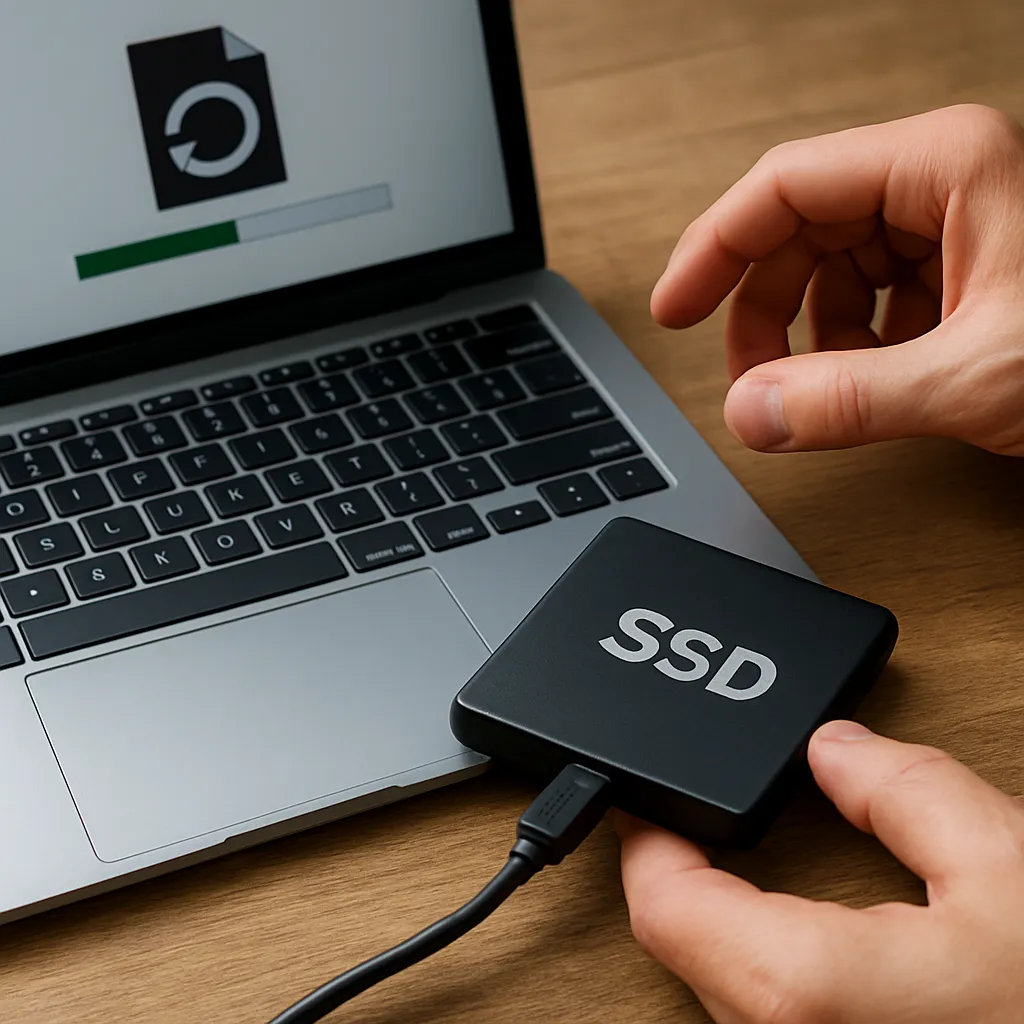
Encountering a failing external SSD can turn routine file access into a race against time. When an SSD exhibits unusual noises, erratic behavior, or simply refuses to mount, specialized recovery strategies become essential. This guide dives deep into the mechanics of SSD failure, methods for selecting robust recovery tools, a systematic approach to restore lost data, and techniques to safeguard against future mishaps.
Failure Mechanisms of External SSDs
Understanding why an SSD malfunctions is the first step toward effective recovery. Unlike traditional HDDs, SSDs rely on flash memory cells and complex controllers, which can introduce unique failure modes:
- Wear-Leveling Issues: Frequent writes can degrade flash cells over time, leading to bad blocks and errors in data storage.
- Controller Malfunction: The internal controller manages the mapping between logical addresses and physical flash cells. A faulty controller can disrupt this translation layer, causing the drive to be unreadable.
- Firmware Corruption: SSD firmware orchestrates garbage collection, wear leveling, and error correction. Corrupted firmware can render an SSD inoperable.
- Power Surges or sudden disconnections that interrupt write processes can lead to incomplete transactions, leaving data in an inconsistent state.
- File System Damage: Logical corruption due to improper ejection, system crashes, or malware can make the partition table unreadable.
Recognizing symptoms—such as frequent I/O errors, failure to initialize in BIOS, or unexpected dismounts—helps determine whether the problem is hardware-level or logical. Logical issues are often recoverable with software, while physical damage may require professional intervention.
Selecting Reliable Recovery Solutions
With a clear diagnosis, the next critical step is choosing a recovery tool equipped to handle the nuances of SSD technology. Key criteria include compatibility with SSD controllers, support for various file systems, and advanced scanning capabilities.
Essential Features
- Deep Scan Algorithms that reconstruct damaged file structures and locate fragments dispersed across the drive.
- Preview Functionality allowing users to verify recoverable files before committing to restoration.
- Read-Only Mode to prevent further writes that could overwrite recoverable data.
- Partition Recovery for rebuilding lost or corrupted partition tables.
- Cross-Platform Support covering Windows, macOS, and Linux file systems (NTFS, FAT32, exFAT, HFS+, APFS, ext4).
Evaluating Reputation
Choose software with positive reviews from reputable tech sites, strong user feedback, and prompt customer support. Open-source options can offer transparency, while commercial tools may provide advanced patented algorithm optimizations. Ensure regular updates to handle evolving SSD firmware variations.
Detailed Recovery Workflow
Implementing a structured process reduces mistakes and maximizes the likelihood of full data retrieval.
1. Workspace Preparation
- Power down affected device and connect the SSD to a stable USB or SATA interface.
- Use a reliable computer with minimal background operations to allocate maximum resources to the recovery software.
- Create a dedicated folder on a separate storage drive for recovered files to avoid accidental overwrites.
2. Initial Scan
- Launch the chosen recovery software in read-only mode. Never install or run recovery utilities directly on the failing SSD to prevent further degradation.
- Select a quick scan to detect recently deleted files or simple directory corruption.
- Review the scan results and preview files such as documents, images, or videos to confirm their integrity.
3. Deep Scan
- If the quick scan yields incomplete results, initiate a deep scan. This process may take hours depending on capacity and damage severity.
- Monitor progress and ensure no power interruptions. Use an uninterruptible power supply (UPS) if possible.
- Once completed, filter results by file type or date to streamline recovery.
4. Recover and Validate
- Select files to restore and direct them to the predefined recovery folder on an alternate drive.
- After recovery, open a sample of documents, images, or spreadsheets to validate file structure and integrity.
- For critical data, consider employing checksum tools or hash comparisons to ensure no corruption occurred during restoration.
Preventive Measures and Best Practices
Following recovery, it’s vital to reduce the risk of future SSD failures and data loss through systematic precautions.
Regular Backups
- Implement the 3-2-1 rule: maintain three copies of data, on two different media, with one copy offsite or in the cloud.
- Automate backup schedules daily or weekly, depending on data volatility.
Firmware and Driver Management
- Keep SSD firmware up to date to benefit from manufacturer improvements in wear leveling and error correction.
- Ensure host system drivers and operating system patches are current to maintain compatibility.
Safe Ejection and Monitoring
- Use OS tools to safely eject or unmount the SSD before disconnecting.
- Install monitoring software that tracks SMART attributes like wear level, bad block count, and power cycles.
Strategic Usage Patterns
- Distribute write cycles across multiple drives to avoid concentrating wear on a single SSD.
- Avoid near-full utilization. Reserve at least 10–20% free capacity to facilitate internal garbage collection.
Recovering data from a failing external SSD demands a blend of technical insight, careful planning, and the right tools. By diagnosing failure modes, selecting robust software, following a step-by-step restoration process, and adopting preventive strategies, you can minimize downtime and preserve invaluable information.











