
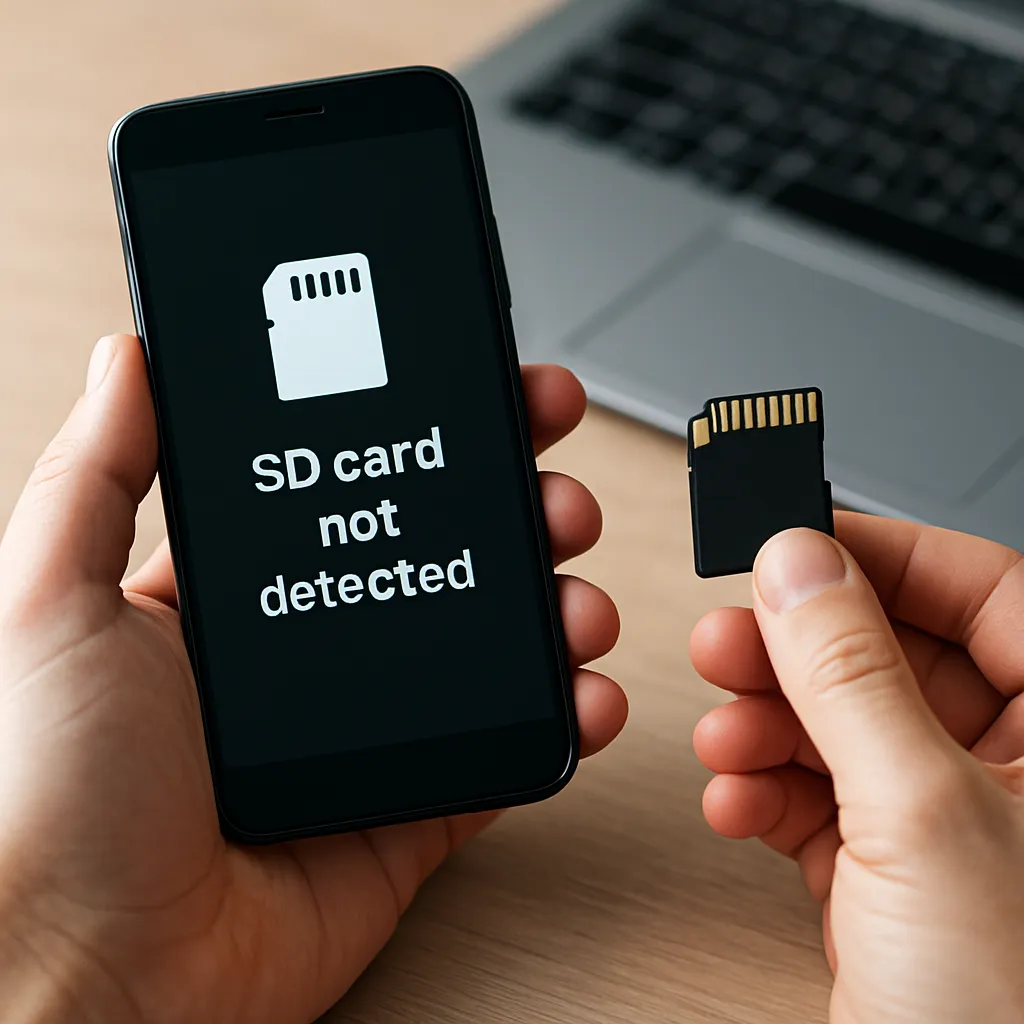
Facing an unrecognized Android SD card can be a stressful experience, especially when precious photos, videos, or documents seem lost. This article explores effective methods and recovery software tools to retrieve data from an SD card that is not detected by your device or computer. By understanding common causes, following proven steps, and adopting best practices, you can significantly increase the chances of successful data recovery.
Understanding the Issue of Undetected SD Cards
When an Android device or a computer fails to detect an SD card, the root problem often lies in the interplay between hardware and software. The following factors commonly contribute to detection failures:
- Compatibility issues between the SD card and the device’s slot or operating system.
- Filesystem corruption due to improper ejection, sudden power loss, or virus attacks.
- Physical damage to the card’s contacts, circuitry, or internal structure.
- Faulty card readers, adapters, or damaged USB ports.
- Incompatible firmware or missing drivers on a desktop or laptop.
Before diving into recovery processes, it’s essential to diagnose whether the problem is hardware- or software-related. This initial assessment helps you choose the right tools and avoid unnecessary steps.
Diagnosing Hardware vs. Software Failures
- Test the SD card in multiple devices (another Android phone, a camera, a dedicated card reader).
- Inspect the card’s golden contacts under a magnifier for scratches or debris.
- Verify that USB ports and adapters function correctly with other media.
- Check for driver updates on your computer that might affect SD card recognition.
Key Factors Leading to SD Card Read Failures
Understanding the typical causes behind an undetected SD card will help you prevent data loss in the future:
- Sudden Ejection: Removing an SD card while the device is still writing data can damage the filesystem.
- Power Surges: Voltage spikes can fry integrated circuits in the card, making it unresponsive.
- Malware and Viruses: Some malicious programs corrupt or encrypt card contents, rendering it unreadable.
- Excessive Wear: Flash memory has a limited number of write cycles; aging cards are prone to failure.
- Low-Quality Manufacturing: Off-brand cards often use inferior components, increasing the risk of defects.
By recognizing these risks, you can adopt safer handling practices and choose reliable backup methods to safeguard your data.
Step-by-Step Guide to Recover Data
The heart of any recovery operation is selecting the right Android SD card recovery software and following a systematic approach. Below is a comprehensive procedure that works for most scenarios:
1. Initial Preparation
- Keep the card in a static-free environment to prevent electrostatic discharge.
- Ensure you have a stable computer power source to minimize interruptions.
- Download reliable recovery software from reputable sources—look for apps that support FAT32, exFAT, and NTFS filesystems.
2. Connecting the Card
- Use a good-quality card reader or adapter to connect the SD card to your computer.
- Try different USB ports to rule out port-specific issues.
- Allow the operating system to attempt detection; do not format the card if prompted.
3. Scanning the SD Card
Open your chosen software and follow these steps:
- Select the undetected SD card from the device list. If it doesn’t appear, try using a disk management tool to assign a temporary drive letter.
- Initiate a deep scan mode, which examines every sector for recoverable files.
- Monitor the scan progress; deep scans may take hours depending on storage capacity and corruption level.
Deep scans can recover fragmented and severely corrupted files by reconstructing data from residual traces on the memory chip.
4. Previewing and Selecting Files
- Once the scan completes, browse the preview window to check file integrity—especially images and documents.
- Use filter options to group files by format (e.g., JPG, MP4, PDF) and date.
- Select only the files you need to avoid clutter and reduce recovery time.
5. Saving Recovered Data
- Choose a safe storage location on your computer or an external hard drive—never save back to the damaged SD card.
- Maintain the original folder structure if possible, to ease future file organization.
- Verify file readability by opening a few random documents or media files.
Completing the above steps ensures you maximize the number of successfully recovered items without overwriting vital data.
Best Practices to Prevent Future Data Loss
Prevention is always better than cure. By implementing these guidelines, you minimize the risk of losing files on an Android SD card:
- Perform regular backup routines—automate transfers to cloud storage or local NAS devices.
- Safely eject the SD card using the operating system’s “Remove Hardware” feature every time.
- Avoid storing sensitive or irreplaceable files only on removable media; keep copies elsewhere.
- Invest in high-quality, branded SD cards with wear-leveling technology and error-correction codes.
- Scan the card periodically for bad sectors and format it every few months to maintain filesystem health.
Advanced Tips and Troubleshooting
When standard recovery methods fail, consider the following advanced strategies:
Firmware Upgrade
Some SD cards allow firmware updates via manufacturer tools, which can fix internal logic issues and improve reliability.
Hexadecimal Data Extraction
Expert users can employ hex editors to manually locate file signatures (headers and footers) and carve out raw data fragments.
Professional Recovery Services
If physical damage is severe, specialized labs can open the card under microscopes and repair microscopic traces to retrieve data. This option is costly but sometimes the only way to recover critical information.
With a clear understanding of the factors affecting detection, the right recovery software toolkit, and disciplined preventive measures, you can overcome the challenge of an undetected Android SD card and keep your digital memories safe.











