
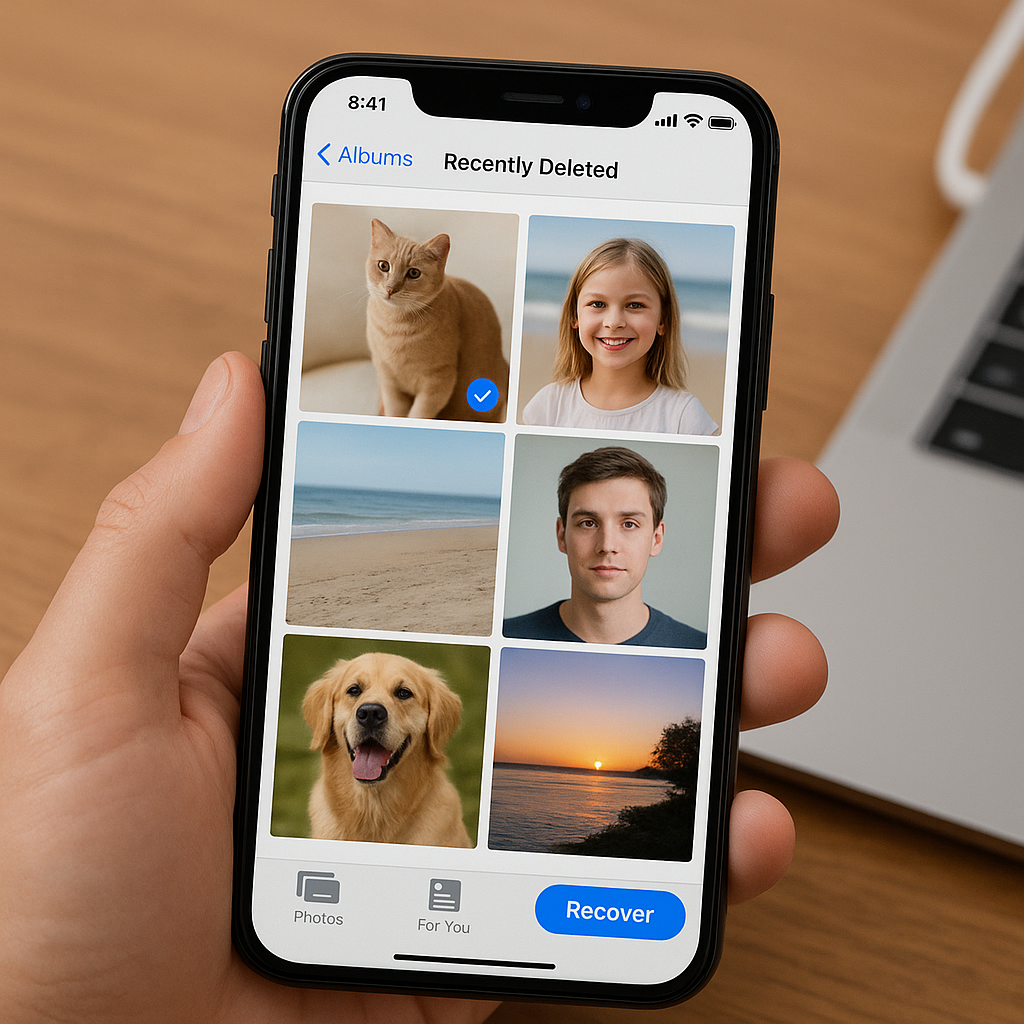
Losing precious memories stored as digital images can be a stressful experience, especially when those photos vanish from your iPhone without warning. Whether you accidentally tapped “Delete” or encountered a software glitch, understanding how to perform an effective recovery is crucial. This guide explores both Apple’s built-in solutions and powerful third-party software tools that help you restore deleted pictures, outlines key features to look for, and offers preventive measures to keep your memories safe.
Understanding Data Deletion on an iPhone
When you remove photos from your iPhone, they aren’t immediately erased from the device’s storage. Instead, the system marks the occupied space as reusable, making the files inaccessible via the normal interface. Acting quickly minimizes the risk of those blocks being overwritten by new data.
- Recently Deleted folder: Holds images for up to 30 days before permanent removal.
- Overwriting risk: New apps, downloads, or camera captures can reuse freed space.
- Importance of timing: The sooner you attempt restoration, the higher the success rate.
Familiarity with iOS’s file handling can help you decide whether to rely on built-in tools or opt for a specialized app.
Recovering with Apple’s Native Solutions
Apple provides several avenues to retrieve erased files without installing additional programs.
Restoring from the Recently Deleted Folder
- Open Photos and navigate to Albums > Recently Deleted.
- Select the desired photos and tap Recover.
- Recovered images return to the main library instantly.
Using iCloud Backup
If you enabled iCloud backup before the deletion, you can restore your entire device to a previous state:
- Erase your iPhone via Settings > General > Reset > Erase All Content and Settings.
- During setup, choose “Restore from iCloud Backup.”
- Sign in with your Apple ID and select the backup dated before the deletion event.
Note that this approach replaces all current data with the contents of the chosen backup.
Leveraging iTunes/Finder Backups
Backups created on your computer can also be used:
- Connect the iPhone to your PC or Mac.
- Open iTunes (Windows or macOS Mojave) or Finder (macOS Catalina or later).
- Choose Restore Backup and pick the relevant file.
Although this method restores the device wholesale, it remains one of the most reliable data recovery options provided by Apple.
Exploring Third-Party Recovery Software
When built-in features fall short—especially if the photos already exited the Recently Deleted folder—dedicated recovery solutions can scan deeper into the iPhone’s memory. These tools often present a preview function, enabling selective restoration of only the items you need.
Key Advantages
- Advanced scanning algorithms to detect lost or deleted media remnants.
- Selective recovery: choose individual images instead of restoring the entire device.
- User-friendly interface: designed for simplicity even if you lack technical expertise.
Essential Features to Look For
- Deep scan capability: locates files beyond reach of simple folder searches.
- Preview & filter: view thumbnails before committing to download.
- Compatibility: works with the latest iOS versions and iPhone models.
- Fast export: saves recovered images to a PC or Mac without syncing back to the device.
- Security: ensures your data remains private and is not sent to remote servers.
Popular Recovery Tools
Several trusted applications have established a reputation for reliability:
- Dr.Fone – Offers a step-by-step wizard and supports multiple file types including photos, contacts, and messages.
- PhoneRescue – Known for its deep scan engine and flexible export options.
- iMobie AnyTrans – Combines backup management and recovery features in one package.
- Tenorshare UltData – Provides selective restore from iCloud and iTunes backups.
Each solution typically involves connecting your iPhone via USB, allowing the software to scan the device’s memory, and enabling you to preview recoverable items.
Best Practices to Prevent Future Data Loss
Maintaining a robust backup strategy and staying mindful of your storage usage can spare you the headache of lost photos in the future. Consider these steps:
- Enable Automatic iCloud backup for seamless off-site storage.
- Perform regular manual backups to iTunes or Finder for a local copy.
- Monitor free space in both iCloud and device storage to avoid unexpected deletions.
- Use a secondary cloud service (e.g., Google Photos or Dropbox) for extra redundancy.
- Archive old images to a computer or external drive to keep your iPhone’s storage optimized.
Adopting these habits creates layers of protection, ensuring that even if one backup fails, you still have other options to recover your irreplaceable memories.











