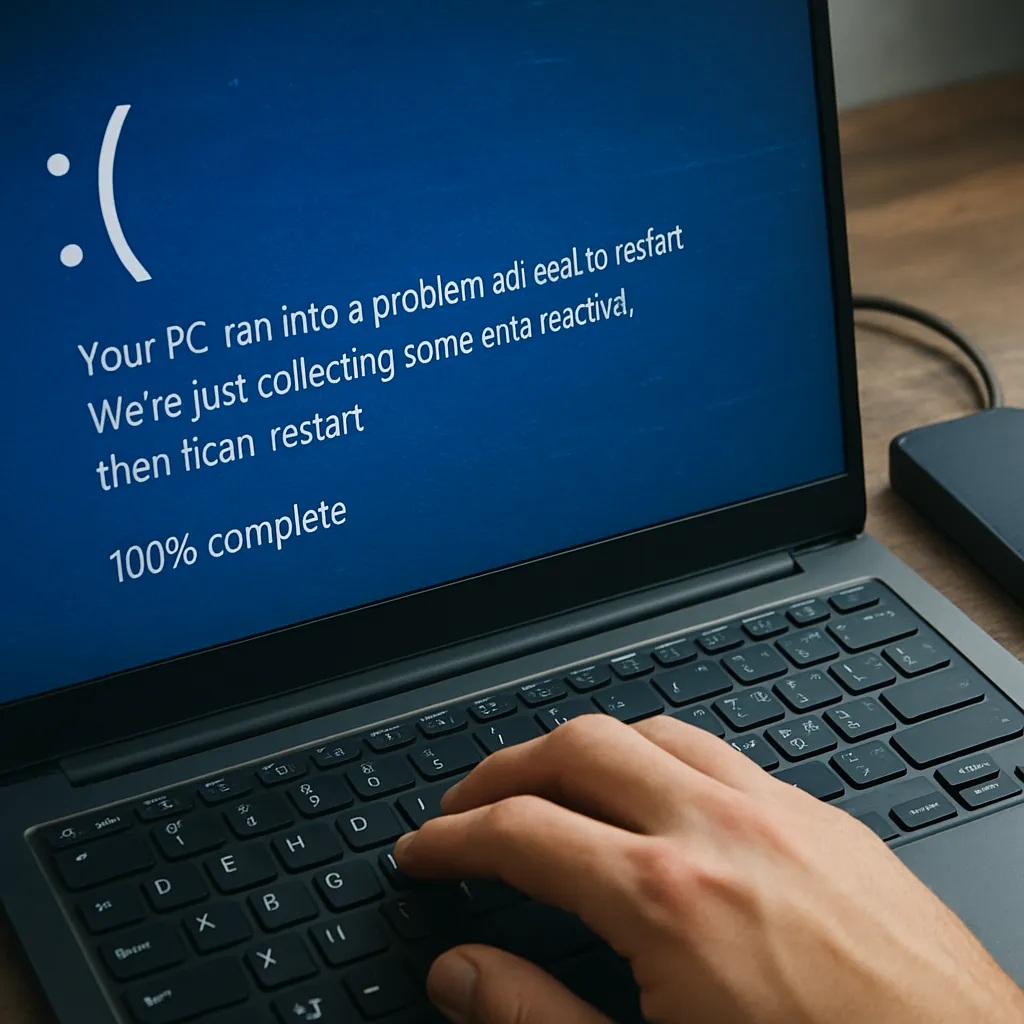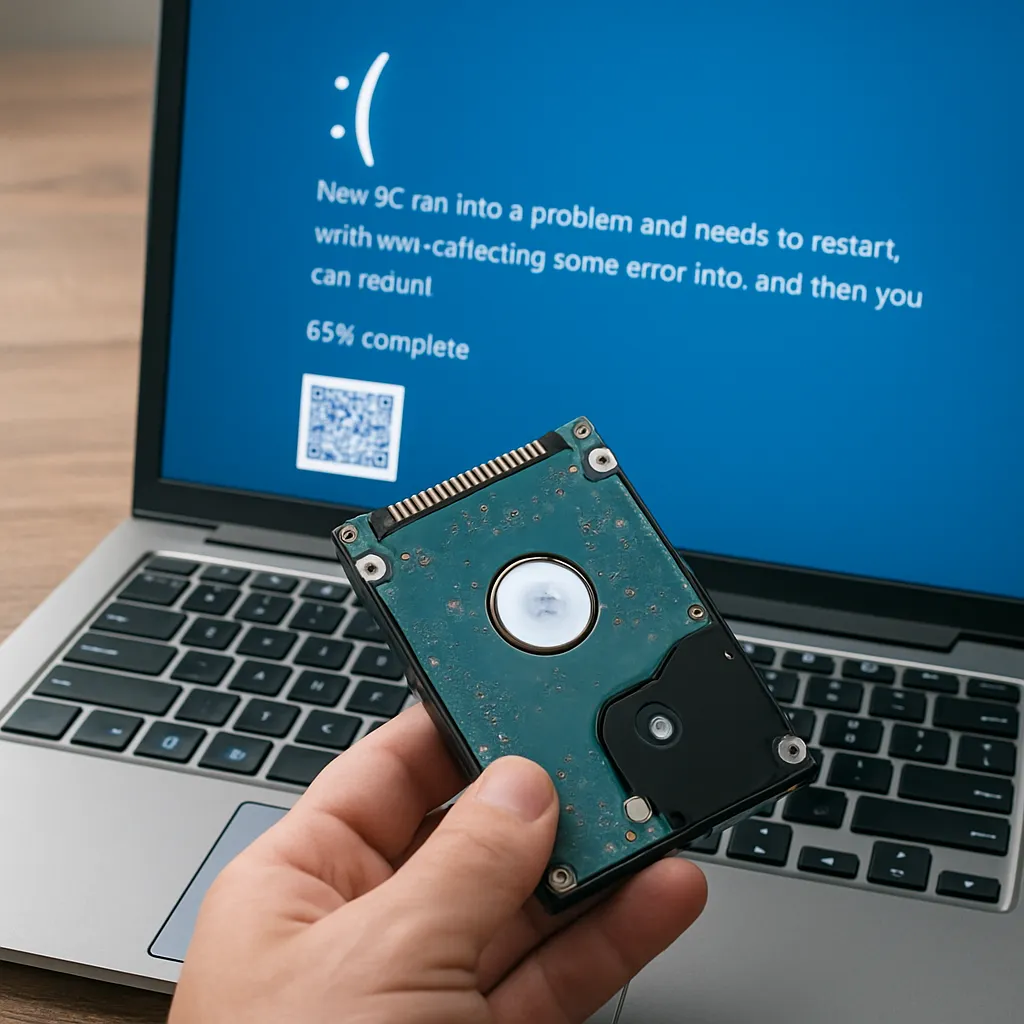
Experiencing a BIOS update failure can be a nerve-wracking situation, especially when valuable data appears to be at risk. This article provides a detailed exploration of how to recover files after a failed BIOS update, discussing common causes, necessary preparations, step-by-step recovery procedures, and recommendations for choosing the right recovery software. By following these guidelines, you can improve your chances of retrieving lost or inaccessible data without causing further damage to your system.
Understanding BIOS Update Failures and Their Impact
BIOS updates are intended to enhance system performance, fix security vulnerabilities, or add new hardware support. However, when an update goes wrong, the consequences can extend beyond a simple boot failure. A corrupted BIOS can render the motherboard inoperable, prevent access to drives, or even cause irreversible damage to hardware. Recognizing the root causes of BIOS update failures helps in selecting the correct recovery strategy.
Common Causes of Failure
- Power Interruption during the update
- Using an incompatible BIOS version for the specific motherboard model
- Corrupted or incomplete firmware file
- Faulty storage devices or unstable system memory
- Interrupted process by user intervention or software conflicts
Potential Data Risks
While a BIOS failure primarily affects system initialization and hardware recognition, it can indirectly impact data by making storage devices unreachable. In some cases, the motherboard may fail to detect connected drives, leading users to fear that partitions or file tables have been erased. Understanding these risks is the first step toward implementing a safe recovery path.
Essential Preparations before Attempting Recovery
Before diving into the recovery process, certain measures should be taken to protect the integrity of your data and hardware. These preparatory steps help minimize further damage and pave the way for a more effective restoration.
1. Create a Stable Environment
- Ensure a reliable power source or use a backup UPS to prevent interruptions.
- Disconnect non-essential peripherals to reduce conflict potential.
- Work on a static-free surface and observe proper grounding procedures.
2. Gather Necessary Tools
- Another functional computer for downloading recovery software.
- A bootable USB drive or CD with recovery environment.
- Appropriate cables and adapters to access the affected storage device externally if needed.
3. Choose the Right Recovery Software
Selecting a robust and user-friendly recovery application is critical. Look for software that supports:
- Advanced partition scanning and deep data reconstruction
- Read-only modes to prevent accidental overwriting
- Compatibility with multiple filesystems (NTFS, FAT32, EXT4, etc.)
- Preview options to verify file quality before restoration
Step-by-Step Recovery Guide
Once preparations are complete, follow this structured recovery plan to retrieve files from an unbootable system caused by a BIOS update failure.
Step 1: Access the Affected Drive
If the motherboard refuses to initialize the BIOS properly, consider connecting the storage device to a secondary system:
- Use a SATA-to-USB adapter or external drive enclosure.
- Boot the functional computer and ensure the drive is recognized in Disk Management or similar utility.
- If the drive is not visible, power down and recheck connections or try a different adapter.
Step 2: Create a Bootable Recovery Environment
- Download a reliable recovery ISO image from the software vendor’s official website.
- Use a utility such as Rufus or BalenaEtcher to create a bootable USB drive.
- Boot the affected system from this USB environment to minimize risks to the original disk.
Step 3: Perform Surface and Partition Scans
Once in the recovery environment, launch your chosen tool and proceed with a two-phase scan:
- Quick Scan: Detects recently deleted files and basic partition structures.
- Deep Scan: Recovers data from damaged or formatted partitions by analyzing raw sectors.
Step 4: Preview and Recover Files
- Use the preview feature to verify file previews and metadata.
- Select essential files and folders, paying special attention to project documents, images, and databases.
- Recover to an external storage device to avoid overwriting any remaining data on the original drive.
Step 5: Verify and Consolidate Recovered Data
After recovery, confirm file integrity by opening documents, viewing images, or running basic checksums. Organize files into a structured directory on your external device before reattempting BIOS repair or BIOS flashing procedures.
Best Practices and Preventive Measures
Recovering data after a BIOS update failure can be time-consuming and technically challenging. Implementing preventive strategies ensures a smoother process for future system maintenance.
Maintain Regular Backups
Use automated backup solutions to create periodic snapshots of your critical data. Store copies locally and in the cloud to ensure redundancy. Having a verified backup reduces dependency on complex recovery operations.
Verify BIOS Updates
- Download updates exclusively from official manufacturer sources.
- Cross-check filenames and checksums before applying the update.
- Review user feedback and known issues on forums and support pages.
Use Dual-BIOS or Recovery Features
Modern motherboards often include a secondary BIOS or built-in recovery mechanism. Enabling and familiarizing yourself with these features can prevent permanent bricking and facilitate easier firmware restoration.
Choosing the Optimal Recovery Software
With countless recovery applications on the market, selecting the right one requires attention to key features that determine success rates and ease of use.
- Read-Only Recovery: Avoids accidental writes to the damaged disk.
- Comprehensive File System Support: Ensures compatibility across Windows, Linux, and macOS partitions.
- File Preview and Filtering: Accelerates identification of high-priority files.
- Customizable Scan Options: Balances speed and thoroughness based on urgency and disk condition.
- Technical Support and Documentation: Provides guidance in complex scenarios.
Equipped with the right knowledge and tools, you can transform a stressful BIOS update failure into a manageable recovery operation. By understanding the risks, preparing thoroughly, following a structured recovery plan, and selecting a dependable software solution, you enhance the likelihood of successfully retrieving your invaluable data without further system disruption.