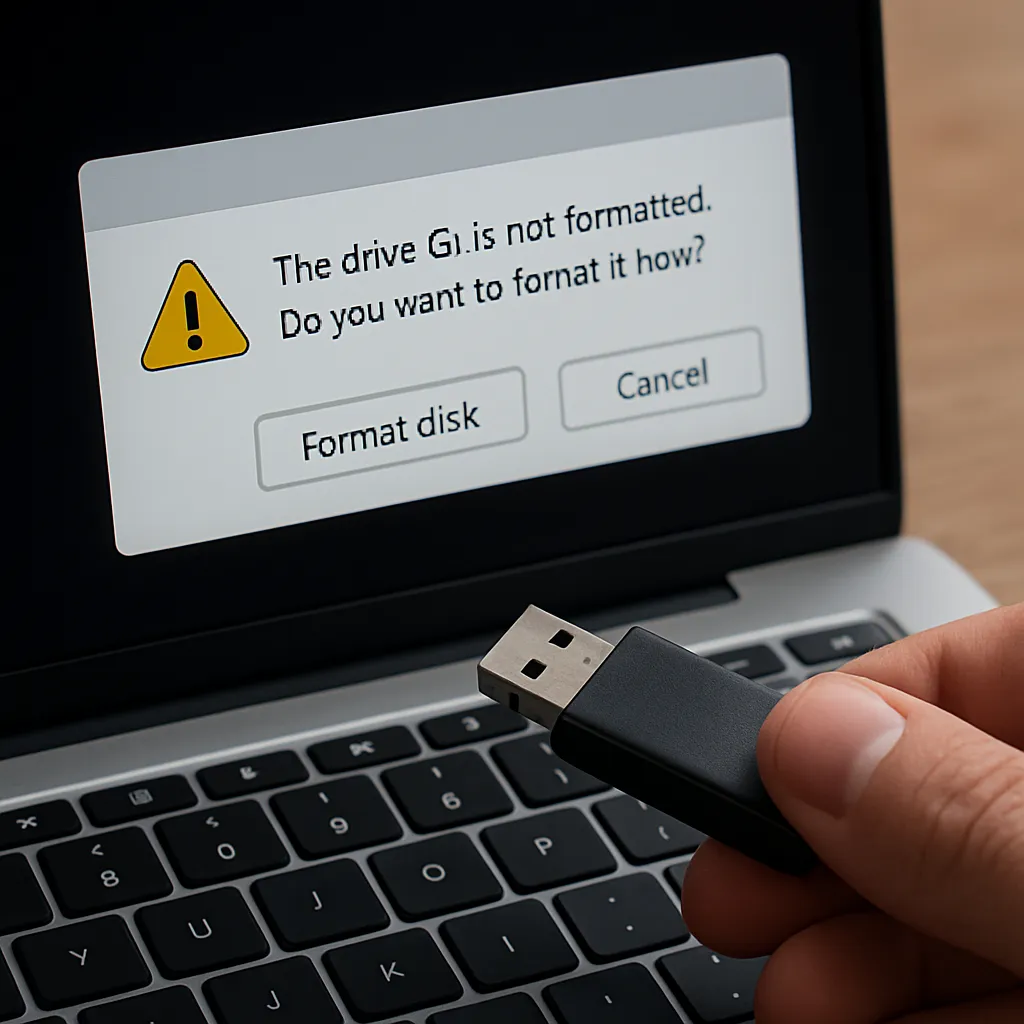
When a USB drive suddenly demands formatting, panic often follows as valuable files hang in the balance. This scenario arises due to underlying issues like file system corruption, flawed sectors, or an accidental change in the partition table. Before giving in to the prompt, it’s crucial to understand why the USB behaves this way and how proper recovery software can help salvage your data. This guide delves into practical steps to regain access to your files and offers advice on preventing similar dilemmas in the future.
Understanding the Formatting Prompt
When a USB drive displays a message asking to be formatted, your operating system has detected inconsistencies or errors. Common triggers include:
- Unexpected removal of the USB without proper read-only unmount processes
- Bad sectors on the storage medium causing corrupted blocks
- Virus infections attacking the partition table or file allocation data
- Driver conflicts leading to misinterpretation of the drive’s structure
Rather than clicking “Format Now,” you should preserve the current state of the drive. Formatting writes a fresh file system, potentially erasing the very traces you need for file restoration. At this point, the drive still contains your files’ binary footprints. By employing specialized recovery tools, you can scan for existing data and reconstruct lost directories or individual files.
Choosing a Reliable Recovery Tool
Selecting the right program is critical for maximizing your chances of successful recovery. Key features to look for include:
- A thorough scanning engine capable of detecting multiple file types
- Support for various file systems (FAT32, exFAT, NTFS, HFS+)
- Deep recovery modes for severely corrupted or fragmented files
- Preview functionality to verify data integrity before saving
- Option to recover entire partitions or selectively restore specific files
Well-known solutions often feature a clean interface and guided wizards. Look for programs that explicitly mention their ability to work with unformatted or inaccessible drives. A trial version with preview capability is ideal—you can see if your critical files appear before purchasing a license. Always download from the official site to avoid malware masquerading as recovery utilities.
Step-by-Step File Restoration Process
Follow these steps to recover data from a USB drive that requests formatting:
1. Prevent Further Writes
- Avoid formatting the drive or copying new files to it.
- Disconnect and reinsert the USB in a different USB port or computer to rule out port issues.
2. Launch the Recovery Tool
- Install on your system drive, not on the USB that needs salvage.
- Select the problematic USB as the target device within the software.
3. Perform an Initial Scan
- Opt for a quick scan first. Review any found files for recognizable names or dates.
- If the quick scan yields few results, proceed to a deep scan mode.
- Deep scans examine each sector for file signatures, which is essential for integrity reconstruction.
4. Preview and Filter Results
- Use the preview pane to check file quality (images, documents, videos).
- Filter by file type or modification date to narrow down the list.
- Mark the items you need most to avoid clutter during recovery.
5. Recover to a Secure Location
- Choose a different drive—never recover back to the same USB to prevent data overwrite.
- Create a dedicated folder structure to keep restored files organized.
- Verify each recovered file opens correctly before deleting the original USB’s content.
Preventing Future Data Loss
Once your files are back, take proactive steps to safeguard your data:
Regular Backups
- Maintain an automated backup scheme to both local external drives and cloud storage.
- Use incremental backups daily and full backups weekly for comprehensive coverage.
Safe Removal Practices
- Always eject the USB using your operating system’s “Safely Remove Hardware” feature.
- Avoid unplugging during large file transfers or while an application is accessing files.
Drive Health Monitoring
- Run disk utilities to check for bad sectors and repair minor errors regularly.
- Keep firmware and drivers up to date to avoid compatibility issues.
Use of Quality Hardware
- Invest in reputable USB brands known for durability and error resistance.
- Replace older drives showing signs of slow performance or frequent errors.
By understanding the root causes of a formatting prompt and applying structured recovery methods, you can restore your valuable data without succumbing to data loss. Remember that vigilance, proper tooling, and disciplined backup habits are key to protecting your digital assets.