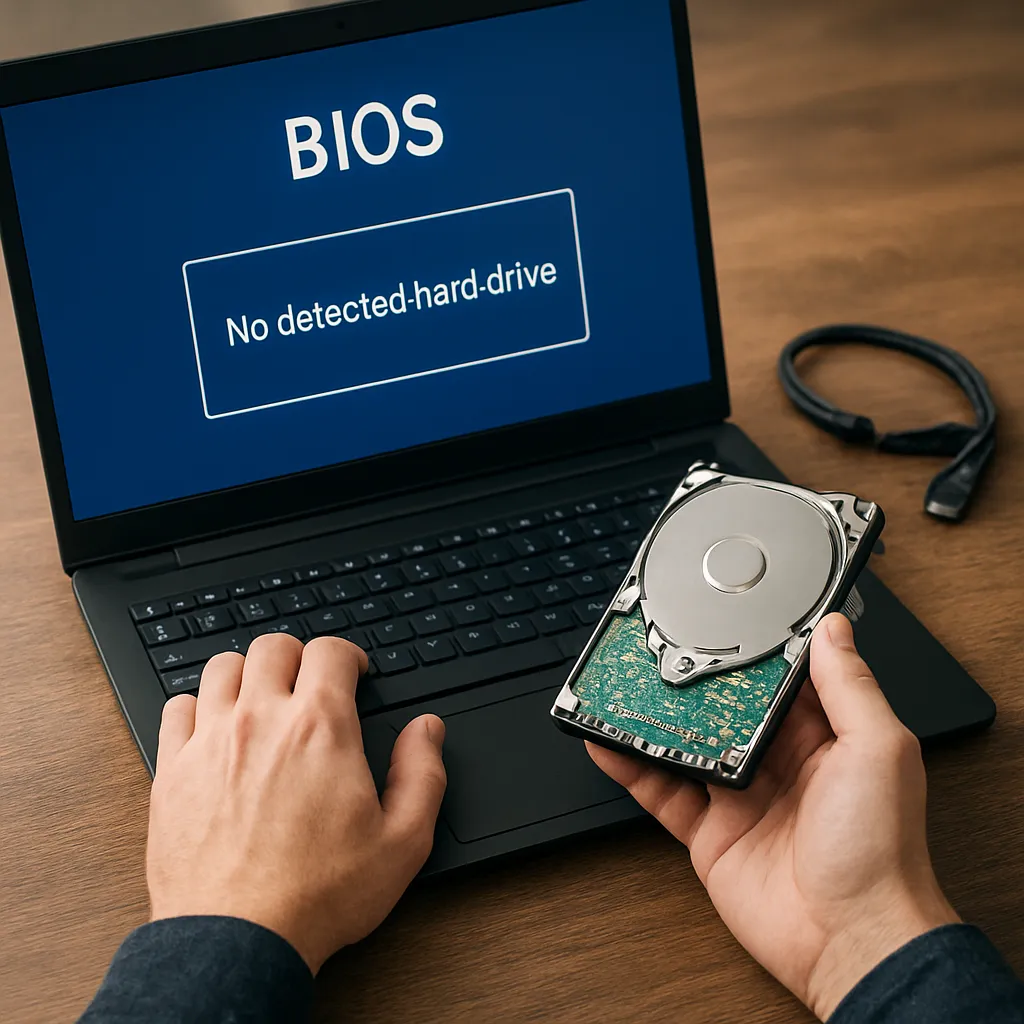
Recovering files from a hard drive that no longer appears in BIOS can seem impossible, but with the right approach and tools, you can often salvage valuable data. This guide dives into common causes behind undetected drives, step-by-step hardware checks, powerful recovery software options, and preventive practices to protect your information in the future. Whether you’re dealing with a failing HDD, an SSD that refuses to spin up, or logical corruption, these insights will help you navigate the complexities of data recovery and maximize your chances of success.
Understanding BIOS-Level Detection Failures
When a storage device fails to appear in BIOS, the system’s basic input/output routines can’t identify its presence. Several factors can contribute to this failure, ranging from simple cable issues to serious firmware bugs. Recognizing the root cause is the first step toward recovering your data.
Hardware Connection Problems
Loose or damaged cables often prevent power or data signals from reaching the drive. SATA and power connectors can wear out or bend over time, resulting in no communication with your motherboard. USB enclosures and SATA-to-USB adapters may also introduce compatibility problems, leaving the drive invisible to the BIOS.
Firmware and Controller Malfunctions
A corrupted firmware chip on your HDD or SSD can render the device unusable at the BIOS level. Modern drives rely on onboard controllers to manage read/write operations. If this logic board fails, the drive won’t spin up or respond to commands. Sometimes, a firmware update from the manufacturer can restore functionality, but improper updates can worsen the issue.
Severe Physical Damage
Impacts, overheating, or electrical surges can damage platters, heads, or controller chips. In many cases, professional data recovery facilities use cleanrooms and specialized tools to replace damaged components. For the home user, understanding when to stop further attempts and seek expert help is crucial to avoid permanent data loss.
Initial Diagnostics and Basic Solutions
Before diving into complex procedures, perform a series of simple checks that can often bring the drive back into the BIOS enumeration list. These steps focus on eliminating the most common, easily fixed issues.
Basic Hardware Checks
- Inspect and reseat all SATA/power cables, ensuring they are firmly attached to both the drive and motherboard.
- Try different ports on the motherboard or a separate SATA controller card.
- Test the drive in another computer or with an external dock to rule out PSU or motherboard faults.
- Swap cables with those from a working system to eliminate faulty connectors.
BIOS Configuration and Settings
Modern BIOS/UEFI interfaces often include toggles for legacy SATA modes (AHCI, IDE, RAID). Switching between modes can sometimes force detection. Additionally, verify that all of the following are enabled:
- Onboard SATA/AHCI controllers
- Hot-plug functionality, if available
- Legacy USB support (for USB-connected drives)
If your BIOS supports firmware-level diagnostics, run any built-in drive tests and note any error codes displayed. Documenting these codes can guide further troubleshooting or support requests to manufacturers.
Bootable Recovery Media
Creating a live USB or CD with a Linux distribution (such as Ubuntu or SystemRescue) or a Windows-based recovery environment can help isolate the problem. These tools often include utilities like diagnostics scripts and SMART readers that may detect drives the BIOS misses. Use commands like smartctl or lsblk in Linux to see if the drive appears at a lower level.
Advanced Recovery Software Tools
When the drive is still undetectable through BIOS or basic OS utilities, specialized recovery software can sometimes interface directly with storage controllers or perform low-level cloning operations. These utilities employ techniques such as sector-by-sector imaging, file carving, and RAID reconstruction to extract data.
Image-Based Cloning and Sector Recovery
- ddrescue (Linux): A command-line utility that skips bad sectors and preserves readable data, creating an image file for later recovery attempts.
- R-Studio: Offers advanced imaging modes and supports corrupted RAID volumes, rebuilding logical structures from raw data.
- HDD Raw Copy Tool: Free Windows application that performs bit-level copying, ideal for creating backups of failing disks.
File Carving and Partition Reconstruction
When partition tables or file systems become severely corruptiond, file carving can extract recognizable file signatures directly from the disk image. Tools in this category include:
- PhotoRec: Efficient at recovering multimedia files by scanning for known headers and footers.
- DiskGenius: Provides in-depth partition table repair and FAT/NTFS recovery functions.
- Active File Recovery: Commercial software with an intuitive interface for reconstructing lost volumes.
Professional-Level Solutions
High-end tools like PC-3000 from ACE Lab offer chip-off and controller-level access, enabling firmware reprogramming or NAND extraction on SSDs. These solutions require extensive technical expertise and dedicated hardware. Home users should weigh the cost against the value of their data before pursuing this route.
Preventive Measures and Best Practices
After successfully retrieving your files, implementing preventive strategies can safeguard against future BIOS detection failures and data loss incidents. A proactive approach reduces downtime and minimizes stress when hardware issues arise.
- Establish a regular backup schedule using local and cloud-based systems. Employ the 3-2-1 rule: three copies of your data, two different media types, one offsite backup.
- Monitor drive health with SMART utilities, setting up alerts for early warnings of bad sectors or temperature spikes.
- Keep critical firmware and drivers up to date, but only apply updates from legitimate manufacturer sources.
- Avoid excessive physical shock, maintain proper airflow for cooling, and use surge protectors or UPS units to guard against power anomalies.
- Test your recovery process periodically by simulating a drive failure and restoring data to verify that backups and tools are fully operational.
By combining thorough diagnostics, effective recovery software, and disciplined maintenance practices, you can tackle even the most challenging scenarios where a hard drive disappears from BIOS. Empowered with the right knowledge and tools, data retrieval is not just a hopeful possibility but a reliable process.