
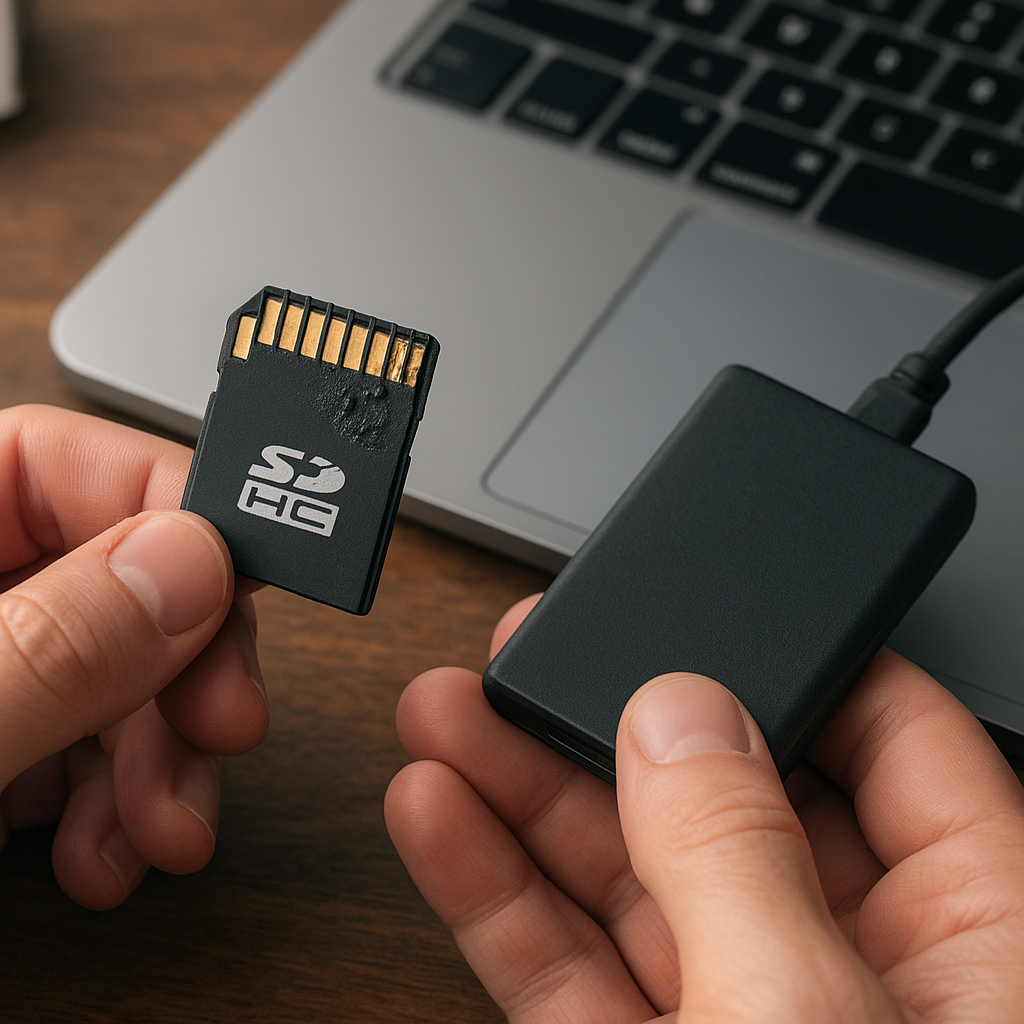
Recovering lost or damaged files from a corrupted SDHC card can feel like a daunting challenge, especially when precious memories or critical documents hang in the balance. This guide walks you through the technical aspects, essential tools, and best practices to restore your data efficiently. Whether you’re dealing with minor file system errors or severe logical damage, understanding the underlying causes and leveraging the right techniques will greatly increase your chances of successful retrieval.
Understanding SDHC Card Corruption
The first step in any recovery process is diagnosing the nature and extent of the damage. SDHC cards, like other flash memory devices, are prone to both physical and logical failures. Physical issues may include wear on memory cells, connector damage, or exposure to moisture. Logical problems often manifest as a corrupted file system, unexpected formatting prompts, or inaccessible partitions. In many cases, the card still responds to your computer but refuses to open folders or displays nonsensical filenames.
Common triggers of corruption include abrupt removal without safe eject, power surges during data transfer, malware infiltration, or simple aging of the memory cells. Spotting early warning signs—such as slow read/write performance, frequent error messages, or files disappearing randomly—can help you intervene before permanent data loss occurs. A proper diagnosis saves time by guiding you toward the most appropriate recovery approach.
Essential Recovery Software Features
Not all recovery applications are created equal. When evaluating tools, prioritize those that offer a read-only mode to prevent further harm, the ability to create a complete card image, and support for the unique structure of SDHC volumes. Below are the key features to look for:
- Deep scan capabilities that inspect every sector for traces of deleted or fragmented files.
- Support for FAT32, exFAT, and other formats common on SDHC cards.
- File preview options to verify recoverable content before restoration.
- Integrity checks and smart recovery algorithms to reconstruct damaged headers and metadata.
- Capability to generate a full card image (sector-by-sector) ensuring you work on a copy, not the original.
- Advanced filtering by file type, creation date, or size to speed up location of important items.
By focusing on these features, you reduce the chance of over-writing lost data and improve success rates. High-end tools often incorporate machine learning-driven algorithms that adapt to evolving damage patterns, automatically mapping out the best recovery path.
Step-by-Step File Recovery Guide
1. Immediate Precautions
As soon as you suspect card corruption, stop any further read/write operations. Continued use of the device risks overwriting the very sectors holding your lost files. Do not format, do not initialize, and do not ignore error warnings. Instead, switch to a dedicated recovery environment on a stable machine.
2. Creating a Sector-by-Sector Image
Working on a clone rather than the original card ensures you always have a fallback. Many recovery suites include an imaging tool, but you can also use commands like ‘dd’ in a Linux environment. Save the raw image to a reliable drive, then use it as the source for all subsequent scans. This step preserves the integrity of the original data.
3. Conducting a Surface Scan
Initiate a full scan of the card image. A surface scan reads through each block, looking for file signatures even in unallocated space. The process can take several hours depending on card capacity, but patience here often pays dividends. When the scan completes, review the list of recoverable items, focusing on photo, video, or document formats you recognize.
4. Preview and Selective Recovery
Most modern tools allow you to preview files—thumbnails for images or basic text snippets for documents. This feature helps you avoid bulk recovery of corrupted or useless files. Mark the ones you need, set a recovery destination on a different physical drive, and start the extraction. The software will rebuild file structures and restore missing headers where possible.
5. Verifying Recovered Data
After recovery, check your files thoroughly. Open photos, play videos, and ensure documents aren’t garbled. In rare cases, recovered files may have partial corruption. If critical data remains missing, consider running a second-pass scan with deeper heuristics or exploring specialized forensic tools capable of raw pattern matching.
Advanced Techniques for Severe Cases
Sometimes, standard recovery workflows fall short—especially when the partition table itself is damaged or when file references are completely erased. In such scenarios, forensic-grade methods become invaluable:
- Manual reconstruction of the partition table using hex editors to reassign correct offsets and cluster sizes.
- Utilizing command-line utilities that perform block-level restorations, bypassing corrupted file system layers.
- Engaging in data carving, which scans for known file signatures (JPEG, DOCX, MP4) and extracts them based on pattern recognition.
- When hardware faults are suspected, physically imaging the card with specialized write-blockers to avoid further electrical stress.
These methods require a solid grasp of file system architecture and low-level disk operations. However, they can recover data that typical point-and-click tools might overlook.
Best Practices to Prevent Future Data Loss
Prevention is always preferable to recovery. Implementing robust habits and safeguards can dramatically reduce the likelihood of card corruption in the first place. Consider these recommendations:
- Maintain a consistent backup schedule using cloud services or external drives to store critical data off the memory card.
- Use high-quality memory cards from reputable manufacturers to minimize early wear and cell failures.
- Avoid sudden disconnections; always use the safe-removal feature to shut down file system connections gracefully.
- Perform regular card health checks with diagnostic utilities that monitor usage cycles and predict end-of-life.
- Keep your computer’s operating system and recovery software up to date to leverage the latest fixes and improvements.
By combining disciplined handling and preventive maintenance, you protect against the most common causes of corruption and ensure your data stays accessible for years to come.











