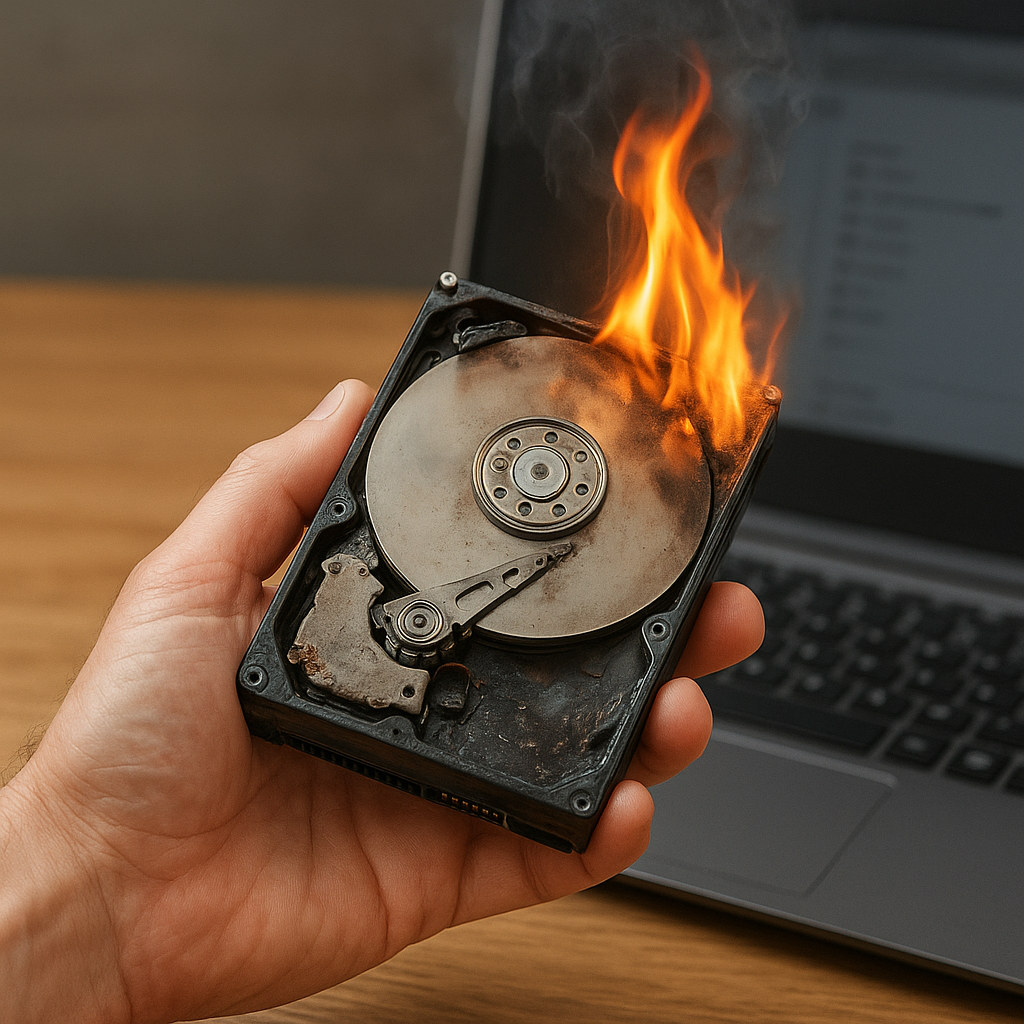
Disk encryption offers a powerful layer of protection, but a failed decryption process can leave critical files seemingly inaccessible. This article dives into the **intricacies** of recovering data after an encryption mishap, guiding you through every step—from diagnosing the root cause to leveraging advanced recovery tools. Whether you’re dealing with corrupted headers, lost passphrases, or damaged partitions, understanding best practices and proven software solutions can make the difference between permanent data loss and a successful restoration.
Understanding Disk Encryption and Its Risks
Disk encryption uses complex algorithms to transform readable data into an unintelligible format, ensuring confidentiality even if physical media falls into the wrong hands. Common solutions include BitLocker (Windows), FileVault (macOS), LUKS (Linux), and third-party utilities such as VeraCrypt. While these tools excel at protecting your data, they also introduce new failure points:
- Encryption key loss: Without the original key or passphrase, decryption is nearly impossible.
- Header corruption: Vital metadata that describes the encrypted volume can become damaged, preventing normal access.
- Software bugs: Flaws in the encryption software may cause incomplete writes or broken metadata structures.
- Hardware errors: Failing drives, faulty controllers, or bad sectors can interrupt the encryption/decryption cycle.
Recognizing these risks early helps you adopt a structured recovery approach. Instead of panic-driven tinkering, a clear plan preserves **integrity** and maximizes the chance of successful data restoration.
Common Causes of Encryption Failures
Before diving into recovery steps, identify why your encrypted volume failed. The most frequent culprits include:
- Interrupted decryption process: Abrupt shutdowns or power losses mid-way can corrupt critical structures.
- Wrong passphrase attempts: Multiple incorrect entries can trigger security measures that further lock the volume.
- Software updates or glitches: New versions might inadvertently alter on-disk formats or introduce bugs.
- Physical damage: Head crashes, bad sectors, or cable failures can corrupt sectors containing encryption metadata.
Mapping out the failure scenario lets you select targeted recovery techniques. For instance, header corruption requires different tools than a lost passphrase situation.
Preparing for Data Restoration
Before launching any recovery tool, take precautionary steps to avoid irreversible damage:
- Create a full sector-by-sector image: Use utilities like dd, FTK Imager, or Clonezilla to capture the entire encrypted volume. Work on the image rather than the original drive to maintain data **integrity**.
- Verify hardware health: Run S.M.A.R.T. diagnostics and memtest to rule out drive or memory faults. Unstable hardware can sabotage recovery efforts.
- Document encryption details: Note cipher types (AES, Twofish), key sizes (128-, 256-bit), and any header backup files. These clues streamline decryption attempts.
- Gather passphrase variants: Compile every possible password or token sequence. Tools like John the Ripper or Hashcat can automate dictionary or brute-force attacks.
Applying a disciplined approach at this stage greatly enhances your chances of success and prevents accidental overwrites of critical metadata.
Choosing the Right Recovery Software
A myriad of solutions exists for encrypted volume recovery. Selecting the proper tool depends on your situation:
1. Header Repair and Decryption Utilities
- VeraCrypt’s “Repair Volume Header” function restores corrupted headers using backup headers.
- Cryptsetup (LUKS) offers luksHeaderBackup for header restoration and luksOpen diagnostic flags.
- BitLocker Repair Tool (repair-bde) extracts files from damaged BitLocker volumes when recovery keys are known.
2. Passphrase Recovery Tools
- Hashcat and John the Ripper use GPU-accelerated attacks on captured header hashes.
- Aircrack-ng performs dictionary or rule-based passphrase cracking on encrypted container hash dumps.
3. Raw Data Carving and Partition Scanners
- R-Studio and UFS Explorer scan raw sectors for file signatures when metadata is irretrievably lost.
- TestDisk rebuilds partition tables and boot sectors to recover volumes even if encryption metadata is absent.
Each software has strengths: header repair tools preserve original structures, passphrase crackers target lost keys, and raw carving remains the last resort for critical file recovery.
Step-by-Step Guide to Data Restoration
Step 1: Create a Secure Working Environment
- Use a dedicated system with sufficient RAM and CPU resources.
- Mount your drive image as read-only to avoid accidental writes.
- Ensure antivirus or indexing services remain disabled to prevent interference.
Step 2: Inspect and Repair Metadata
- Run S.M.A.R.T. checks on the image file using smartctl.
- For LUKS, execute “cryptsetup luksDump” to view header status.
- Use “cryptsetup luksHeaderRestore” if you have a backup header file.
- For VeraCrypt, try “–restore-header” with the original backup header.
Step 3: Attempt Decryption
- Supply your known passphrase or recovery key.
- If the volume mounts, immediately copy critical files to a secure location.
- If decryption fails at this stage, proceed to passphrase recovery tools.
Step 4: Recover Lost Passphrases
- Extract the header hash (e.g., “veracrypt-token.bin” or LUKS hash) for cracking.
- Configure Hashcat or John the Ripper with appropriate mode (e.g., –m 14600 for LUKS).
- Run dictionary or rule-based attacks, monitoring for candidate passphrases.
Step 5: Raw Data Carving
- If decryption remains impossible, switch to file carving tools like R-Studio, PhotoRec, or UFS Explorer.
- Define target file signatures (PDF, DOCX, JPEG) to streamline scanning.
- Export recovered files to a new volume, then validate integrity.
Step 6: Post-Recovery Verification
- Use file hashes (MD5, SHA-256) to confirm data accuracy against known checksums.
- Open critical documents to ensure no internal corruption.
- Maintain detailed logs of all commands and software versions used during recovery.
Best Practices to Prevent Future Failures
After navigating a challenging recovery, implement safeguards to minimize future risks:
- Regular backups: Maintain off-site or cloud backups of encrypted volumes and header backups.
- Multi-factor authentication: Combine passphrases with hardware tokens (e.g., YubiKey) for stronger security.
- Periodic tests: Schedule test restores from backups every quarter to verify your recovery plan.
- Firmware updates: Keep your drive’s firmware and encryption software up to date to avoid known vulnerabilities.
- Documentation: Store all critical metadata—key files, header backups, recovery tokens—in a secure vault.
By marrying robust encryption with disciplined recovery strategies, you can enjoy the best of both worlds: impenetrable security and reliable data accessibility when problems arise.