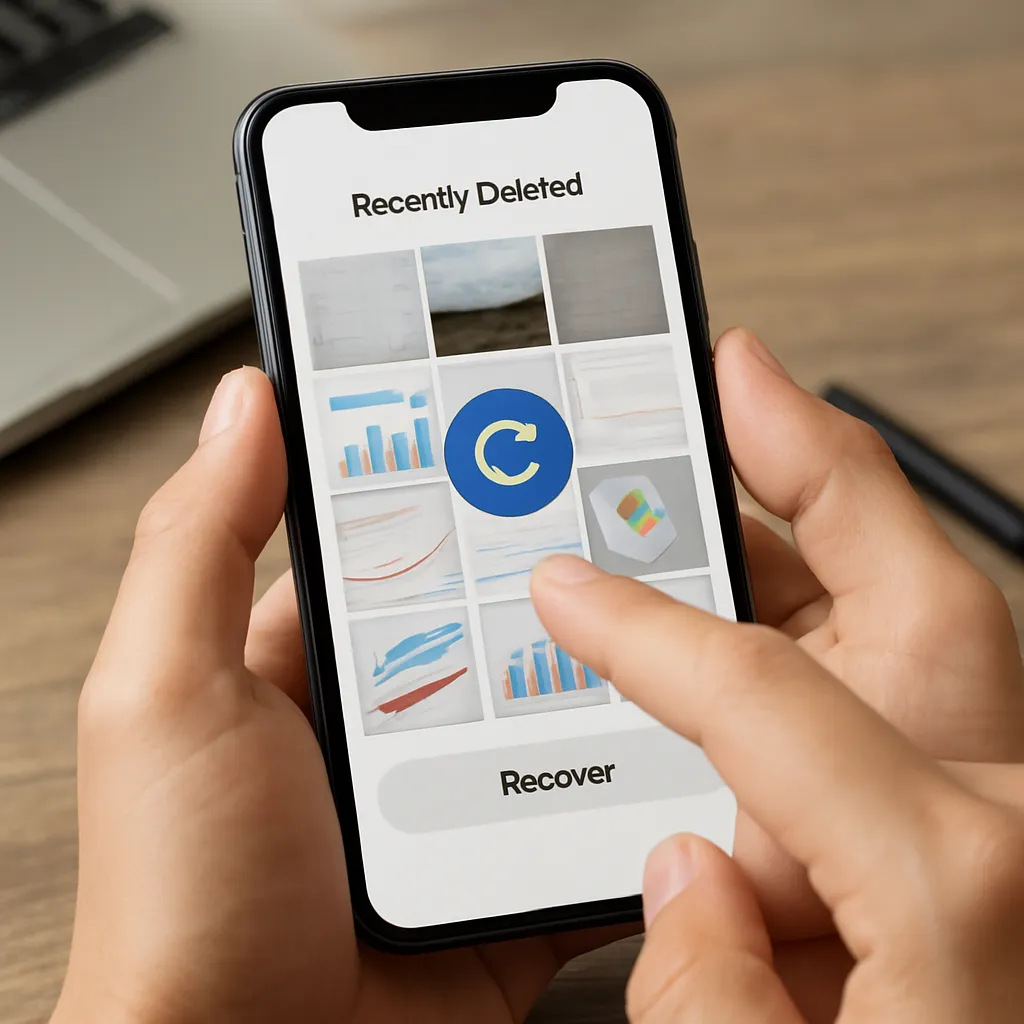
Accidentally deleting important screenshots can be a nerve-wracking experience, especially when those images hold valuable information or irreplaceable memories. Fortunately, there are proven techniques and specialized software solutions designed to help you recover lost screenshots from both Android and iOS devices. This guide will walk you through the fundamentals of data loss, necessary preparations, and a variety of effective recovery methods to maximize your chances of successfully restoring deleted screenshots.
Understanding Data Loss and Recovery Basics
Before diving into recovery procedures, it’s crucial to know what happens when a file is deleted and how recovery tools exploit the underlying storage mechanisms. Whether you’re using a smartphone with internal flash memory or an external SD card, deleted files aren’t immediately wiped. Instead, the operating system marks the space they occupy as available for new data. This is why acting quickly is vital: the longer you continue using your phone, the higher the likelihood that new data will overwrite the sectors that held your screenshots.
File Deletion Process
- Logical vs. Physical Deletion: When you tap “Delete,” the OS usually removes references to the file in its index, but leaves the actual data intact until it’s overwritten.
- Index Tables and File Pointers: Operating systems maintain a directory of file pointers. Deletion simply clears those pointers, making the space reusable.
- Overwriting Risk: Continued usage, such as taking new pictures or installing apps, increases the risk of permanent data loss.
How Recovery Algorithms Work
Recovery tools employ various scanning algorithms to identify remnants of deleted files. They can perform:
- Quick Scan – Searches index tables for recently deleted entries.
- Deep Scan – Examines raw memory blocks to reconstruct file fragments based on known file headers and footers.
- Signature-Based Detection – Matches binary patterns associated with common image formats like PNG or JPEG.
Preparing Your Phone for Recovery
Proper preparation can significantly increase the probability of successful retrieval. Follow these steps immediately after realizing that screenshots are missing.
1. Stop Using the Device
- Disable automatic updates, messaging apps, and other services generating new data.
- Avoid taking new photos or downloading media to reduce overwrite risk.
2. Enable Flight Mode
- Switch to airplane mode to prevent background syncing or temporary files from being created.
3. Free Up Sufficient Space
- Ensure at least 20–30% of total storage is free to allow recovery tools to operate efficiently.
- Delete large, unnecessary files temporarily, but be cautious not to overwrite critical areas.
4. Choose the Right Recovery Software
Selecting a reliable tool is essential. Look for features such as support for your device model, ability to recover from internal memory, and a preview function. Some popular options include:
- Dr.Fone – User-friendly interface, iOS and Android compatibility.
- PhoneRescue – Known for high integrity of recovered files.
- DiskDigger – Lightweight, good for SD card recovery.
- Recuva – Desktop-based, offers deep scanning for USB mass storage.
Methods to Restore Deleted Screenshots
Method A: Utilizing Built-in Phone Features
Both Android and iOS come with native “Recently Deleted” or “Trash” folders that temporarily store deleted media before permanent removal.
- Android – Open Gallery or Google Photos, navigate to “Trash” or “Bin,” select screenshots, and tap “Restore.”
- iOS – In Photos app, go to “Albums” > “Recently Deleted,” choose images, and hit “Recover.”
Limitations: Items are usually retained for only 30 days. After that, they’re purged automatically.
Method B: Recovering from Cloud Backups
If you’ve enabled cloud synchronization, there’s a good chance your screenshots have been backed up off-device.
- Google Drive/Google Photos – Check “Backups” section for automatic uploads.
- iCloud – Log in to iCloud.com, navigate to Photos, and locate your missing screenshots.
Pros: High success rate if backups are intact. Cons: Requires active sync prior to deletion.
Method C: PC-Based Recovery Software
For deeper recovery, consider desktop applications that interface with your phone via USB. These programs can bypass certain OS restrictions and perform thorough memory scans.
Step-by-Step Guide
- Download and install chosen recovery tool on your PC or Mac.
- Enable USB Debugging (Android) or trust the computer (iOS).
- Connect your phone via USB cable.
- Launch the recovery application and select “Recover from Phone” or “Recover Photos.”
- Choose Quick Scan first; if no results, proceed to Deep Scan.
- Preview found screenshots; select and restore to your computer or directly back to phone.
Method D: Recovering from External SD Cards
If screenshots were stored on an SD card, a card reader and standard file recovery program can be used.
- Power off your phone and remove the SD card.
- Insert it into a reliable card reader and connect to your computer.
- Run a recovery tool (e.g., DiskDigger, Recuva) and perform deep scanning.
- Save retrieved screenshots to a safe location on your PC.
Method E: Manual ADB Extraction (Advanced Users)
For tech-savvy individuals, using Android Debug Bridge (ADB) can enable manual extraction of thumbnail caches or hidden directories where screenshots may still reside.
- Install Android SDK Platform Tools on your computer.
- Enable USB Debugging on your device.
- Open a command prompt and run “adb pull /sdcard/DCIM/Screenshots/ ./ScreenshotsBackup”.
- Check the local “ScreenshotsBackup” folder for any recoverable files.
Method F: Professional Data Recovery Services
If DIY attempts fail, specialized labs can disassemble your device and use forensic equipment to extract data directly from memory chips. This option is costly but offers the highest chance of recovery for critical screenshots.
- Contact certified recovery centers experienced in mobile devices.
- Provide device model and a description of your data loss scenario.
- Agree on pricing and turnaround time—often 3–7 business days.
Best Practices to Prevent Future Data Loss
Prevention is always better than recovery. Adopt these habits to minimize the risk of losing screenshots in the future:
- Enable automatic backup services (cloud or local).
- Regularly transfer important screenshots to computer or external drive.
- Use file management apps with built-in recycle bins.
- Keep your operating system and recovery software up to date.
- Consider dual storage options (internal and microSD) for redundancy.