
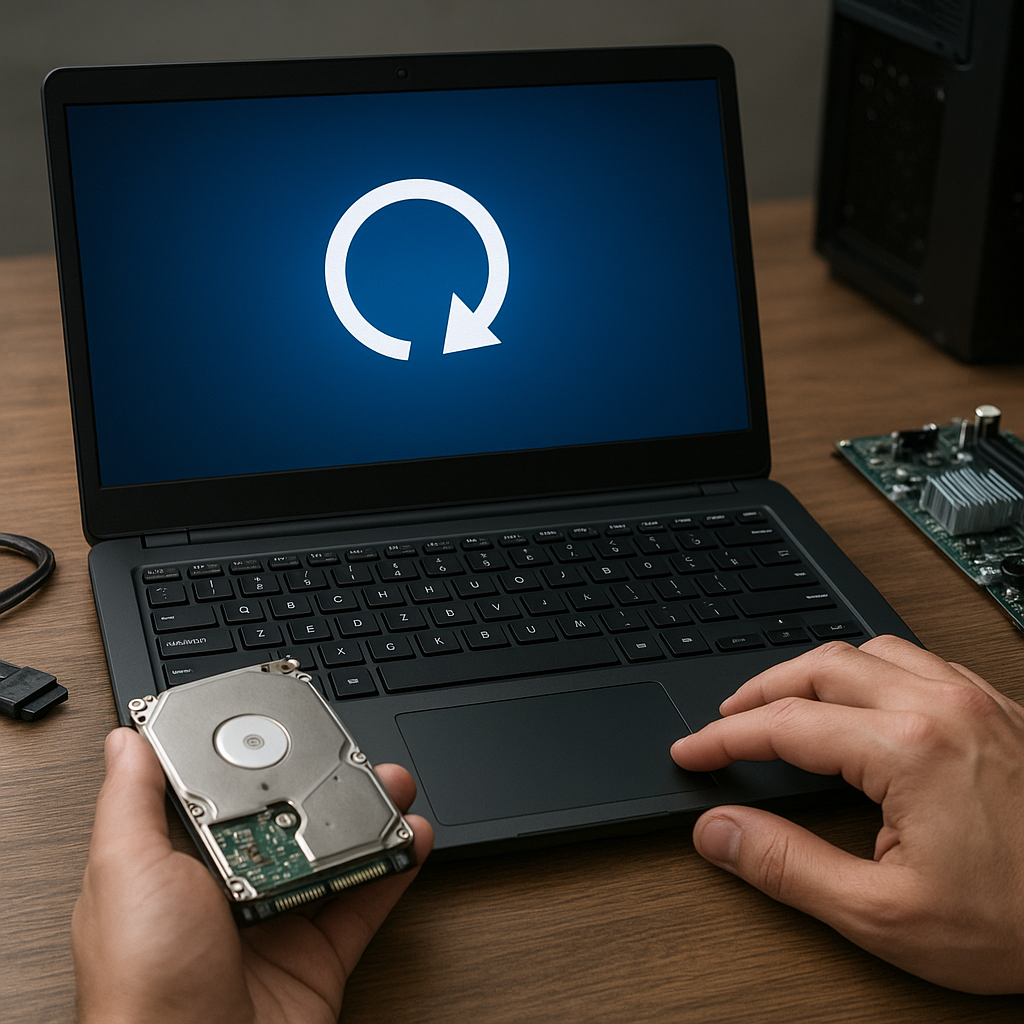
Encountering a sudden BIOS reset or failure can trigger an unexpected scramble to preserve critical data. While the system may refuse to boot normally, all hope is not lost. With the right approach to recovery and a solid understanding of underlying processes, you can restore access to your valuable files.
Understanding BIOS Resets and Failures
The Role of BIOS in System Boot
The BIOS (Basic Input/Output System) is the fundamental firmware that initializes hardware components before handing control over to the operating system’s bootloader. It verifies CPU, memory, disk controllers and peripheral devices through the Power-On Self Test (POST). A properly functioning BIOS ensures that all integrity checks pass and that the system can locate the correct partition containing your OS and user data.
Common Causes of BIOS Resets and Failures
Several scenarios may lead to a BIOS reset or failure:
- Corrupted BIOS firmware due to interrupted updates
- CMOS battery exhaustion causing loss of BIOS settings
- Electrostatic discharge or power surges damaging BIOS chips
- Malware or rootkits overwriting BIOS memory
- Human error while tweaking advanced settings
When the BIOS malfunctions, it may revert to factory defaults, fail to detect storage devices, or refuse boot operations entirely. In such cases, the operating system environment becomes inaccessible, but underlying data often remains physically intact.
Assessing Data Integrity Post-BIOS Reset
Identifying At-Risk Partitions
After resetting the BIOS, the very first task is to determine whether the disk partitions are still recognized. Booting from an external recovery medium, such as a USB stick loaded with a live Linux distribution or Windows PE, lets you inspect disk state without modifying its contents. Pay special attention to:
- Partition tables (MBR vs. GPT) for evidence of corruption
- Unallocated space indicating lost or hidden volumes
- File system flags suggesting dirty or inconsistent states
If partitions appear intact, prioritize creating a full disk image to preserve the current state before any further operations. This approach prevents accidental data loss during intensive recovery procedures.
Verifying File System Consistency
Consistency checks ensure that directory structures and metadata remain reliable. Use file system-specific tools:
- chkdsk for NTFS/FAT on Windows PE environments
- fsck for ext4, XFS, or other Linux file systems
- diskutil verifyVolume on macOS partitions
Note that running automated repairs can sometimes overwrite or delete sectors deemed “corrupted.” You may prefer to mount the volume read-only and extract critical files manually, especially when dealing with enterprise-grade file systems or encrypted containers.
Recovery Strategies and Best Practices
Using Professional Recovery Software
Specialized tools can expedite file restoration, offering features tailored to BIOS-related failures. Key capabilities to look for include:
- Partition re-creation wizards to rebuild damaged tables
- Deep sector analysis to recover files from low-level data remnants
- Support for multiple file systems and dynamic disk formats
- Preview functions to validate recovered items before saving
When selecting a solution, verify that it can produce a disk image and mount snapshots in a sandboxed environment. This way, you can work on a clone rather than the original drive, eliminating the risk of further data corruption.
Restoring From Backups and Snapshots
Having a reliable backup plan is the single most effective way to minimize downtime after BIOS disasters. Strategies include:
- Regular full-disk snapshots using imaging software
- Incremental backups for rapid change detection and minimal storage use
- Offsite or cloud-based repositories for redundancy
- Bootable recovery environments to automate re-deployment
When leveraging snapshots, ensure that they include not only the OS partition but also critical data volumes and system configuration files. In enterprise setups, integration with virtualization platforms can provide point-in-time recovery without manual intervention.
Preventive Measures and Long-Term Planning
Securing the BIOS Against Future Failures
Preventing BIOS issues requires a combination of hardware and software controls:
- Enable BIOS-level passwords and secure boot features
- Regularly update firmware from trusted vendors, verifying digital signatures
- Replace aging CMOS batteries before they fall below operational thresholds
- Implement uninterrupted power supplies (UPS) to guard against surges
Implementing Robust Data Protection Policies
A comprehensive data protection strategy encompasses more than backups. Consider:
- Disk encryption to safeguard data even if the BIOS is compromised
- Network-attached storage (NAS) with RAID configurations for fault tolerance
- Routine audits of backup logs and restoration drills
- Documentation of recovery procedures and roles for fast response
By combining proactive maintenance, secure configuration, and a layered backup approach, you minimize the likelihood that a BIOS reset or failure will translate into permanent data loss. Effective planning transforms recovery from a frantic scramble into a predictable, streamlined operation.











