Maintaining the integrity of important photos, videos, and documents stored on an Android device can be a daunting task when accidental deletion or system glitches strike. Fortunately, advanced recovery solutions have emerged to help users retrieve precious content from unrooted smartphones. This guide explores the challenges of recovering files on Android platforms without root access, highlights the key features of reliable software, and provides a comprehensive walkthrough for successful restoration.
Causes of Data Loss and Challenges Without Root
Accidental Deletion
Accidental deletion remains the most common culprit behind lost data. A tap in the wrong place or a hurried confirmation can wipe entire folders of photos or documents. Once removed from the recycle bin or deleted by a third-party app, these files vanish from the user interface. On an unrooted device, the operating system typically marks the storage sectors as available for overwriting, and user permissions restrict direct access to those sectors, complicating recovery.
System Crash or OS Update Gone Wrong
Operating system updates promise new features but sometimes end in corruption. A failed update or unexpected crash can render the device unbootable, leaving valuable files stranded behind a locked bootloader. Without root privileges, specialized tools must rely on connecting to the Android Debug Bridge (ADB) or leveraging MTP/PTP modes to extract and analyze raw storage blocks safely.
Malware and File System Errors
Malicious apps or viruses can stealthily corrupt or encrypt your data, making files inaccessible. Similarly, file system errors—caused by abrupt power loss, faulty SD cards, or hardware issues—often result in logical damage rather than physical failure. For unrooted devices, recovery software must work around these restrictions by scanning accessible partitions and reconstructing file headers in memory.
Key Features of Effective Android Recovery Software
Deep Scan Capability
- Ability to perform raw sector-by-sector analysis on internal storage and external cards
- Support for FAT, exFAT, and ext4 file systems commonly used on Android
- Advanced filtering to differentiate between deleted and existing files during scanning
Wide File Format Support
- Compatibility with popular image formats (JPEG, PNG, GIF) and RAW camera files
- Support for video containers (MP4, 3GP, MKV) and audio tracks (MP3, WAV, AAC)
- Recovery of documents (PDF, DOCX, XLSX) and compressed archives (ZIP, RAR)
Preview Functionality
Before committing to recovery, preview features let users inspect thumbnails and metadata for lost items. This crucial step reduces clutter and ensures that only relevant content is restored, saving time and avoiding the transfer of corrupted or irrelevant data.
User-Friendly Tools and Interfaces
Intuitive interfaces guide non-technical users through the process. Clear progress bars, step-by-step wizards, and contextual help reduce the learning curve. Modern recovery suites also offer mobile-friendly dashboards that preserve the native environment, eliminating the need to navigate unfamiliar command-line utilities.
Step-by-Step Guide to Recover Files from Android Without Root
Prepare Your Device
Ensure the device has sufficient battery or connect it to a charger to prevent power loss during recovery. Disable any auto-sync or backup services temporarily to avoid overwriting deleted sectors with new data. If possible, work in “Airplane Mode” to stop background app updates and system processes.
Install and Launch the Recovery Application on Your Computer
Download a trusted recovery suite compatible with Windows or macOS. Avoid installing multiple similar tools on the same machine to prevent conflicts. After launching the software, select the appropriate recovery module for Android devices. Many solutions automatically detect unrooted hardware via MTP, PTP, or ADB protocols.
Connect to a Computer and Grant Permissions
Use the original USB cable and connect your Android phone or tablet to the computer. On-screen prompts will request permission to access your device’s storage. Approve any ADB authorizations or MTP/USB debugging requests to grant the recovery software necessary read-only privileges.
Choose Scan Mode
Select between a quick scan and a deep scan. A quick scan locates recently deleted files in the file allocation tables, while a deep scan reconstructs file headers from raw sectors. The deep scan is more time-consuming but maximizes the chance of retrieving severely corrupted or overwritten data.
Filter, Preview, and Select Items
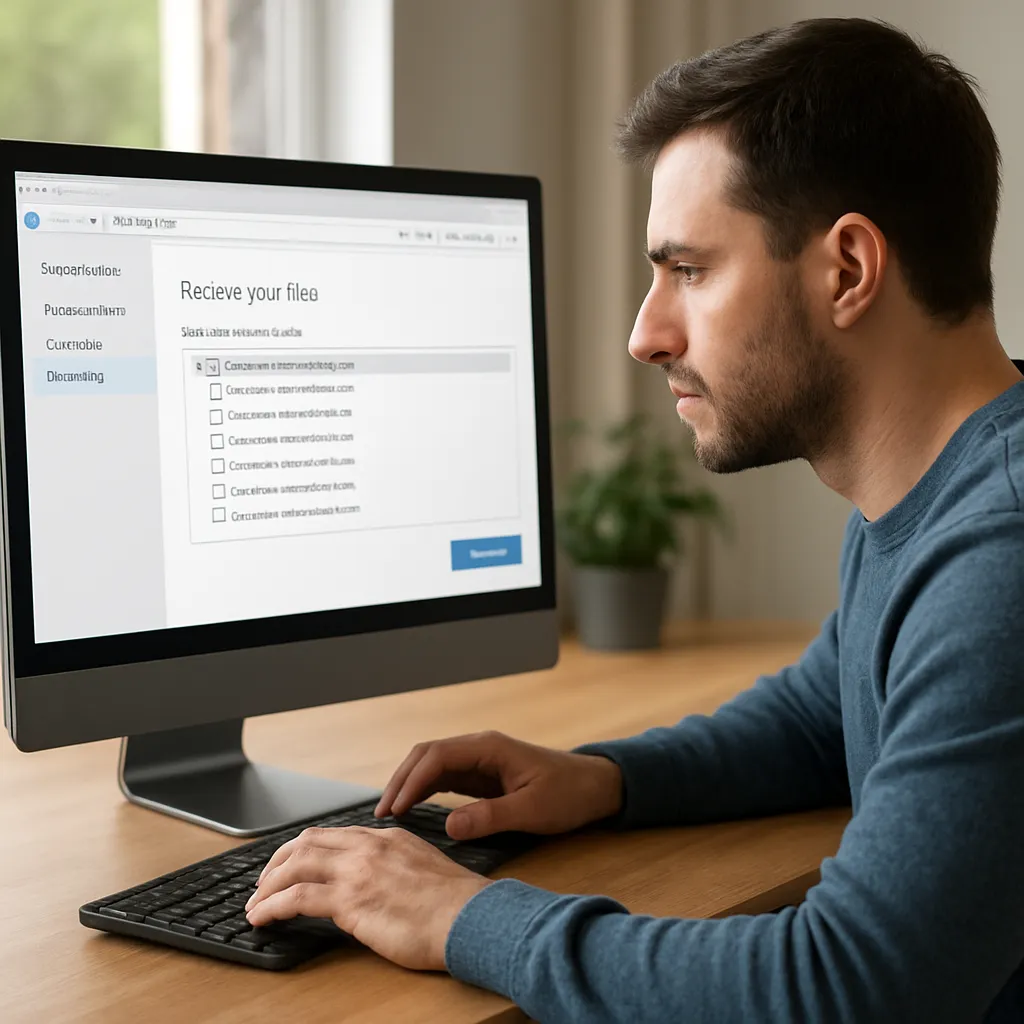
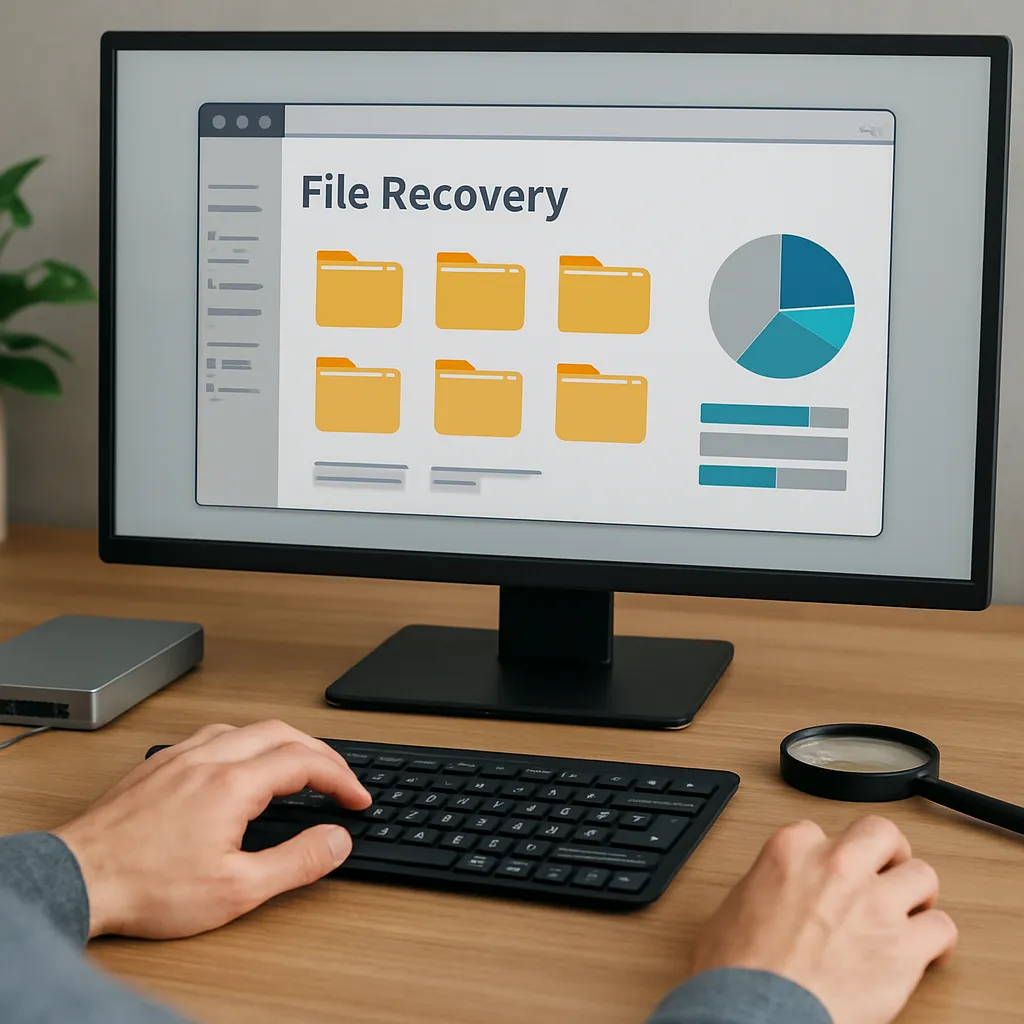
Once scanning completes, use built-in filters to sort by file type, size, or deletion date. Preview images, videos, and document thumbnails to verify integrity. Mark the checkboxes next to the files you wish to recover. Discard unwanted items to conserve time and storage.
Recover and Export to a Safe Location
Click the Recover button and choose a destination folder on your computer—never on the same Android device to avoid overwriting. Once the process finishes, review the recovered content. For large libraries, consider organizing restored files in clearly labeled subfolders for easy identification.
Best Practices to Protect Your Data
Regular Backups
Implement an automated backup schedule using cloud services or desktop synchronization tools. Services like Google Drive, Dropbox, or Nextcloud can mirror your camera roll and documents continuously, significantly reducing recovery efforts in case of accidental deletion.
Safe Storage Management
Avoid filling internal memory to capacity. Maintain at least 15–20% of free space to allow the system to manage temporary files efficiently. Periodically format or replace aging SD cards known to develop bad sectors over time, which can lead to irreversible data corruption.
Use Trusted tools and Verified Sources
Download recovery applications only from official websites or reputable app stores. Beware of rogue apps claiming miraculous recovery capabilities but injecting malware. Verify digital signatures and read user reviews before installing any third-party solution.
Encrypt Sensitive Content
If you handle confidential documents or personal media, use built-in encryption features. Android’s device encryption ensures that even if a device is lost or stolen, unauthorized parties cannot access your protected files without proper credentials. Regularly update your PIN or password to enhance security.
Monitor System Health
Keep your device’s firmware and apps up to date. System updates often include patches for file system vulnerabilities. Use diagnostic utilities to check storage health, monitor for bad sectors, and confirm that the file system integrity remains intact, reducing the risk of unexpected data loss.