
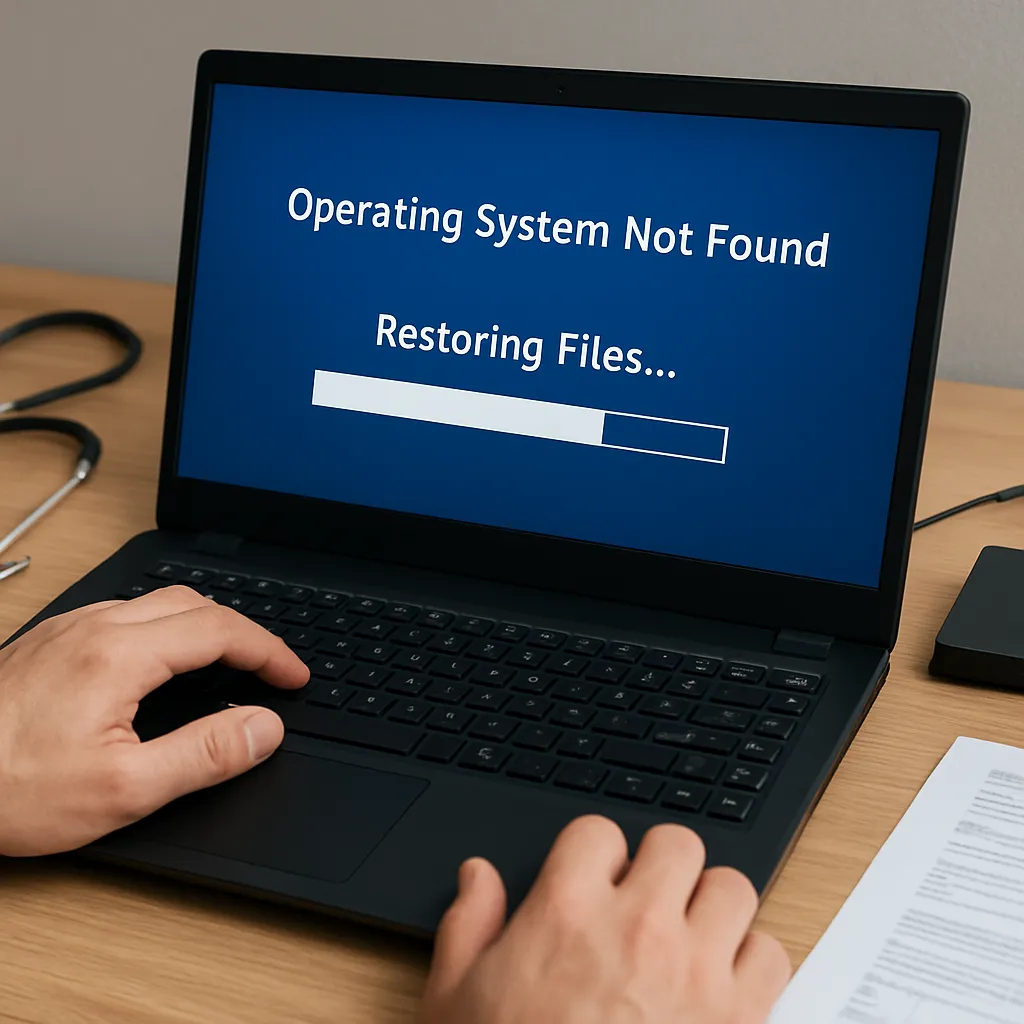
Facing a system that refuses to boot can be both alarming and frustrating. Whether due to a sudden power failure, malware attack, or hardware malfunction, a corrupted operating system environment can jeopardize critical data. This comprehensive guide will walk you through diagnosing the root cause, accessing recovery environments, employing professional software, adopting advanced recovery techniques, and implementing preventive strategies to safeguard your digital assets.
Diagnosing a Failing Boot Environment
Common Symptoms of Boot Corruption
Before attempting any recovery procedure, it’s important to recognize the corrupted boot environment. Frequent indicators include:
- System hang during the BIOS or UEFI phase
- Blue Screen of Death (BSOD) with error codes
- Repeated restarts without progress
- Error messages referencing missing boot sector or bootloader
- “No operating system found” alerts
Identifying Damaged Sectors and File System Errors
Disk errors often manifest as bad sectors or corrupted metadata structures within the file system. Use diagnostic tools embedded in modern systems to verify integrity:
- CHKDSK (Windows) with the /f and /r flags
- fsck (Linux) on unmounted partitions
- SMART data review in the BIOS/UEFI or via third-party utilities
These checks can pinpoint physical defects, orphaned files, or inconsistencies that prevent a normal boot sequence.
Accessing a Recovery Environment
Utilizing Built-in Safe Modes
Most operating systems provide a minimal environment to troubleshoot startup issues. Booting into safe mode (Windows), recovery mode (macOS), or single-user mode (Linux) limits loaded drivers and services, allowing you to:
- Roll back recent driver or registry changes
- Uninstall malware or faulty software
- Run system-level utilities without interference
Creating and Booting from Rescue Media
When internal recovery options fail, external media become essential. Prepare a bootable USB or CD/DVD with a specialized environment:
- Windows Recovery Environment (WinRE)
- Linux Live distributions (e.g., Ubuntu Live, SystemRescue)
- macOS Recovery on external drives
These environments support tools for partition management, file copying, and launching dedicated recovery software without altering the host OS.
Employing Professional Recovery Software
Selecting Reliable Tools
With countless utilities available, choose software that combines a user-friendly interface, robust scanning methods, and proven success rates. Key features to look for:
- Deep sector-level scanning with customizable parameters
- Support for major file systems (NTFS, FAT32, ext4, APFS)
- Preview capability to verify file integrity before restoration
- Read-only access to avoid further damage
- Built-in cloning or imaging functions
Step-by-Step Restoration Workflow
- Create an image of the affected drive to preserve the current state and prevent additional wear.
- Load the recovery tool in the rescue environment or via a secondary OS install.
- Perform a quick scan to locate major directory structures and file tables.
- Follow with a deep or signature scan that uses file type algorithms to reconstruct deleted or inaccessible files.
- Preview recovered items to confirm completeness and avoid corrupt entries.
- Export files to a separate storage device—never overwrite the source.
Advanced Recovery Techniques
Manual Partition Table Repair
When the partition table itself is damaged, automatic tools may fail. Experts can intervene with low-level editors or hex editors to restore table entries:
- Compare with a healthy backup or reference disk layout.
- Validate starting and ending partitions offsets against disk size.
- Rebuild GUID or MBR entries, ensuring correct sector alignment.
Reconstructing File Carving and Fragmentation Handling
Highly fragmented files pose challenges because fragments scatter across the media. Advanced tools can:
- Detect cluster chains using signature analysis
- Reassemble non-contiguous fragments
- Perform smart stitching based on timestamp and byte patterns
This meticulous approach often uncovers salvageable data that standard scans miss.
Implementing Preventive Strategies
Establishing a Robust Backup Plan
The single most effective defense against OS failures is a comprehensive backup strategy:
- Create regular system images stored on external drives or network locations.
- Combine full, incremental, and differential backups to balance speed and storage consumption.
- Verify backups periodically to ensure restorability.
Maintaining System Health
Prevention also relies on proactive maintenance:
- Update firmware, drivers, and the OS to patch vulnerabilities.
- Monitor disk health via SMART alerts and third-party utilities.
- Defragment mechanical drives to minimize fragmentation overhead.
- Use surge protectors and UPS units to guard against power spikes.
Leveraging Cloud and Offsite Solutions
Cloud storage and offsite replication add redundancy beyond local media. Modern platforms can provide continuous data protection, versioning, and rapid retrieval in case of local integrity loss.











